MDS 05-7280A01, Rev. A MDS TransNEXT Technical Manual 29
Establishing Communication— USB
Follow these steps to configure the unit for USB:
Connect a PC to the unit’s USB port as shown in Figure 3-6. Maximum recommended cable length
is 6 ft/2 m.
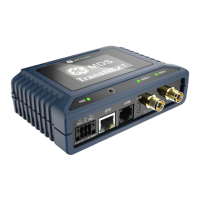
Figure 3-5. PC Connection for Programming/Management
The USB will instantiate a COM port to the PC
Launch a terminal communications program, such as Tera Term or PuTTY, with the COM port
matching the USB port instantiated by the TransNEXT device.
NOTE If a message like the one below is displayed, that means that an SSH CLI session is already
active. Pressing “D” will force the SSH connection to drop, freeing the USB port to continue
with login
Remote SSH console session in progress.
Please press D to disconnect remote console user.
Login with the user name “admin” and default admin password for this unit.
Establishing Communication—Serial Interface
Follow these steps to configure the unit for its first use with serial console interface:
Connect a PC to the unit’s COM port as shown in Figure 3-6. Maximum recommended cable length
is 6 ft/2 m.
Launch a terminal communications program, such as Tera Term or PuTTY, with the following
communication parameters: 115200 bps (default speed), 8 bits, no parity, one stop bit (8N1) and
flow control disabled. Incorrect parameter settings are a frequent cause of connection difficulties.
Double check to be sure they are correct.
Figure 3-6. PC Connection for Programming/Management
Enter “+++” to cause the serial payload port to temporarily enter into command line mode.
At the Login: prompt, login with the user name “admin” and default admin password for this unit.

 To Next Page
 Loading...