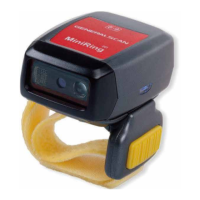
WT Series Installation
1.Put the smartphone with protective case and fix with double side
magic sticker
2.Reference the following diagram, plug Micro-USB cable into Android
smartphone charging port
3.Put the battery into compartment and close the battery door.
4.Power on the pow switch ,make sure the blue LED turn on.
5.Power on the ring scanner power switch.
6.Install Generalscan keyboard app or SDK apps.
7.Power off and Power on again , the Android system will find Android
USB Accessory .
8.Then you can scan the barcode and transfer the barcode into your apps
For detailed instructions, please visit the following web site.


 To Next Page