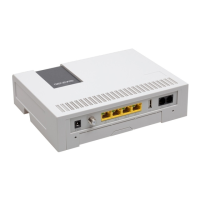
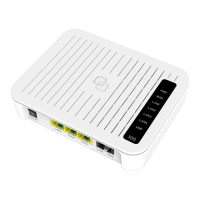
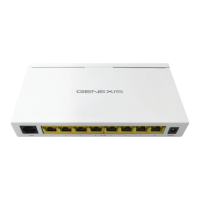
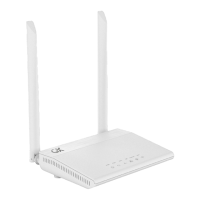
The Genexis FiberTwist-Series P2410 and P2411 are active devices designed for fiber optic networks, serving as an Optical Network Terminal (ONT) or similar network termination unit. These devices are part of the FiberTwist-Series, indicating a modular design that allows for easy installation and removal from a baseplate (FTU).
Function Description:
The primary function of the P2410 and P2411 is to convert optical signals from a fiber optic network into electrical signals for local area network (LAN) connectivity. They provide multiple LAN ports for connecting personal devices, such as computers, routers, or other network-enabled equipment, to the internet or a local network. The devices are designed for indoor use and integrate into a home or office environment. They feature a system LED to indicate operational status and an uplink LED to show the status of the optical link.
Important Technical Specifications:
- Connectivity:
- LAN Ports: Four RJ45 LAN ports (LAN1, LAN2, LAN3, LAN4) are available for connecting devices via Ethernet cables.
- Power Port: A dedicated port for connecting the supplied power adapter.
- Optical Interface: The device connects to a FiberTwist baseplate (FTU) which provides the optical fiber connection. The installation process emphasizes careful handling of fiber optic connectors to prevent signal degradation.
- Laser Safety: The FiberTwist is classified as a Class 1 laser product, indicating that under normal operating conditions, the laser radiation is contained and not hazardous.
- Compliance: The devices comply with several EU Directives, including 2014/30/EU (EMC), 2014/35/EU (Low Voltage), 2011/65/EU (RoHS), Delegated Directive 2015/863 (RoHS 3), and Ecodesign Directive 2009/125/EC. This ensures the products meet European standards for safety, environmental protection, and electromagnetic compatibility.
- Power: Requires an external power adapter (supplied with the device).
Usage Features:
- Easy Installation (FiberTwist Mechanism): The FiberTwist design allows for a simple, tool-free installation. The device is placed on the FTU at a 30-degree angle and then rotated clockwise until it clicks into place and is squarely aligned. This mechanism simplifies deployment and maintenance.
- Button Overview:
- Unlock Button: Used to remove the FiberTwist device or a blind cover from the baseplate. It requires pressing and holding while twisting counterclockwise.
- Reset Button (recessed): A recessed button for resetting the device. It requires a press and release action.
- LED Dim Button: Allows users to dim the brightness of the LEDs in steps by pressing and releasing the button.
- LED Indicators:
- System LED:
- Green (solid): System is operating correctly.
- Green (blinking): Device is booting up.
- Red (solid): System error has occurred.
- Red (blinking): Insufficient optical signal detected.
- Off: Device is powered off.
- Uplink LED:
- Green (solid): Optical link is established and working correctly.
- Green (blinking): Optical link is established, but there is no remote management connectivity.
- Off: No optical link is detected.
- LAN Connectivity: Provides four standard Ethernet ports for connecting wired devices, offering reliable and high-speed data transfer within the local network.
- Modular Design: The FiberTwist concept allows for easy replacement or upgrade of the active device without disturbing the fiber optic connection on the baseplate, which remains installed.
Maintenance Features:
- Blind Cover Management: If a blind cover is present on the FTU, it must be removed before installing the FiberTwist device. The instructions emphasize storing the blind cover safely for future use, particularly if the FiberTwist device needs to be uninstalled. Reinstalling the blind cover protects the fiber optic connectors on the FTU.
- Dust Cap Management: The FiberTwist device comes with a dust cap connected by a red string. This dust cap must be removed before installation and stored safely. It is crucial to replace the dust cap on the FiberTwist device if it is uninstalled, to protect the optical interface from dust and damage.
- Reset Functionality: The recessed reset button allows for a quick and easy way to restart the device, which can be useful for troubleshooting minor issues or applying new configurations.
- LED Dimming: The LED dim button provides a user-friendly way to adjust the brightness of the status indicators, which can be beneficial in environments where bright LEDs might be distracting, such as bedrooms.
- Documentation and Support: The installation guide provides clear instructions and refers to the Genexis website for additional language versions and product information, ensuring users have access to necessary support resources.
- Careful Handling of Fiber Optics: The manual strongly advises following instructions precisely and uninterruptedly during installation to minimize the risk of damaging fiber optic connectors, which could severely degrade signal quality. This highlights the importance of proper handling for long-term performance and reliability.

 Need help?
 General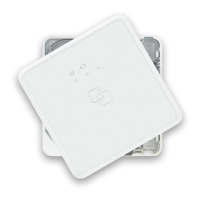

 To Next Page