- 11 -
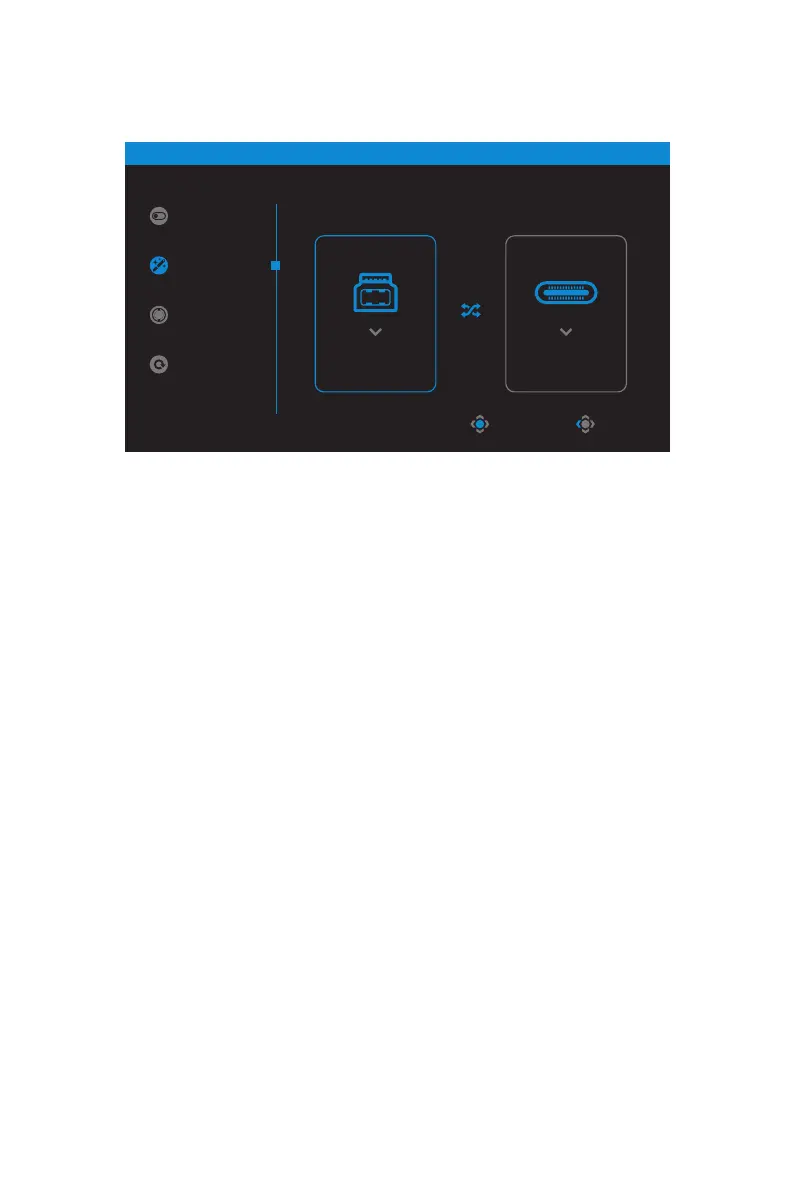
Note: If you set the USB-BDisplay setting to Type-C, the TYPE-CDisplay
menu option will automatically be disabled. You will then see the KVMstatus
in the KVMWizard page as below.
• KVMON/OFF: Enable/Disable the KVM button function.
√ Select ON to enable the KVM button function. Once the system detected
USB Type-C input signal, a message box will appear on the screen.
Press the KVM button or the Control button to switch to USB Type-C
input source.
Note: When the KVM button function is enabled, the KVMONwill be
displayed on the left panel.
√ Select OFF to disable the KVM button function.
Note: When the KVM button function is disabled, the KVMOFFwill be
displayed on the left panel.
• KVMReset: Restore the KVM default settings.
√ HDMI 1 input source is bound with USB Type-B connection.
√ USB Type-C input source is bound with USB Type-C connection.
√ The KVMON/OFF function is set to ON.
KVM
Control 1
Type-C
Control 2
Type-C
STATUS
KVM Switch
KVM Wizard
KVM ON
KVM Reset
ExitSelect



 To Next Page