51 52
App User Guide
Connect Via Android Home Screen
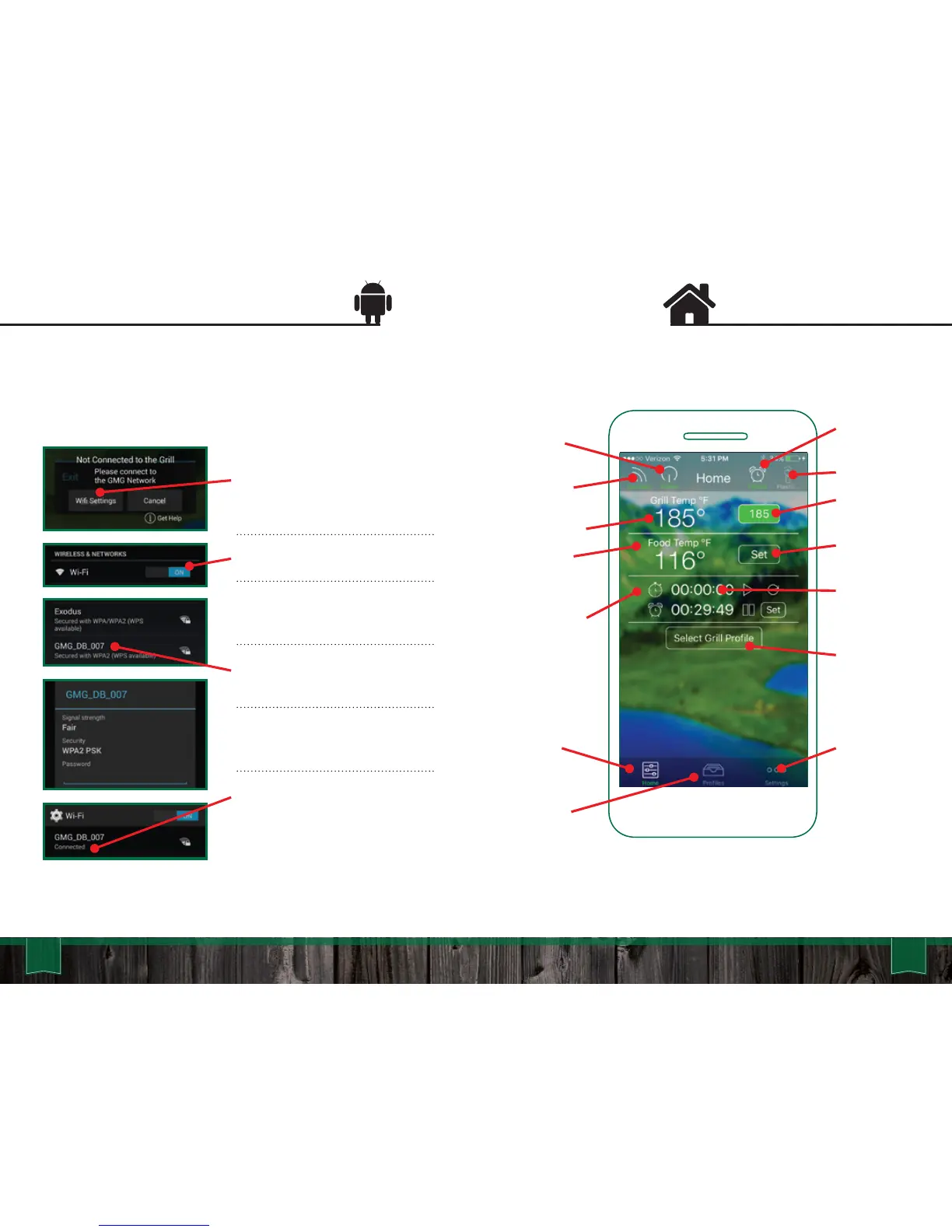
The home screen allows you to keep track of all your
grilling parameters:
The control screen allows you to turn your grill on/off,
set the grill temperature, set food probe temperature,
set a timer and/or stopwatch.
Current
Food Probe
Temp
Current
Grill Temp
Stopwatch
Elapsed
Time
Timer
Flashlight
User Set
Grill Temp
User Set
Food Temp
Remaining
Time for
Timer
Profile
Selection
Home
Profiles
Settings
Power
On/Off
WiFi
Connect
Locating your grill’s WiFi password
It can be found on the back of the digital control board of retrofit
units, or near the serial number plate on the grill exterior.
Start the app. Wait for the WiFi
pop-up, then press “WiFi
settings.”
Make sure your WiFi is on.
When WiFi is enabled, a list of
networks will be displayed.
Select the network that begins
with “GMG_”.
Enter the password for your grill.
Press connect.
It may take up to 1 minute to
connect. Once connected a
“Connected” will appear below
the network.
Point-to-Point



 To Next Page