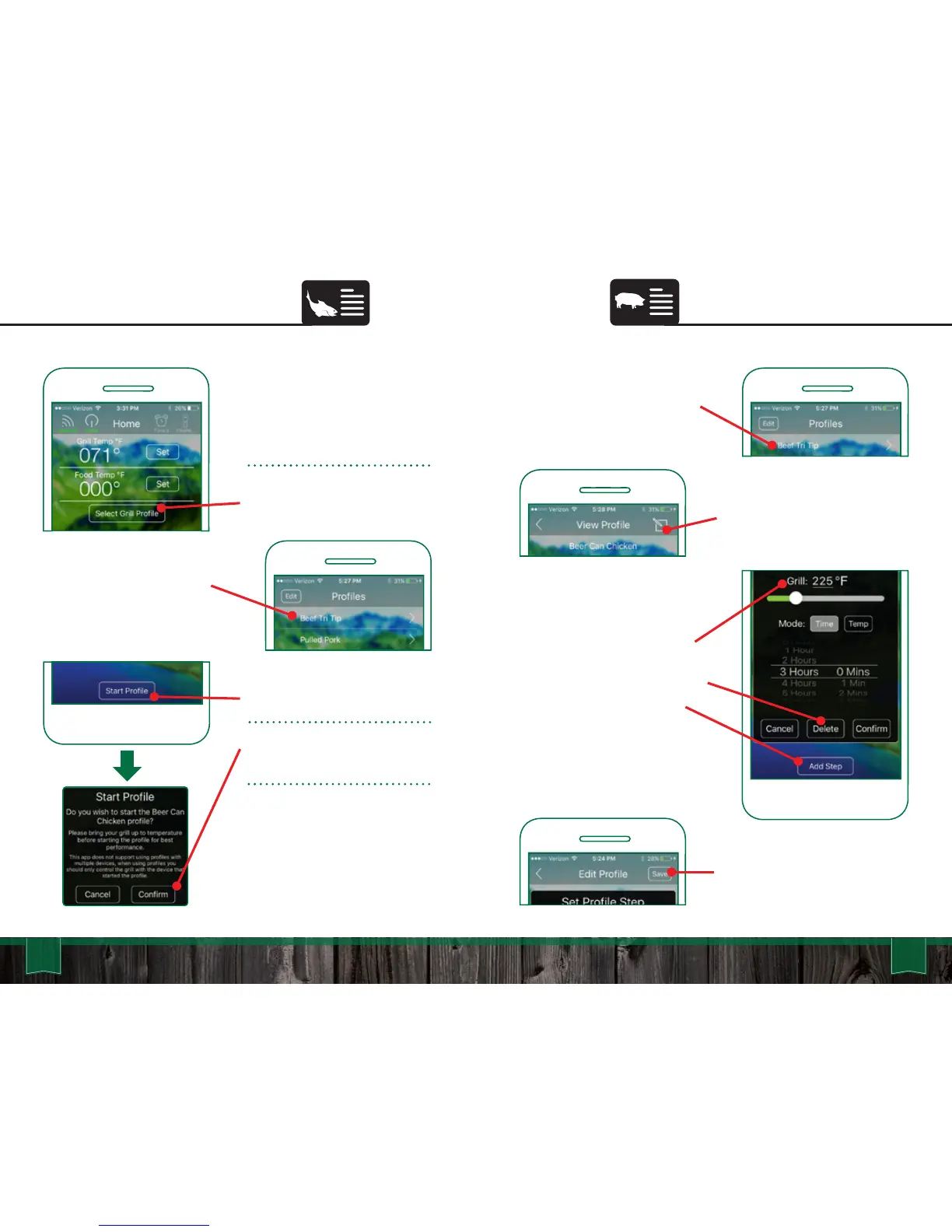
To edit, tap the desired Profile
you wish to edit.
Once open, tap the “Edit” icon.
In Edit Mode, you can:
• Set the Grill Temp, Stop Time, or
desired Food Probe Temp.
• Remove a Step by tapping “Delete”.
• Add a Step by tapping the “Add
Step” button.
• Adjust the Profile to “Keep Warm” or
“Turn Off” for the end Step.
Save all edits by tapping the
“Save” icon.
63 64
App User Guide
Editing Profiles
Starting Profiles
To begin using the Profile you
have already created, make
sure the grill has already run
through the startup process.
Once the grill is warm, press
the “Select Grill Profile” button.
Select the Profile you would
like to run.
Press “Start Profile”.
Press “Confirm” on the pop up
to complete starting the Profile.
Profiles are loaded to the grill’s
memory and will continue to
run even if your phone is
disconnected.



 To Next Page