Pro Tips:
81 82
App User Guide
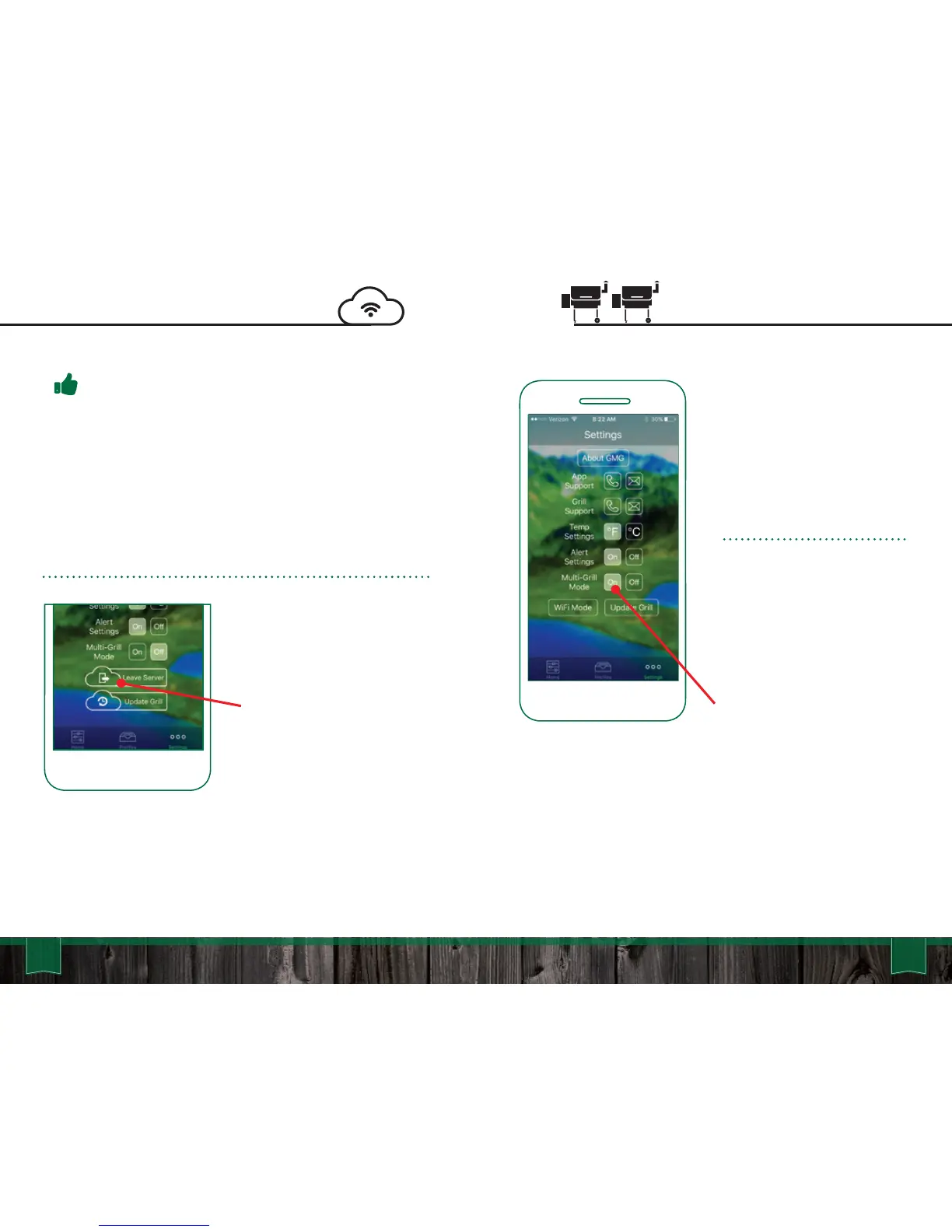
Multi Grill Mode
If you have more than one grill
with WiFi, you can control each
grill separately. You will need to
connect to each grill separately
and connect them to your local
WiFi following the steps in
Single-Grill Mode.
Next, follow these steps:
Single-Grill Mode connects
immediately to the first grill it
finds. By default the app starts
in Single-Grill Mode because it
is the most common
configuration.
Multi-Grill Mode extends
these steps a little longer than
normal to allow it to find every
available grill on the network.
Disconnecting from
Server Mode:
In the GMG app, go to the
Settings tab.
Click the Leave Server button.
The grill should be set back to
WiFi mode and you will have to
press Connect from the home
screen to connect back to the
grill.
Connecting to Server
You must have Firmware version 6.1 or higher to use Server
Mode. To check your firmware view page 67 and to update
your firmware view page 69 in this manual.
Make sure you have the most up-to-date Android or iOS app.
You cannot turn On the grill from Server Mode if you are not
in the vicinity of the WiFi network you started from. This is for
your safety.
In some situations, the grill will go back to Point to Point Mode, if
this happens, you will have to go through the WiFi connection
process to get back to WiFi control (see page 73).
Happy Grilling!
1.
2.
3.



 To Next Page