79 80
App User Guide
Your grill must be connected to your local home WiFi network
before you can connect to the GMG server.
See page 73 for assistance with connecting to WiFi.
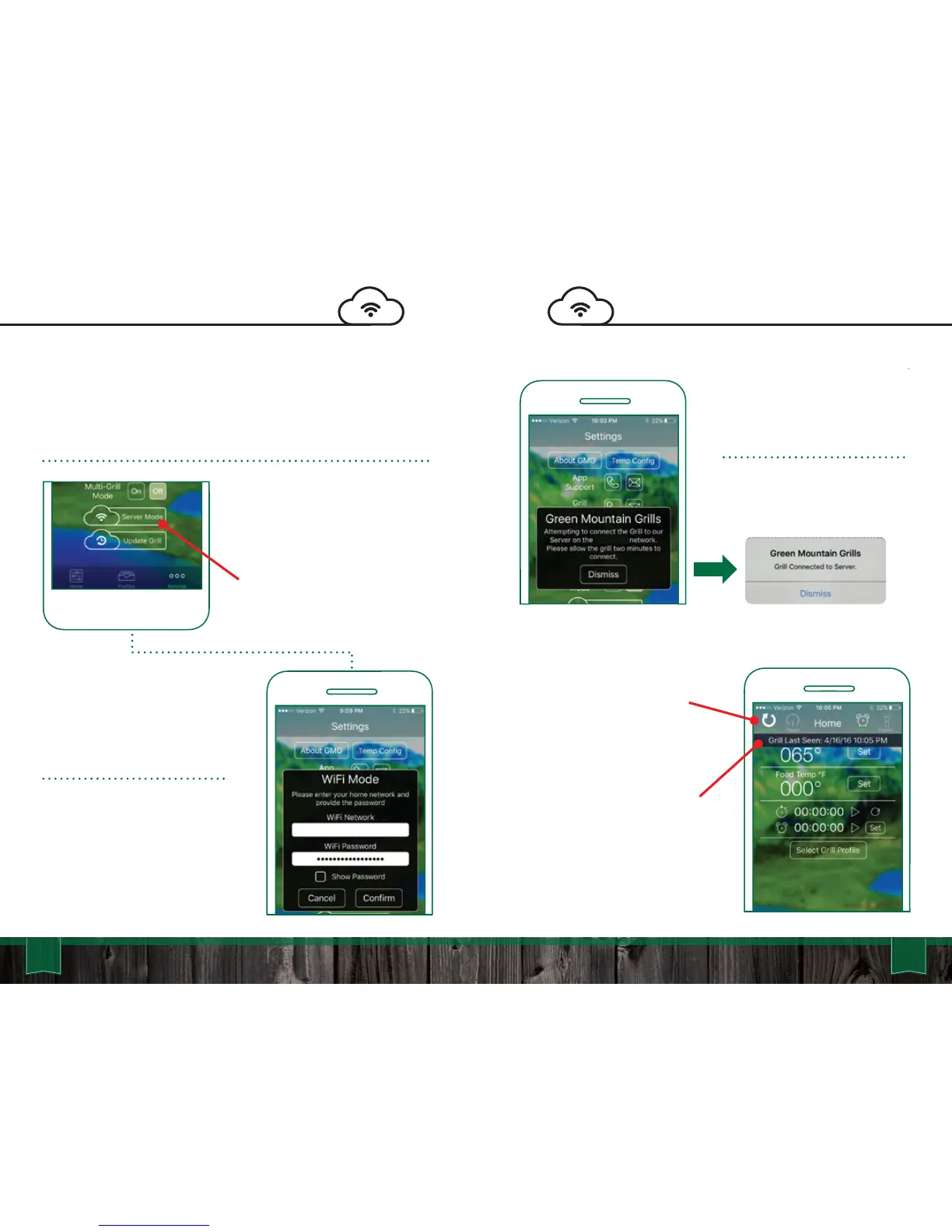
Go to the app settings and you
should now see that the WiFi
Mode button now says Server
Mode.
Tap the Server Mode button.
A prompt will appear to insert
the home WiFi username and
password.
If it is correct, press Confrim.
The Grill will take
approximately 30 – 45 seconds
to contact and connect to the
GMG server.
The Grill will take
approximately 30 – 45 seconds
to contact and connect to the
GMG Server.
When the grill connects, a
prompt will appear saying “Grill
Connected to Server.”
Head to the Home screen, and
the Grill Temp should read the
last known temp.
A new Refresh button will
appear in the upper left hand
corner in place of the Connect
button.
Tap the Refresh button and a
dropdown prompt will display
the last date and time the grill
connected to the server.
The grill is now connected to
Server Mode! Monitor and
control the grill from any cell
phone network.
GreenMountainGrills.com
Connecting to ServerConnecting to Server
YourNetwork
‘YourLocal’



 To Next Page