EasyManua.ls Logo

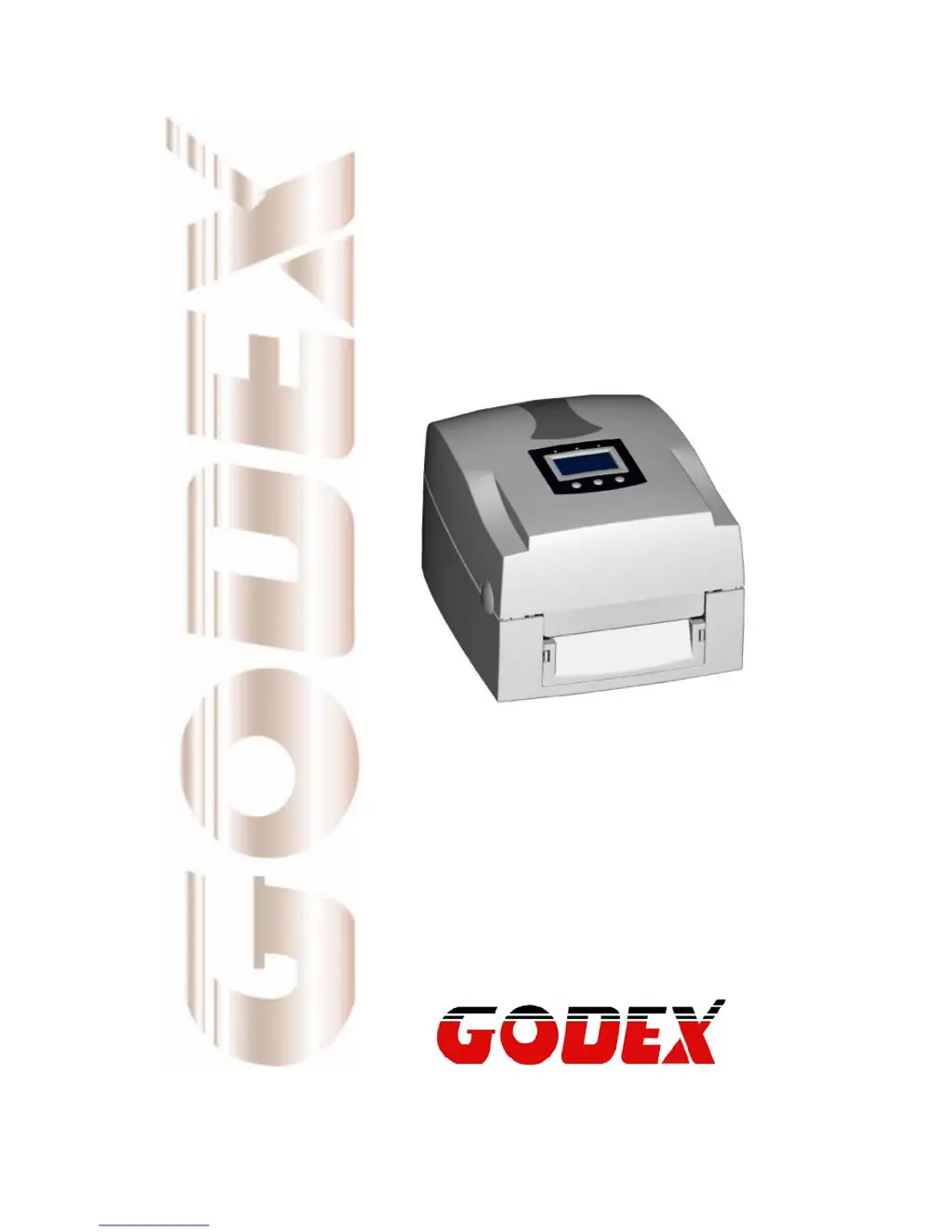
Godex EZPi-1200 - User Manual

Godex EZPi-1200
45 pages
Print Icon
To Next Page IconTo Next Page
Loading...
User’s Manual
EZPi-1000 Series
P/N. 920-013011-01
Rev. A, 08.2009

Questions and Answers

Summary

1. BARCODE PRINTER

1-1. Printer Accessories

Lists items included in the printer package after unpacking.

1-2. General Specifications

Provides detailed technical specifications for EZPi-1200 and EZPi-1300 models.

1-3. Communication Interface

Details parallel, serial (RS232), and USB interface pinouts and settings.

1-4. Printer Parts

Identifies external and internal components of the printer with diagrams.

2. PRINTER INSTALLATION

2-1. Ribbon Installation

Step-by-step guide for installing a ribbon roll into the printer.

2-2. Label Installation

Instructions for loading and aligning label rolls for printing.

2-3. Label Roll Core Installation Instruction

Illustrates how to install different sized label roll cores.

2-4. Card; Hang tags Installation

Instructions for installing card or hang tags using the sensor.

2-5. PC Connection

Details how to connect the printer to a PC via USB or parallel cable.

2-6. Driver Installation

Guides through the process of installing printer drivers on a Windows PC.

3. CONTROL PANEL

3-1. Control Panel Introduction

Introduces the printer's control panel layout, keys, and LED indicators.

3-2. Control Keys Introduction

Explains the function of the FEED, PAUSE, and CANCEL keys.

3-3. Setting mode

Details how to access and navigate the printer's setting menu for customization.

3-4. Self-Test

Describes how to perform a self-test to check printer functionality.

3-5. Dump Mode

Explains the Dump Mode for checking data transmission issues.

3-6. Auto Sensing

Guides on auto-sensing paper length and gap position.

3-7. Keyboard Mode

Instructions for connecting and using a PS2 keyboard for printing.

3-8. Error Messages

Lists common error messages, their causes, and solutions.

4. ACCESSORY

4-1. Stripper Installation

Step-by-step guide for installing the stripper module.

4-2. Cutter Installation

Step-by-step guide for installing the cutter module.

4-3. WLAN Module Installation

Instructions for installing the wireless LAN module.

4-4. CF Card Adapter Installation

Guide for installing the CF card adapter.

4-5. CF Card Instruction

Explains how to use and format CF cards for the printer.

5. MAINTENANCE AND ADJUSTMENT

5-1. Thermal Print Head Cleaning

Procedures for cleaning the thermal print head to maintain print quality.

5-2. Thermal Print Head Balance Adjustment

How to adjust print head pressure for optimal print balance.

5-3. Print Line Adjustment

Adjusting the contacting surface between print head and label.

5-4. Adjust the cutter

Instructions for adjusting the cutter mechanism.

5-5. Troubleshooting

Lists common problems and their recommended solutions.

Summary

1. BARCODE PRINTER

1-1. Printer Accessories

Lists items included in the printer package after unpacking.

1-2. General Specifications

Provides detailed technical specifications for EZPi-1200 and EZPi-1300 models.

1-3. Communication Interface

Details parallel, serial (RS232), and USB interface pinouts and settings.

1-4. Printer Parts

Identifies external and internal components of the printer with diagrams.

2. PRINTER INSTALLATION

2-1. Ribbon Installation

Step-by-step guide for installing a ribbon roll into the printer.

2-2. Label Installation

Instructions for loading and aligning label rolls for printing.

2-3. Label Roll Core Installation Instruction

Illustrates how to install different sized label roll cores.

2-4. Card; Hang tags Installation

Instructions for installing card or hang tags using the sensor.

2-5. PC Connection

Details how to connect the printer to a PC via USB or parallel cable.

2-6. Driver Installation

Guides through the process of installing printer drivers on a Windows PC.

3. CONTROL PANEL

3-1. Control Panel Introduction

Introduces the printer's control panel layout, keys, and LED indicators.

3-2. Control Keys Introduction

Explains the function of the FEED, PAUSE, and CANCEL keys.

3-3. Setting mode

Details how to access and navigate the printer's setting menu for customization.

3-4. Self-Test

Describes how to perform a self-test to check printer functionality.

3-5. Dump Mode

Explains the Dump Mode for checking data transmission issues.

3-6. Auto Sensing

Guides on auto-sensing paper length and gap position.

3-7. Keyboard Mode

Instructions for connecting and using a PS2 keyboard for printing.

3-8. Error Messages

Lists common error messages, their causes, and solutions.

4. ACCESSORY

4-1. Stripper Installation

Step-by-step guide for installing the stripper module.

4-2. Cutter Installation

Step-by-step guide for installing the cutter module.

4-3. WLAN Module Installation

Instructions for installing the wireless LAN module.

4-4. CF Card Adapter Installation

Guide for installing the CF card adapter.

4-5. CF Card Instruction

Explains how to use and format CF cards for the printer.

5. MAINTENANCE AND ADJUSTMENT

5-1. Thermal Print Head Cleaning

Procedures for cleaning the thermal print head to maintain print quality.

5-2. Thermal Print Head Balance Adjustment

How to adjust print head pressure for optimal print balance.

5-3. Print Line Adjustment

Adjusting the contacting surface between print head and label.

5-4. Adjust the cutter

Instructions for adjusting the cutter mechanism.

5-5. Troubleshooting

Lists common problems and their recommended solutions.

Godex EZPi-1200 Specifications

General IconGeneral
Core diameter25.4 mm
Ribbon length300 m
Media thickness0.06 - 0.25 mm
Maximum roll diameter127 mm
Supported paper width25.4 - 118 mm
Media thickness (imperial)0.003 - 0.01 \
Supported paper width (imperial)1 - 4.64 \
RS-232 ports1
Standard interfacesRS-232
Form factordesctop
Dimensions (WxDxH)226 x 285 x 171 mm
Flash memory4 MB
CertificationCE(EMC), FCC Class A, CB, cUL, CCC
Internal memory8 MB
Built-in barcodesCode 39, Code 93, MaxiCode
Windows code pages supported1250, 1251, 1252, 1253, 1254, 1255
Compatible operating systemsWindows 2000, XP, Vista
Power requirements100-240VAC, 50-60Hz
Storage temperature (T-T)-20 - 50 °C
Operating temperature (T-T)5 - 40 °C
Storage relative humidity (H-H)10 - 90 %
Operating relative humidity (H-H)30 - 85 %
Weight and Dimensions IconWeight and Dimensions
Weight3000 g

Related product manuals