6
The functional purpose of the additional buttons in the satellite settings section:
Red – used to add a new satellite/transponder;
Green – used to edit the parameters of an existing satellite/transponder;
Yellow – used to remove a satellite/transponder from the list;
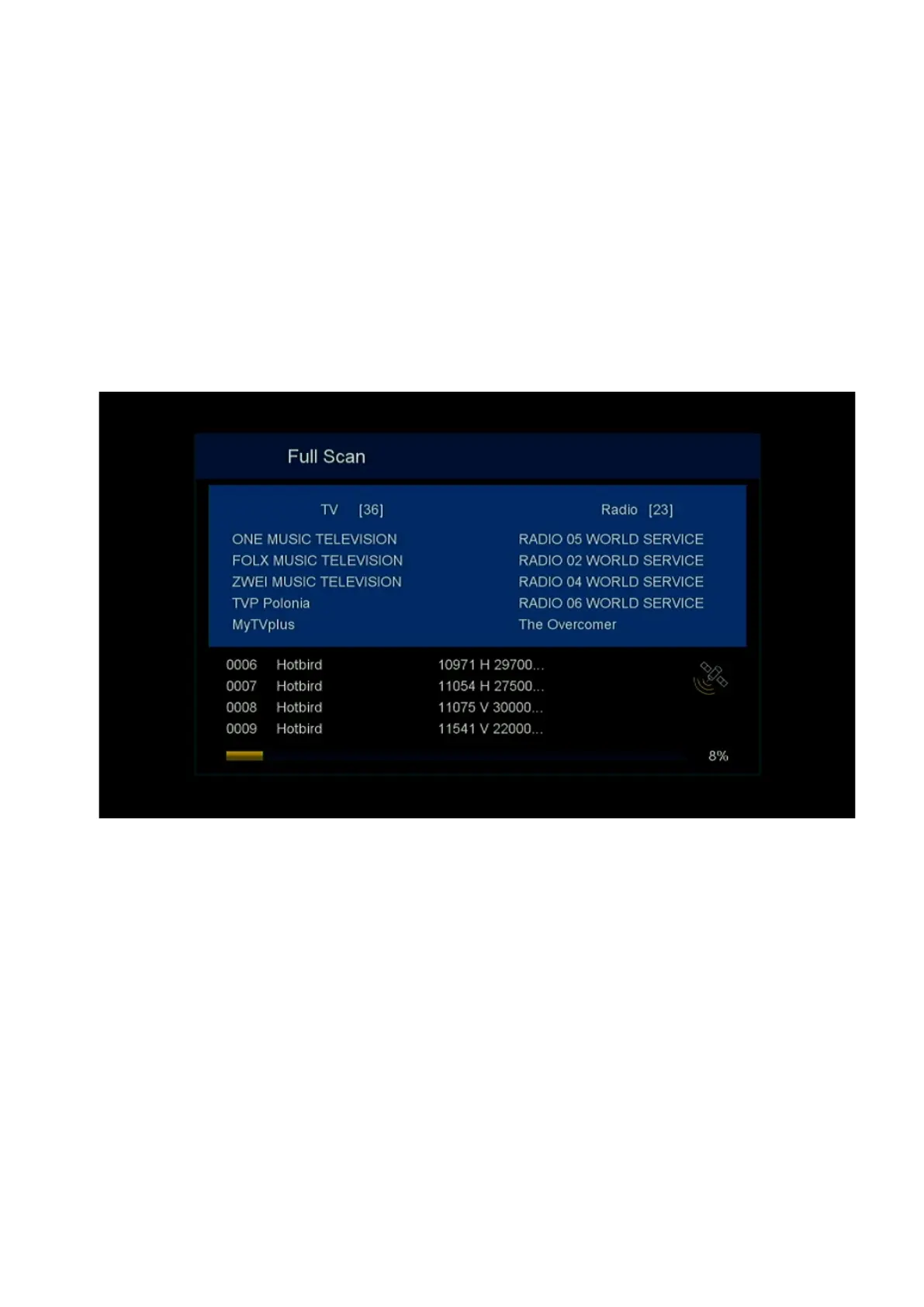
Blue – used to search for channels from a satellite/transponder;
0 – allows you to generate a report on the quality of antenna tuning to the satellite;
OK – switches between the satellite and its transponders;
SAT (GROUP) – allows you to select several satellites/transponders at the same time;
Info – allows you to select all satellites/transponders.
1.2. Satellite Dish Installation Report Generation
If you have an Android smartphone, it is best to use the RAMF app. In this case, you can not
only generate a report, but also send it to the installer or operator through the "Share" functio n.
More details can be found in the separate RAMF options manual.
The receiver supports the report generation, according to which you can check the quality of
the antenna tuning to the satellite. It can be used to determine poor-quality antenna tuning to
the satellite or problems with the LNB. That will reduce the time for eliminating signal receiving
problems.
The report is generated automatically in HTML file on a USB disk or USB flash drive. To
execute the report, the receiver must be connected to a satellite dish from which the signal is
received, and a USB disk or USB flash drive formatted in the FAT32 file system must be
connected to the receiver.
To create a report, select the Settings section in the main menu, go to the Satellite list.


 To Next Page