EasyManua.ls Logo

GoPro Hero9 - User Manual

GoPro Hero9
5 pages
Print Icon
To Next Page IconTo Next Page
Loading...
Find the full manual at: www.cadl.org/gopro
The GoPro App is available free
for iPhone or Android. It is not
required to use the GoPro.
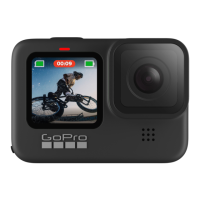
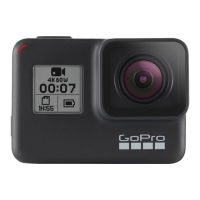
1. Shuer Buon
2. Door
3. Door Latch
4. Status Light
5. Front Screen
6. microSDCard Slot
7. Baery
8. USB-C Port
9. Microphone
10. Removable Lens
11. Mode Buon
12. Drain Microphone
(Designed to drain water.
This is not a door/latch.
Do not try to open.)
13. Speaker
14. Touch Screen
15. Folding Fingers
Question and Answer IconNeed help?

Do you have a question about the GoPro Hero9 and is the answer not in the manual?

Summary

Installing Your Micro SD Card

Charging the Battery

Powering On;Off

GoPro App Prompt

Using the Rear Touch Screen

Tap

Selects an item, turns a setting on or off.

Swipe Left or Right

Switches between Video, Photo, and Time Lapse modes.

Swipe Down from the Top Edge

Opens the Dashboard.

Swipe Up from the Top Edge

View Media Gallery.

Capture Modes

Recording Video

Resetting the Camera

Restore All Settings to Defaults

Resetting Connections

Summary

Installing Your Micro SD Card

Charging the Battery

Powering On;Off

GoPro App Prompt

Using the Rear Touch Screen

Tap

Selects an item, turns a setting on or off.

Swipe Left or Right

Switches between Video, Photo, and Time Lapse modes.

Swipe Down from the Top Edge

Opens the Dashboard.

Swipe Up from the Top Edge

View Media Gallery.

Capture Modes

Recording Video

Resetting the Camera

Restore All Settings to Defaults

Resetting Connections

Overview

The GoPro is a versatile action camera designed for capturing high-quality video and photos in various environments. It offers a range of features that make it suitable for adventurers, content creators, and everyday users. The device is compact and robust, built to withstand challenging conditions, and is compatible with the GoPro App for enhanced functionality, though the app is not strictly required for operation.

Core Functionality and Capture Modes

The primary function of the GoPro is to record video, capture photos, and create time-lapse sequences. These three main capture modes—Video, Photo, and Time Lapse—allow users to document their experiences in different visual styles. Switching between these modes is intuitive, primarily done by swiping left or right on the rear touch screen.

Recording Video

To record a video, users first swipe left or right on the touch screen to select the video mode. Once in video mode, pressing the Shutter Button, located on the top of the camera, initiates recording. A subsequent press of the Shutter Button stops the recording. During recording, the screen will enter a sleep mode after one minute to conserve power, but the camera continues to record. Tapping the screen will wake it up for 10 seconds before it goes back to sleep, allowing users to check the recording status without interrupting the capture.

Physical Components and Their Functions

The GoPro features several key physical components that facilitate its operation:

  • Shutter Button (1): Located on the top of the camera, this button is used to start and stop recording or capture photos.
  • Door (2) and Door Latch (3): These components secure the internal compartments of the camera, protecting the battery and microSD card from external elements. The door latch must be unlocked to open the door for accessing these components.
  • Status Light (4): This light provides visual feedback on the camera's current status, such as recording, charging, or power on/off.
  • Front Screen (5): A display on the front of the camera, likely showing essential information or a live preview for framing shots.
  • microSD™ Card Slot (6): This slot is where the microSD card is inserted for storing captured media. The card should be inserted with its label facing the USB port. To eject the card, users can press it into the slot with a fingernail.
  • Battery (7): The power source for the camera, which can be charged via the USB-C port.
  • USB-C Port (8): Used for charging the battery and potentially for data transfer.
  • Microphone (9): The camera includes microphones to capture audio during video recording. There are multiple microphones, including a "Drain Microphone" (12).
  • Removable Lens (10): This feature suggests that the lens can be replaced or upgraded, offering flexibility for different shooting scenarios.
  • Mode Button (11): Located on the side of the camera, this button is used to power the camera on and off. A short press turns it on, while a press and hold for 3 seconds turns it off. It can also be used to navigate menus or skip setup prompts.
  • Drain Microphone (12): This is a specialized microphone designed to drain water, indicating the camera's water-resistant capabilities. It is explicitly noted that this is not a door or latch and should not be opened.
  • Speaker (13): Allows for audio playback or system sounds.
  • Touch Screen (14): The primary interface for interacting with the camera's settings and modes.
  • Folding Fingers (15): These are likely integrated mounting fingers that allow the camera to be attached to various GoPro accessories without needing an external frame.

Charging and Power Management

To charge the GoPro, users connect the camera to a USB charger using the provided USB-C cable. Powering the camera on involves a short press of the Mode button, while powering it off requires pressing and holding the Mode button for 3 seconds.

Installing the microSD Card

Installing the microSD card is a straightforward process. First, the door latch is unlocked, and the door is flipped open. With the camera off, the SD card is inserted into the card slot, ensuring the label faces the USB port. Ejecting the card is done by pressing it into the slot with a fingernail.

Using the Rear Touch Screen

The rear touch screen is central to operating the GoPro:

  • Tap: Used to select items, turn settings on or off, and interact with on-screen elements.
  • Swipe Left or Right: Switches between the main capture modes: Video, Photo, and Time Lapse.
  • Swipe Down from the Top Edge: Opens the Dashboard, which likely provides quick access to essential settings and controls.
  • Swipe Up from the Top Edge: Views the Media Gallery, allowing users to review captured photos and videos.

GoPro App Prompt

When the GoPro is powered on after a period of inactivity, it may prompt the user to install the GoPro app to complete the setup. However, the app is not mandatory for using the camera. Users can bypass this prompt by tapping the '<' icon on the screen or pressing the Mode button. They may also need to select "Skip Setup" on subsequent prompts.

Maintenance and Troubleshooting

The manual provides instructions for resetting the camera and its settings:

  • Resetting the Camera: If the camera becomes unresponsive, users can perform a hard reset by pressing and holding the Mode/Power Button for 10 seconds. This action will restart the camera.
  • Restore All Settings to Defaults: This option resets all camera settings except the camera name, password, language, and video format. To do this, users swipe down to access the Dashboard, swipe left to access the second screen, and then tap "Preferences > Reset > Factory Reset."
  • Resetting Connections: This clears all device connections and resets the password. The steps are similar to restoring settings: swipe down to the Dashboard, swipe left to the second screen, and then tap "Connections > Reset Connections."

Additional Features and Resources

The GoPro Hero9 Black and its various Mods offer numerous additional features that are not covered in this quick start guide. For a comprehensive understanding of all capture modes, settings, and advanced functionalities, users are directed to the full GoPro manual available online.

In summary, the GoPro is a user-friendly action camera designed for ease of use and durability. Its intuitive touch screen interface, dedicated physical buttons, and robust construction make it an ideal tool for capturing dynamic content, while its power management and reset options ensure reliable performance and easy troubleshooting.

GoPro Hero9 Specifications

General IconGeneral
Photo20MP
Battery1720mAh (Removable)
Waterproof33ft (10m) without a housing
StabilizationHyperSmooth 3.0
Voice ControlYes
Live Streaming1080p
TimeWarpTimeWarp 3.0
Dimensions71 x 55 x 33.6 mm
ConnectivityWi-Fi, Bluetooth
Resolution5K video
Screen2.27-inch rear touch screen with touch zoom; 1.4-inch front display
HDRYes, SuperPhoto + HDR
Weight158g
StoragemicroSD card up to 256GB

Related product manuals