Type CAPITALS
by pressing Shift
Type numb3rs
by pressing &123
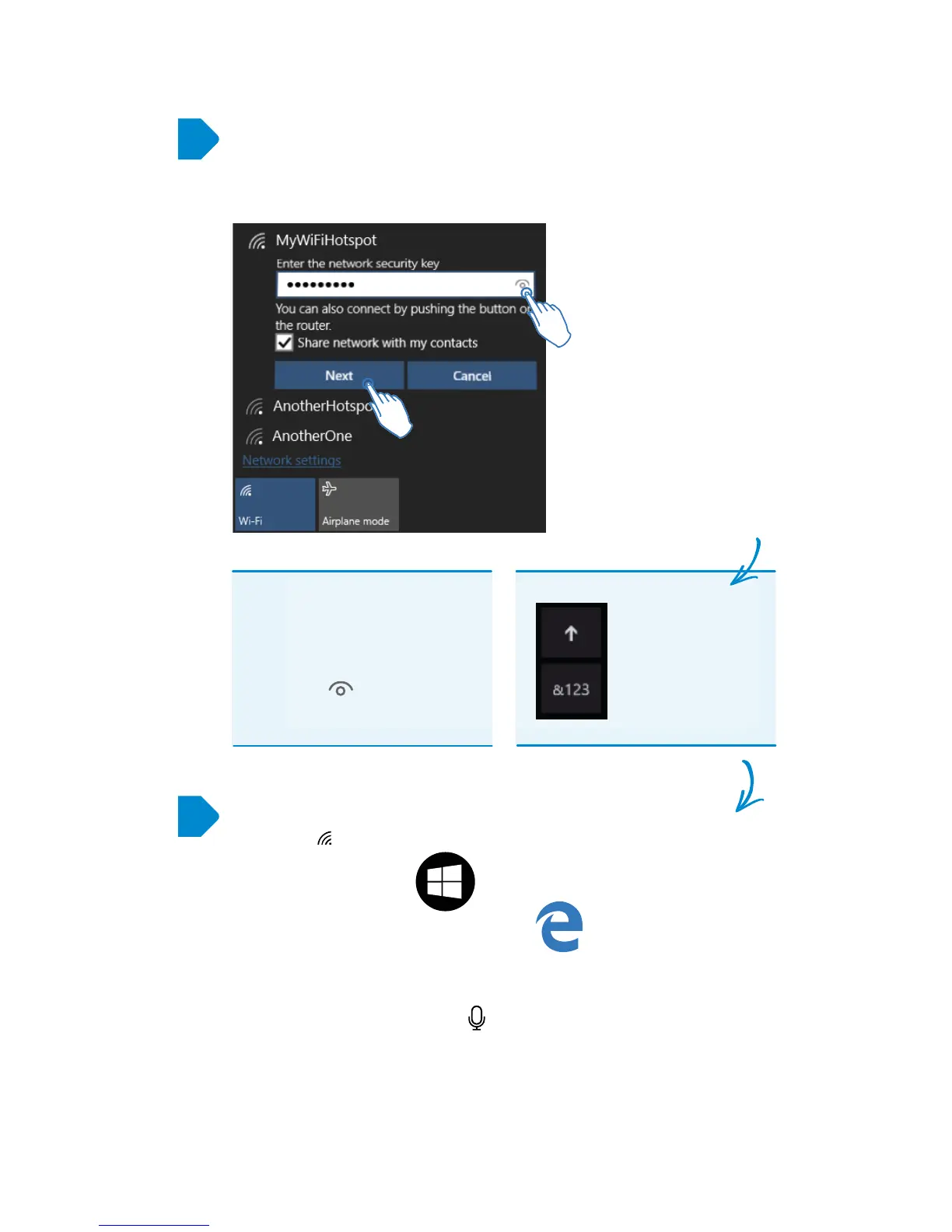
If the Wi-Fi is ‘password protected’ type the password exactly as it
appears on your Wi-Fi router including any CAPITAL letters.
Then tap Next
Note: Find your password
on the bottom of your
Wi-Fi Router, or contact
your ISP (internet service
provider)
Passwords are cAse
SenSItIVe.
Check you’ve typed the
password correctly by
tapping rather than
showing it as dots.
5
6
Once your password is accepted, GoTab will connect, and the
Wi-Fi icon will go white on your Start Screen
Tap the Home Button
Then the Edge Internet Browser icon
Tap the white box at the top and type a website address (URL)
or enter any search term to perform a ‘Bing Search’ of the
internet. You can also tap the symbol to make a voice search.
You are now surfing the internet wirelessly!
Note: “Share the network
with my contacts" called
Wi-Fi Sense allows you to
share your Wi-Fi, with your
contacts in a secure way.


 To Next Page