EasyManua.ls Logo

GPRINTER GP-1124D - User Manual

GPRINTER GP-1124D
17 pages
Print Icon
To Next Page IconTo Next Page
Loading...
Customer service hotline : 400 611 3828
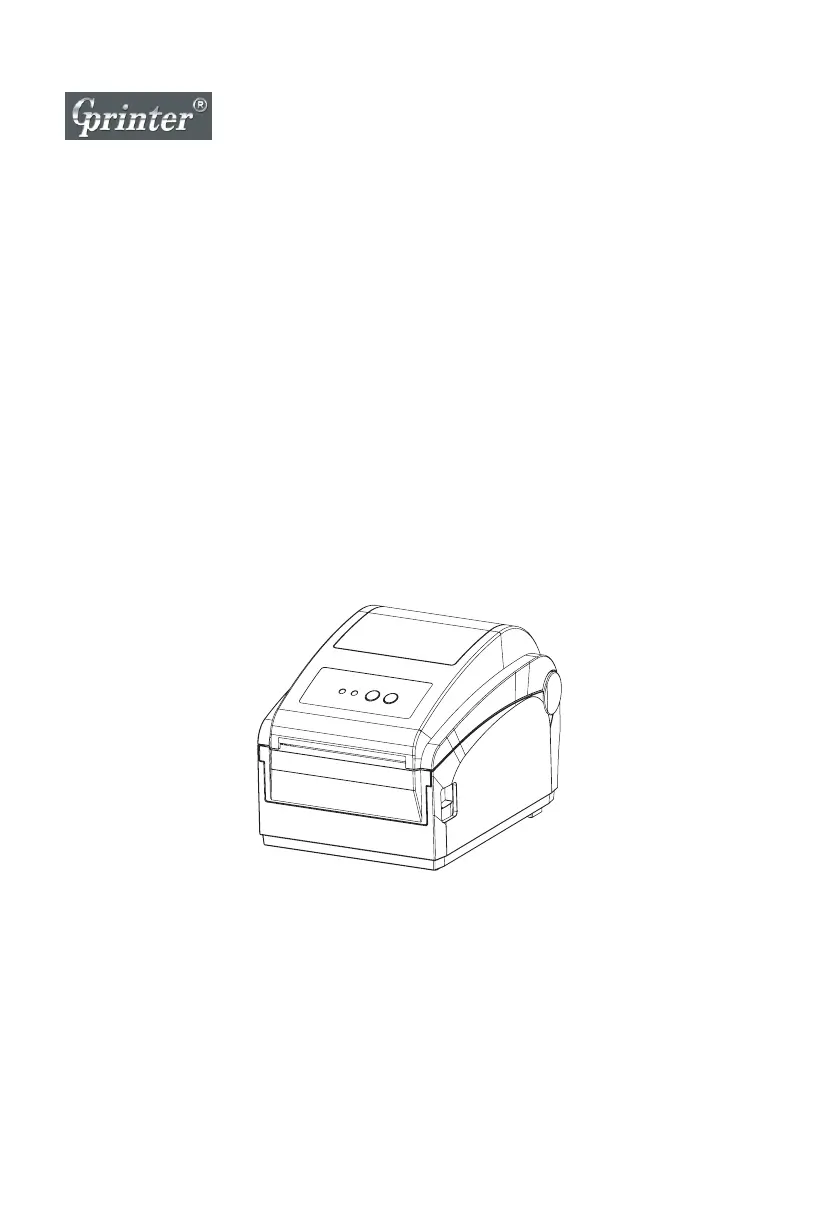
Direct thermal Label Printer
User's Manual
GP-1124D / GP-1125D

Questions and Answers

  • K
    Keith GibsonAug 5, 2025
    How to improve printing quality on GPRINTER Label printer?
    • M
      Marcus GomezAug 5, 2025
      If your GPRINTER Label printer is not printing well, try reinstalling the label. Also, the print head may have too much dust or adhesive on it, so clean the print head and try printing again. If the issue persists, the print head might be damaged. Print a self-test page to see if the printing is complete, which will help you determine if a new print head is needed.
  • A
    Albert DillonAug 13, 2025
    Why is GPRINTER GP-1124D missing data on sides when printing?
    • A
      Amy MooreAug 13, 2025
      If your GPRINTER Label printer is printing data with missing parts on one or both sides, the label paper size setting might be incorrect. Check that the label size is set correctly and matches your label paper.
  • R
    ryancharlesAug 20, 2025
    How to fix wrinkles when printing with GPRINTER GP-1124D?
    • W
      wongdanielAug 20, 2025
      If your GPRINTER Label printer is producing wrinkled labels, it could be due to unbalanced stress on the print head, improper label installation, or the label not feeding smoothly. Reset the label print density and adjust the paper width fixing stand to fit your label paper size.
  • W
    waltermelissaAug 28, 2025
    What causes unstable printing on GPRINTER GP-1124D Label printer?
    • Q
      qterryAug 28, 2025
      If your GPRINTER Label printer's printing is unstable, the printer might be in HEX Dump mode or the RS-232 setting is wrong. Restart your printer and exit Dump Mode, or reset the RS-232 PARAMETER.

Summary

The Printer

1.1 Introduction

Introduction to the GP-1124D/GP-1125D series direct thermal label printer and its capabilities.

1.2 Product Features

Details on standard equipment included with the printer, such as sensors, memory, and fonts.

1.3 Specifications

Technical specifications for the GP-1124D and GP-1125D models, including dimensions and power.

1.4 Print Specifications

Details on print speed, width, length, and other print-related parameters for optimal output.

1.5 Paper Size

Information regarding the paper size, roll diameter, and winding form for proper label loading.

Product Introduction

2.1 Open and Check

Instructions for unpacking the printer and checking the contents of the package for completeness.

2.2 Printer Components

Overview of the printer's external and internal components, including ports and controls.

Installation

3.1 Install the Printer

Step-by-step instructions for installing the printer on a stable surface and connecting it to a power source.

LED Indicator and Function

4.1 LED Indicator

Explanation of the printer's LED indicators and their meanings for status and error reporting.

4.2 Button Function

Details on the function of the printer's buttons, including Feed and Pause for operation.

4.3 Start Function

How to use button combinations to access printer test, configuration, and special modes.

Troubleshooting

5.1 Common Problem

Guide to diagnosing and resolving common problems with the printer's power and printing functions.

Maintenance

6.1 Printer Cleaning

Procedures for cleaning the print head, rubber roller, and other parts to maintain print quality.

GPRINTER GP-1124D Specifications

General IconGeneral
BrandGPRINTER
ModelGP-1124D
CategoryLabel printer
LanguageEnglish

Related product manuals