26
1. Press the Menu/OK button.
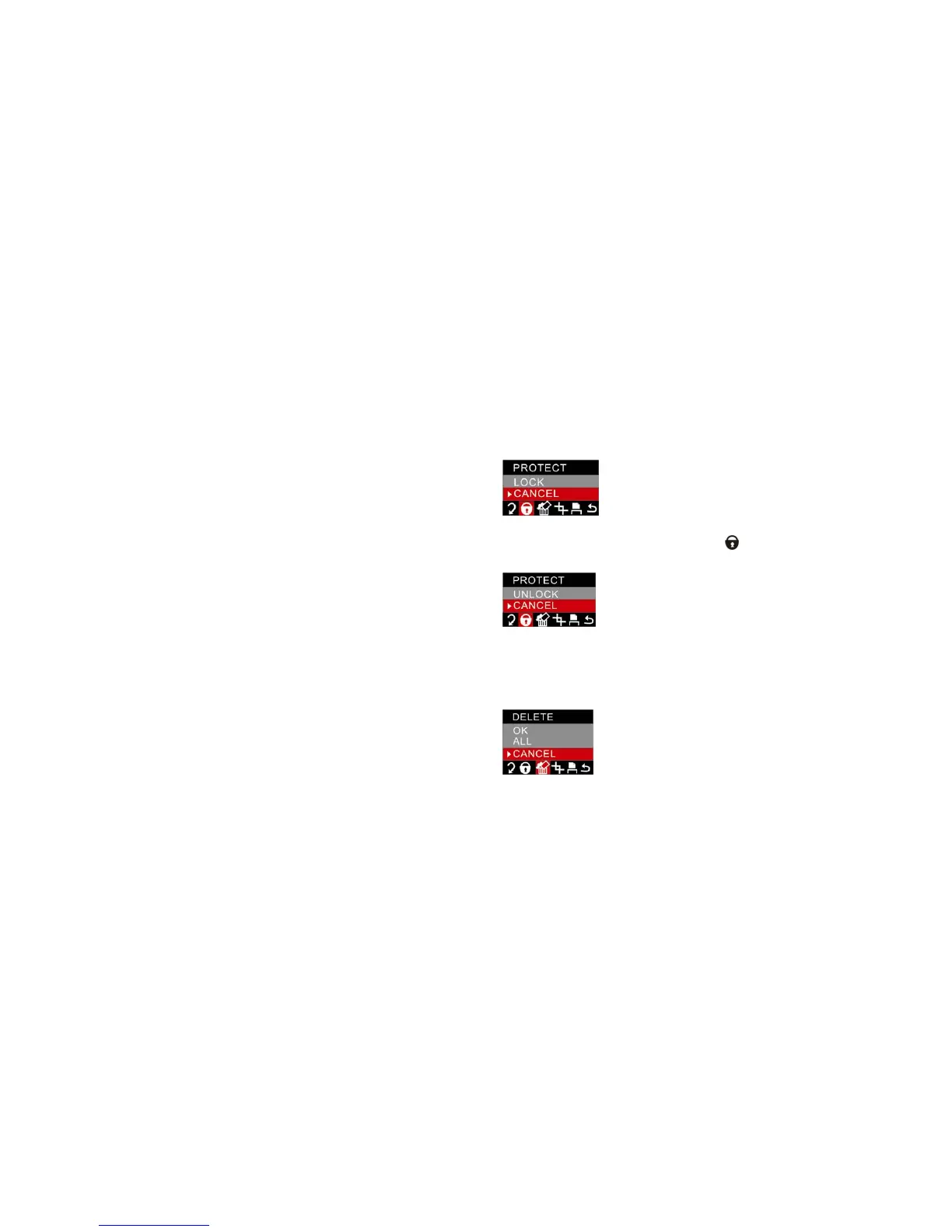
2. Press Left/Right button to select PROTECT menu.
3. Press the Up/Down button to select “Lock”.
4. Press the Menu/OK button to confirm. A lock icon
will be shown on the LCD.
Press the Menu/OK button, at step 3 select “Unlock” and press the Menu/OK to unlock the current file.
Delete
Delete unwanted photos and videos at any time in order to free up memory. You can delete one image or
video clip at a time or delete all at once the unprotected photos and videos that are currently recorded on
the memory card.
1. Press the Menu/OK button.



 To Next Page