27
2. Press Left/Right button to select DELETE menu.
3. Press the Up/Down button to select OK: delete current photo/video you selected; ALL: delete all
unprotected photos; Cancel to exit.
4. Press the Menu/OK button to confirm deletion.
5. Press the Right/Left button to select “Yes” or “No” if you delete all photos and press the Menu/OK
button to confirm.
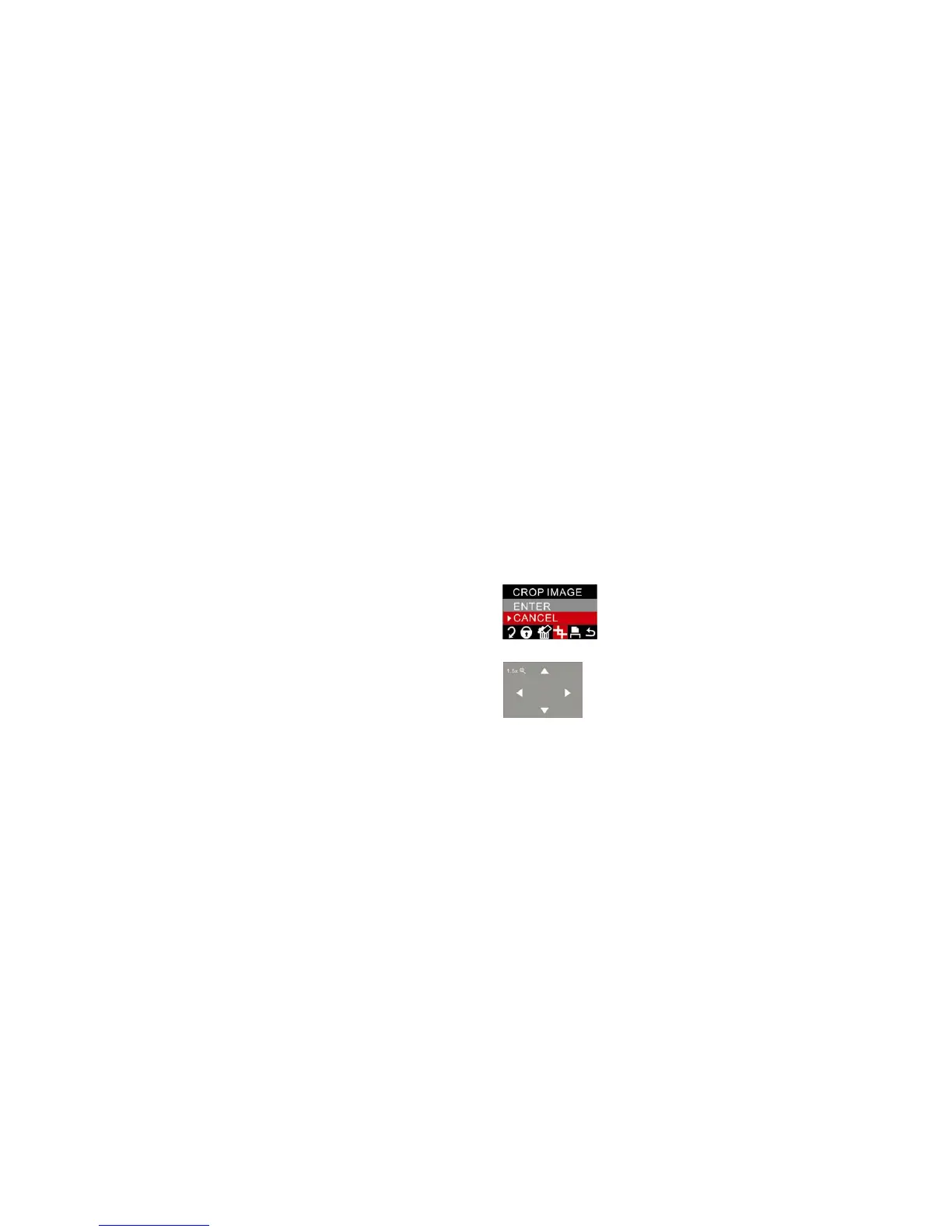
Crop Image
Crop your photos to show only a specific portion of an image or to highlight certain focal points. The Crop
feature lets you zoom in on an image and then save that part of the image as a new photo.
1. Press the Menu/OK button.
2. Press Left/Right button to select CROP IMAGE menu.
3. Press the Up/Down button to select “Enter” or cancel.
4. Press the Menu/OK button to confirm.
5. Press T/W button to magnify the photo to the suited size.
6. Press the Up/Down/Right/Left button to select an area you want to crop.
7. Press the Menu/OK button.
8. Press the Right/Left button to select “SAVE” or “CANCEL”.
9. Press the Menu/OK button to confirm.



 To Next Page