EasyManua.ls Logo

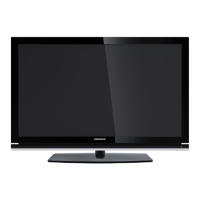
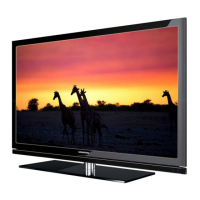
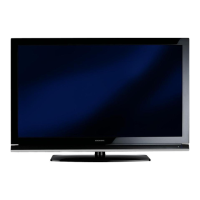
Grundig 37 VLC 6110 C - User Manual

Grundig 37 VLC 6110 C
52 pages
Print Icon
To Next Page IconTo Next Page
Loading...
LCD TV
37 VLC 6110 C
EN

Table of Contents

Questions and Answers

  • J
    jacqueline69Aug 15, 2025
    Why is my Grundig LCD TV remote control not working?
    • C
      Cassandra RobinsonAug 15, 2025
      If your Grundig LCD TV remote control isn't working, there might be a few reasons. First, ensure there's nothing blocking the path between the remote and the TV; point the remote directly at the television. Second, check the batteries and replace them if needed. Finally, try switching off the television at the mains switch for two minutes to reset the operating mode.
  • K
    kimbradyAug 18, 2025
    What to do if my Grundig 37 VLC 6110 C LCD TV has a picture but no sound?
    • J
      Jason MorganAug 18, 2025
      If your Grundig LCD TV shows a picture but has no sound, the volume might be set too low. Try turning up the volume or switching it on.
  • R
    Robert BlairAug 21, 2025
    How to fix insufficient contrast in my Grundig 37 VLC 6110 C picture?
    • J
      Jeffrey StephensAug 21, 2025
      To fix insufficient contrast in your Grundig LCD TV picture, first adjust the brightness, contrast, or color settings. If that doesn't work, the problem might be with the broadcast; try switching to another channel.
  • T
    Tanner PenaAug 25, 2025
    What to do if my Grundig LCD TV screen is lit but no station is visible?
    • L
      Laurie JacksonAug 25, 2025
      If your Grundig LCD TV screen is lit but no station is visible, check if the antenna cable is connected properly. If it is, try starting a channel scan to tune in available channels.
  • J
    Jeremiah FrazierAug 28, 2025
    Why is there no color on my Grundig 37 VLC 6110 C?
    • R
      Ralph HarringtonAug 28, 2025
      If there is no color on your Grundig LCD TV, try these steps: 1. Turn up the color intensity, as it may be set too low. 2. If the option is available, adjust the TV standard to select the correct color standard. 3. Try a different channel, as the problem might be with the current station.
  • C
    Christopher WilliamsAug 31, 2025
    What causes ghosting or reflection on my Grundig LCD TV and how to fix it?
    • K
      Kyle GeorgeAug 31, 2025
      Ghosting or reflections on your Grundig LCD TV can be due to the channel setting or antenna issues. Try automatic or manual tuning/fine tuning. Also, have your antenna cable or system checked.
  • G
    Gary SmithSep 3, 2025
    What to do if my Grundig 37 VLC 6110 C teletext is impaired or absent?
    • J
      Justin PhamSep 4, 2025
      If the teletext on your Grundig LCD TV is impaired or absent: * The issue might be with the station, so try a different channel. * It could be a problem with the television channel (no teletext) or antenna system, so try a different TV channel and carry out fine tuning. * The station signal might be too weak, so check your antenna.
  • B
    Bryan MitchellSep 7, 2025
    Why are picture and/or sound distorted on my Grundig LCD TV?
    • G
      gregorywhiteSep 7, 2025
      Distorted picture and/or sound on your Grundig LCD TV can be caused by interference from other devices. Try placing the device in a different position.
  • E
    Elizabeth OwensSep 12, 2025
    How to fix a too dark picture in PC mode on my Grundig 37 VLC 6110 C?
    • T
      Taylor JacksonSep 12, 2025
      If the picture is too dark in PC mode on your Grundig LCD TV, the picture resolution and picture frequency on the PC may be set incorrectly. Change the settings on the PC (e.g., to 1280 x 768 resolution with a refresh rate of 60 Hz).

Summary

Setup and Safety

Setup and Safety

Wall bracket installation caution

Cautionary advice regarding the safe installation of wall brackets for the television.

General Information

Special features of your television set

Highlights the advanced functionalities and capabilities of the television set.

Receiving digital channels

Explains the requirements and process for receiving digital TV channels (DVB-T/DVB-C).

General Information

Important notes on environmental protection

Guidelines for saving resources and protecting the environment.

Connection and Preparation

Connecting the antenna and power cord

Detailed steps for connecting the antenna and power supply.

Connection and Preparation

Inserting batteries into the remote control

Guide on how to properly insert batteries into the remote control.

Environmental note

Information regarding the disposal of batteries and environmental symbols.

Overview

Connections on the television set

Diagrams and descriptions of all available input/output ports on the TV.

Overview

Controls on the television set

Explanation of buttons and controls located directly on the TV unit.

Overview

The remote control - Main functions

Explains the primary buttons and their functions on the remote control.

Overview

The remote control - All functions

Comprehensive list of all remote control functions and their operations.

Settings

Initial set-up and tuning television channels

Steps for initial configuration, including channel search and sorting.

Selecting language, country and operating mode

How to set menu language, country, and operating mode (Home/Shop).

Settings

Tuning terrestrial television channels (DVB-T)

Detailed guide for scanning and tuning digital terrestrial channels.

Tuning television channels from the cable provider (DVB-C)

Steps to tune channels received via a cable provider (DVB-C).

Settings

Changing the program table for the digital channels

How to view, delete, and manage digital channels in the program table.

Selecting channel lists

Instructions on how to select and view different channel lists.

Settings

Creating lists of favourites

How to create and manage up to four favourite channel lists.

Deleting channels

Steps to delete unwanted channels from the program table.

Skipping channels

How to mark channels to be skipped during channel selection.

Settings

Picture settings

Guide to adjusting brightness, contrast, sharpness, colour, and other picture enhancements.

Settings

Sound settings

Covers volume, balance, AVL, sound type, and preset adjustments.

Automatic volume

How the Automatic Volume Limiting (AVL) function maintains consistent volume.

Settings

Soundeffects

Explains preset sound effects like Music, Natural, Speech, and User.

SRS TruSurround HD

Information on the SRS TruSurround HD audio technology for enhanced sound.

Equalizer

Guide to adjusting the equalizer for custom sound settings.

Television - Operation

Basic functions

Covers switching the TV on/off, selecting channels directly, from lists, and AV presets.

Adjusting the volume

How to adjust the television's volume level.

Television - Operation

Audio language

How to select different audio languages for digital channels.

Subtitles

Guide to selecting and displaying subtitles for digital channels.

Zoom function

How to enlarge the picture display in three steps.

Television - Operation

Changing the picture format

Options for adjusting picture aspect ratio (Auto, 16:9, 4:3, LetterBox, etc.).

USB Operation

File formats

Details supported video, audio, and image file types for USB playback.

USB Operation

Connecting external data media

Steps for safely connecting and accessing USB storage devices.

USB Operation

The file browser

Overview of the file browser interface for managing media files.

Settings in the USB setup menu

Configuration options within the USB setup menu.

USB Operation

Basic playback functions

How to play, pause, and navigate video, audio, and picture files.

USB Operation

Additional playback functions

Advanced playback options for DivX® files and other media.

Selecting chapters on DivX files

How to navigate between chapters in DivX® video files.

USB Operation

Repeat functions

How to set repeat modes (One, All, Random) for playback.

Teletext Operation

TOP text or FLOF text mode

How to access and navigate Teletext pages using different modes.

Additional functions

Describes additional Teletext features like skipping waiting time and split screen.

Convenience Functions

Opening the SETTINGS menu

Steps to access and navigate the main settings menu.

Changing the menu language

How to change the language of the television's menu interface.

Changing the audio language

Setting primary and secondary audio languages for digital channels.

Convenience Functions

Setting the date and time

How to automatically or manually set the date and time.

Timer settings

Setting sleep timer and auto-on timer functions for power management.

Convenience Functions

Parental control settings

How to set up parental guidance and access restrictions for content.

Locking keys (Parental lock)

Activating or deactivating the keypad lock to prevent accidental changes.

Convenience Functions

Changing the PIN code

How to set a personal PIN code for security and access control.

Restoring the television to the default settings

Guide to resetting the TV to factory default settings, clearing custom configurations.

Operation Using External Devices

DIGI LINK

Information about the DIGI LINK (CEC) function for device control.

Operation Using External Devices

Device operation

How to control external devices using the TV remote control.

Switching the device to standby

Option to switch connected external devices to standby mode.

Operation Using External Devices

High definition HD ready

Details the TV's HD ready features and connecting HD sources.

Connection options

Overview of available connection sockets and considerations for external devices.

Operation Using External Devices

Connecting external devices... with digital audio;video signals

How to connect devices via HDMI for digital video and audio.

Connecting external devices... with analogue video signal (progressive)

Steps for connecting devices using Component Y/AV2 and Component L/R.

Operation Using External Devices

Connecting external devices... with an analogue TV signal

How to connect devices for analogue TV signals via RCA cables.

Using a DVD player, DVD recorder, video recorder or set-top box

Guide for connecting and operating common external media devices.

Headphones

How to connect headphones and adjust volume.

Operation Using External Devices

Hi-fi system;AV receiver

Connecting Hi-fi/AV receivers via optical out and setting audio formats.

Operation As a PC Monitor

Connecting a PC

Steps for connecting the TV to a PC using VGA and audio cables.

Settings for PC mode

Configuring picture and display settings when using the TV as a PC monitor.

Operation With a Common Interface

What is a Common Interface?

Definition and purpose of the Common Interface slot for DVB receivers.

Inserting the CA module

Instructions for inserting the smart card and CA module into the CI slot.

Special Settings

Searching for television channels from the cable provider automatically

Steps to perform an automatic channel search for cable TV.

Special Settings

Searching for television channels from the cable provider manually

How to manually tune channels received from a cable provider.

Searching for digital terrestrial TV channels automatically

Guide to automatically scanning for digital terrestrial TV channels.

Special Settings

Searching for digital terrestrial TV channels manually

Steps to manually search and tune digital terrestrial TV channels.

Automatic service update

How the TV automatically updates network operator information.

Special Settings

Tuning analogue television channels

Instructions for tuning analogue channels via automatic or manual search.

Special Settings

Tuning the television channels by entering the channel numbers

How to tune channels by manually entering their numbers.

Changing stored analogue channels

Managing stored analogue channels, including deletion.

Special Settings

Entering channel names (8 digit maximum)

How to assign names to television channels.

Skipping television channels

Marking channels to skip them during sequential channel selection.

Information

Displaying signal information (for digital channels only)

How to view signal strength and quality for digital channels.

Service information for retailers

Compliance information and power supply details for retailers.

Information

Technical data

Detailed specifications including dimensions, power, and reception ranges.

Information

Troubleshooting

Solutions for common issues like no picture, no sound, or remote control problems.

Information

Additional Information for units sold in the UK

Specific instructions and safety information for UK power connections.

Grundig 37 VLC 6110 C Specifications

General IconGeneral
Screen Size37 inches
Display TypeLCD
Aspect Ratio16:9
HDMI Ports3
USB Ports1
Audio Output2 x 10W
Viewing Angle178/178 degrees
VGA PortYes
SCART Port1
CI SlotYes

Related product manuals