How to Navigate
Tap: You can tap the icon on the screen to
activate the application.
Press and Hold: Press and hold the icon on the
Home Screen to make it movable. Press and hold
an icon in the Application Drawer to add it to the
Home Screen you want.
Slide: Slide the Home Screen from the left side to
the right side or from the right side to the left side
to change different pages.
Drag: After pressing and holding the icon on the
Home Screen, you can arrange it. Drag it to
anywhere you like on the screen or to remove.
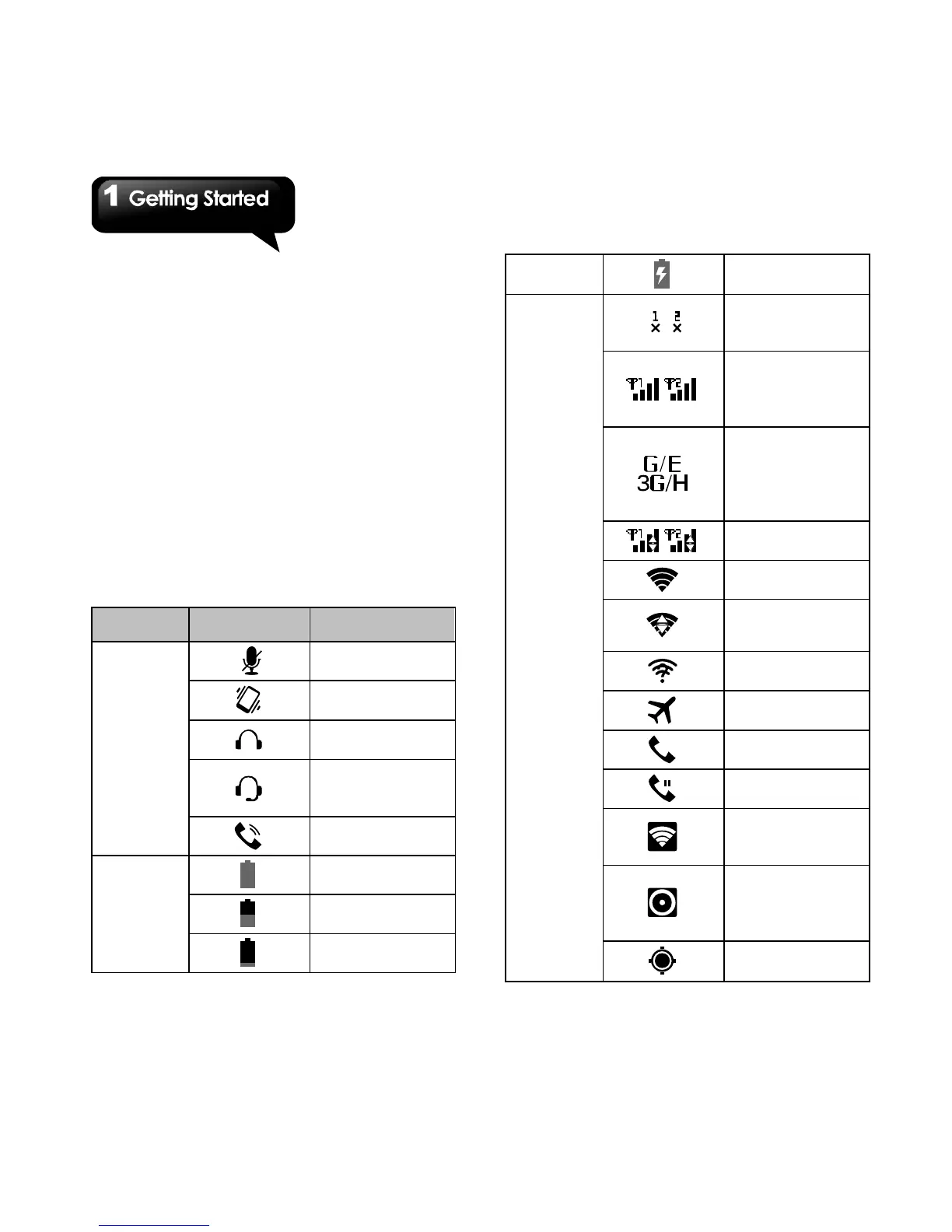
Status Icons
The icons of the status bar indicate different types
of information. Tap the status bar and scroll down
to view notifications or view system information.
Types Icons Descriptions
Volume



 To Next Page