G1342│
2-2
Quick response an incoming call
When there is an incoming call, you can quick
response with message. To answer a call, slide to
Messaging icon on the screen.
To put a call on hold
If you are having a call conversation, you can tap
to put the call on hold.
To switch between calls
If you are having a call conversation, and there is
another incoming call, slide the Talk icon to put
the first call on hold and answer the second call.
Tap to switch between calls.
To set up conference calls
1. When you are already having a call
conversation, tap to enter another phone
number.
2. When someone answer your phone call, tap
Merge calls to set up the conference call.
If you are having a call conversation, and there is
another incoming call, you can tap to set up
the conference calls also.
NOTE:
Conference call is a network service. Please
check with your network carrier for this
function.
To manage other voice call features
When you are having a call conversation
• Tap to activate speakerphone, or tap
again to cancel it.
• Tap to mute microphone, or tap again
to un-mute it.
Ending a call
Tap End icon to end a call.
2.2 Using On-Screen Keyboard
On-screen keyboard appears in portrait mode
when an application requires text input, such as
messaging and writing e-mails. The keyboard
input method is activated by the default settings.
Using on-screen keyboard
• Use the keys on the on-screen keyboard.
• Tap the keys to enter the characters.
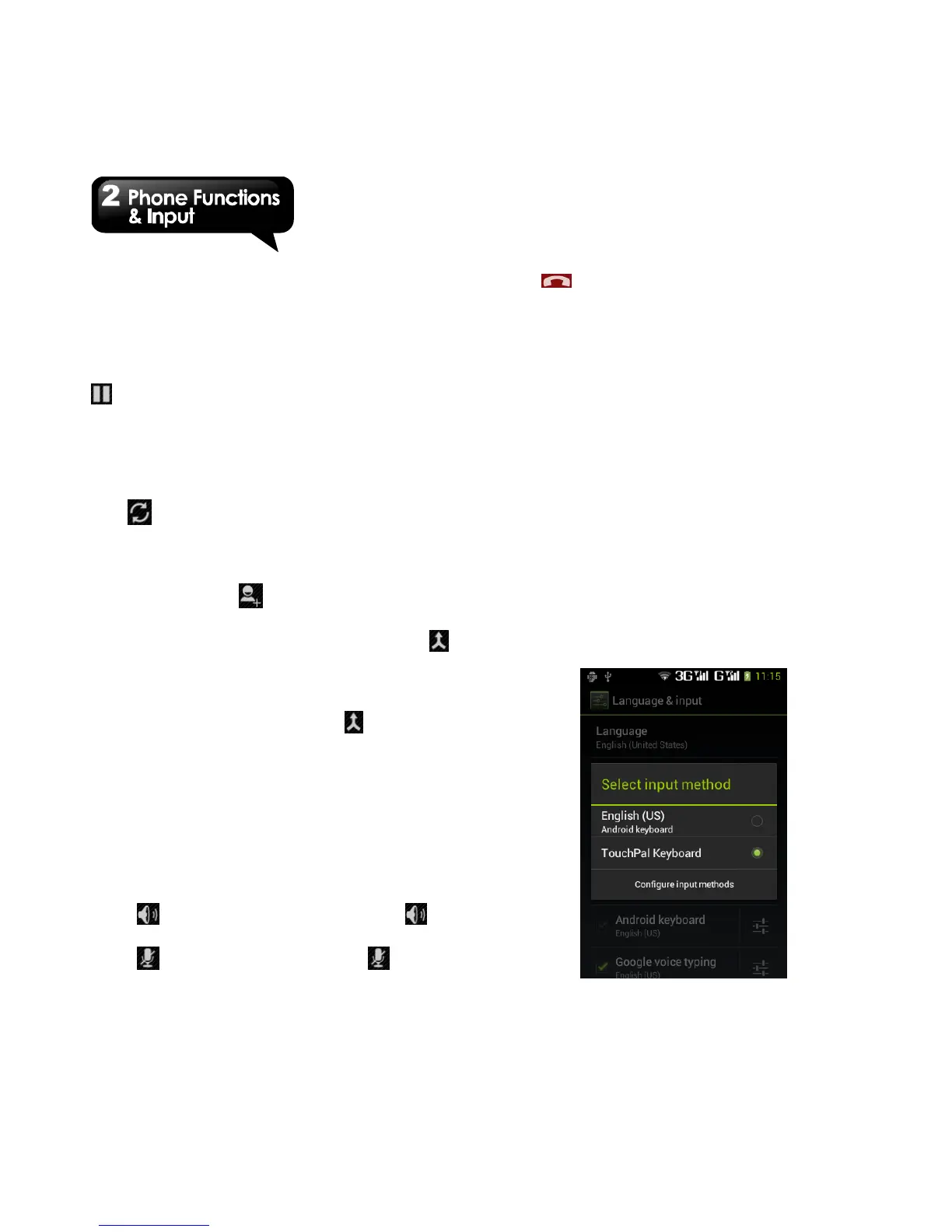
Setting the Input Method
Your phone supports several text input methods,
and you could select which one you prefer.
1. Tap Application Drawer > APPS > Settings >
Language & input.
2. Tap ”Default” .There is a pop-up window will
show.
3. Select an input method you want.



 To Next Page