G1342│
3-4
check Never.
To set up default account
1. Tap Application Drawer > APPS > Email.
2. Tap Menu > Settings.
3. Tap one of your accounts. (If you have two more
e-mail accounts)
4. Check “Default account” to send e-mail from this
account by the default settings.
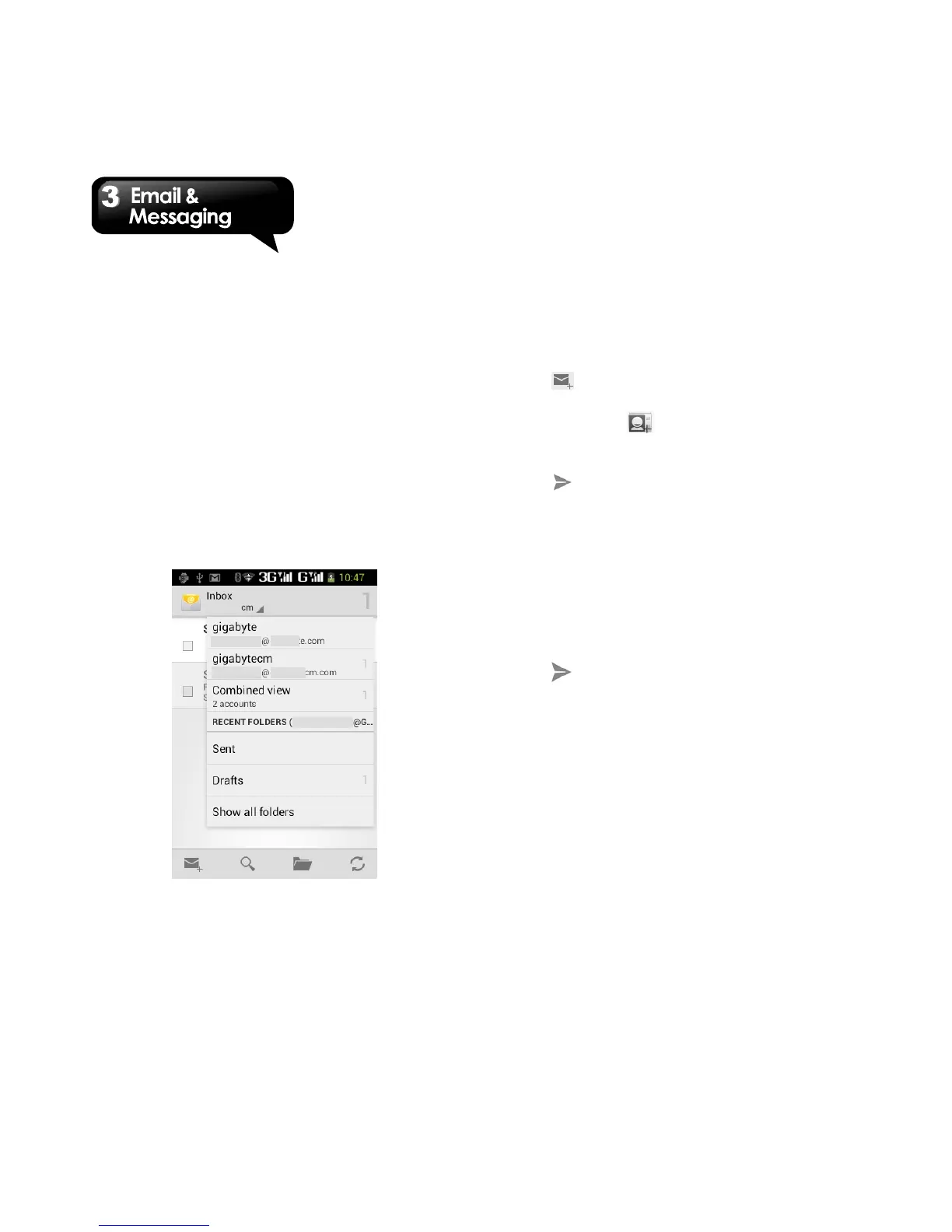
To select an account
1. Tap Application Drawer > APPS > Email to open
your e-mail.
2. Tap Account name spinner to view all e-mail
accounts.
3. Tap a e-mail account you want to access.
To configure Email settings
On Email screen, Tap Menu > Settings > General
to adjust the settings of your e-mail application.
3.5 Using E-mail
Composing and sending an E-mail
1. Tap Application Drawer > APPS > Email, and
then, tap Account name spinner to select an
account.
2. Tap .
3. In the “To” field, enter the recipient’s e-mail
address or tap to add from your contacts.
4. Enter the Subject.
5. Compose your e-mail.
6. Tap to send your e-mail.
Sending an E-mail from People screen
You can send an e-mail to a contact with an e-mail
address stored in People.
1. Tap Application Drawer > APPS > People.
2. Tap a contact’s name.
3. Tap the contact’s Email . Tap “Email” in the
submenu.
4. Enter the Subject and compose your e-mail.
5. Tap to send your e-mail.
Adding attachments to an e-mail message
Before sending your message, tap Menu > Attach
file, and then, choose an attachment you want to
attach.
Receiving e-mails
E-mails are received in your Inbox automatically
when your phone connects to wireless networks.
Reading e-mails
The Inbox displays the e-mail headers. When you
open the e-mail, it shows the message of text,
unless the attachments. Please download the
e-mail attachments to view.



 To Next Page