MENU
CC Mode CC Off
Basic Selection CC1
Advanced Selection Servicel
Option
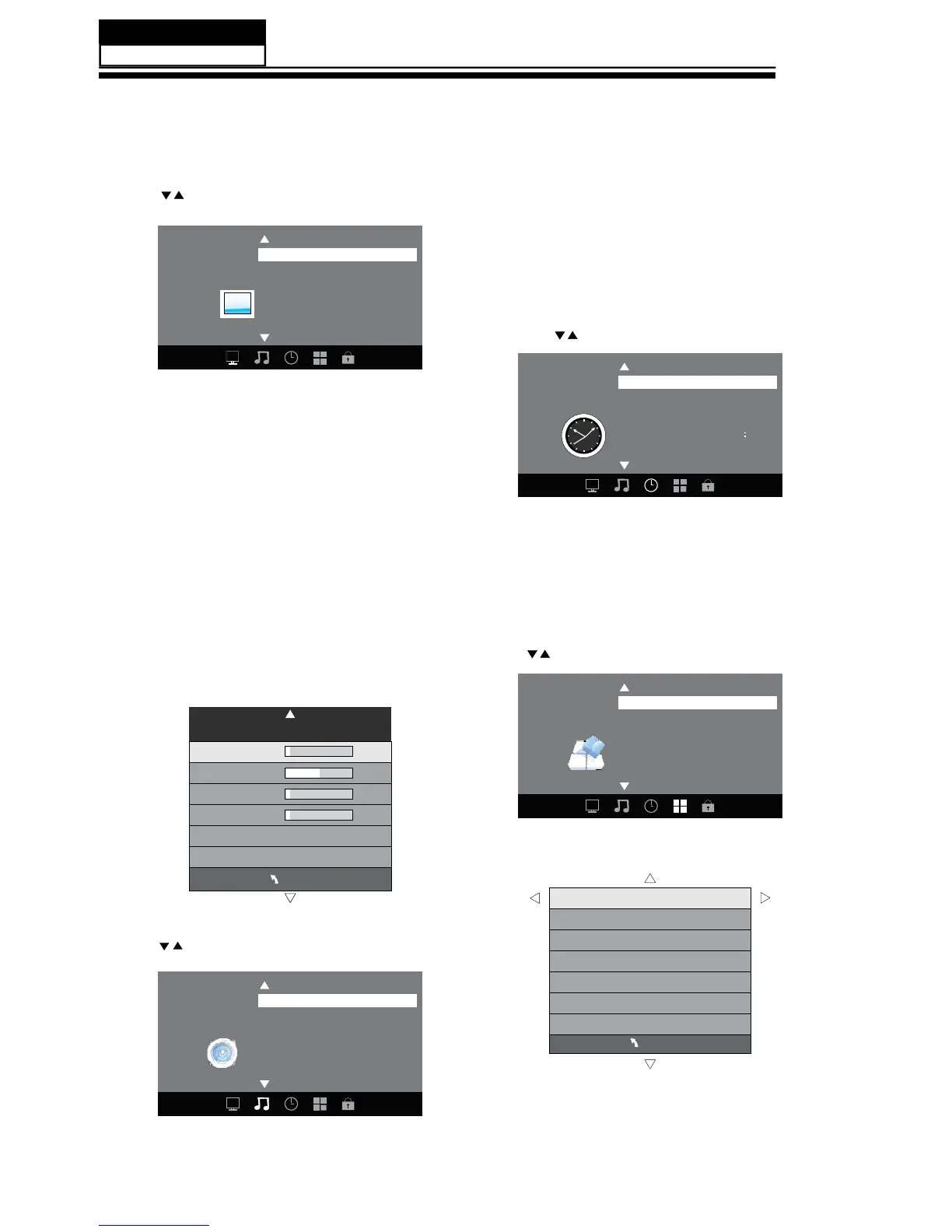
1. PICTURE MENU
3. TIMER MENU
In this menu,you can adjust the picture options here,
such as contrast, brightness, etc.
Press to select, press OK to adjust.
1.1 Advanced
When a PC is connected, you can adjust the PC advanced settings.
1). H-Pos: Adjust the horizontal position of the screen.
2). V-Pos: Adjust the vertical position of the screen.
3). Clock: Fine tune the screen width.
4). Phase: Fine tune the phase of the screen. Usually you don't adjust this
item.
5). Auto: Auto adjust to fit the screen.
Note:
1). If you want to adjust contrast, brightness, color, and sharpness, the picture mode
must be set to personal.
2). This will increase or decrease Warm (red) and Cool (blue) colors to suit your
personal preference.
Select Cool to give the white colors a blue tint, Normal to give the white colors a
neutral tint, Warm to give the white colors a red tint.
Standard mode is the default setting, if you select some other options, the power
consumption may change.
2.AUDIO menu
In this menu, you can ajust the sound options here.
Press to select, press OK to adjust.
In this menu, you can adjust the sleep timer, time zone, etc. Press to
select,press OK to adjust.
Note:
1). Time zone, DST (Daylight Saving Time) and the clock are available in
ATSC mode only, and the Clock can't be adjusted.
4.OPTION menu
In this menu, you can adjust the Menu language, Closed Caption, Restore
Default etc.
Press to select, press OK to adjust.
4.1 Closed Caption
Time Zone Pacific
DST Off
Time Format 12-hour
Clock ----/--/-- --
Sleep Timer Off


 To Next Page