15
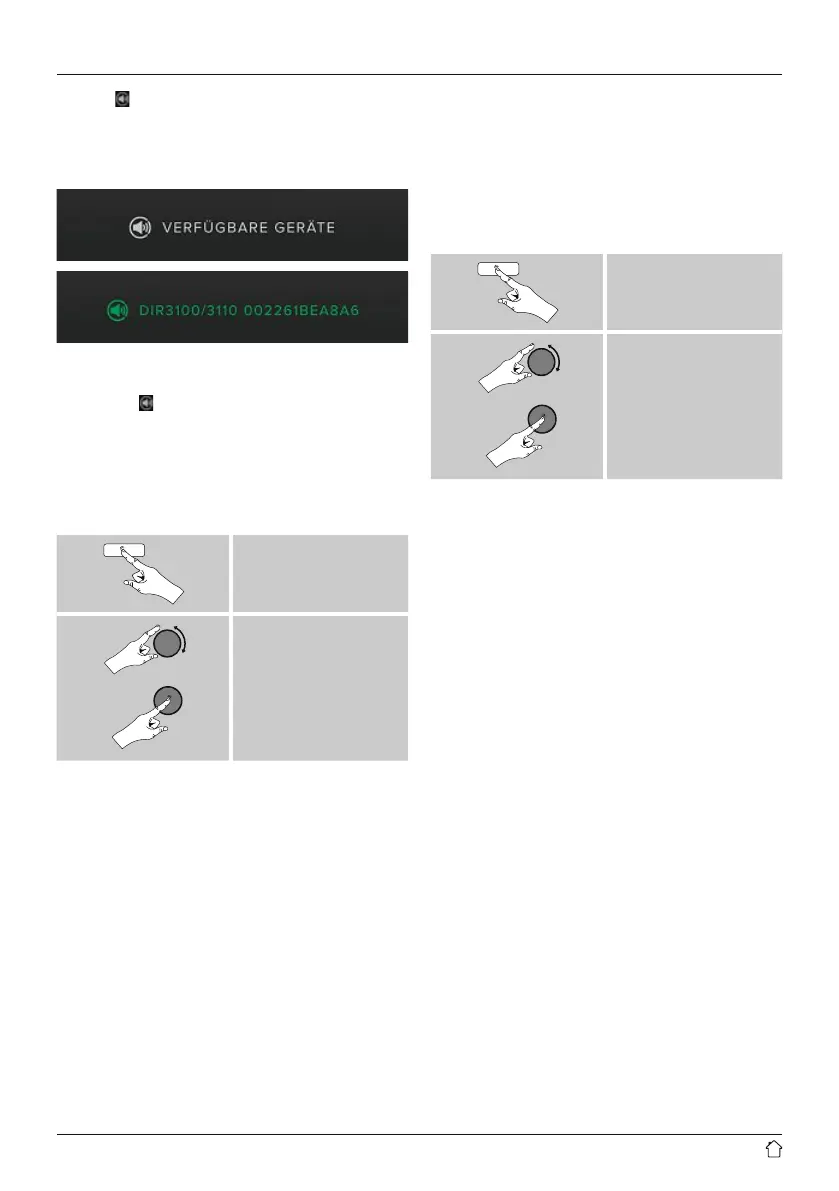
• Choose Available devices to access an overview of
all devices available on the network.
• Select the radio. The audio is now played back on the
radio.
Once the connection has been established, the Spotify
Connect logo
and the device designation are displayed
in green.
After successful initial connection:
From the main menu or after pressing [MODE] repeatedly,
activate Spotify (Spotify Connect) mode.
[MENU]
Main menu
Spotify
• Press [SCROLL/SELECT] to begin playback.
• Alternatively, you can control the radio (skip to a different
title, adjust the volume, etc.) using the remote control,
the Smart Radio app, or the Spotify app.
10. Music player (UPNP, USB)
This operating mode enables the playback of MP3, WMA
or FlAC les that are saved on a PC, data storage medium
or the local network.
From the main menu or after pressing [MODE] repeatedly,
activate Music player mode.
[MENU]
Main menu
Music player
10.1 Playback from a computer (streaming)
You can manage the radio and stream music to it from your
computer.
The following explanation assumes your computer’s
operating system is Windows 8. If you use a different
operating system and require assistance, or if you have
any other questions, please contact our customer support
team.
Requirements:
• The radio and the computer must be on the same
network.
• The radio must be authorised as a playback device on the
computer.
Proceed as follows:
Control Panel Network and Internet View
network computers and devices
The radio should be shown here.
• Right-click on the icon or designation of the radio and
choose Allow streaming to this device
• Right-click again on the icon or designation of the radio
and choose Show device website to change the
friendly name of the device.
• A new browser window opens. You can make the desired
changes here.


 To Next Page