Easy Hotspot Kit
142
3-2-22 Secure Remote
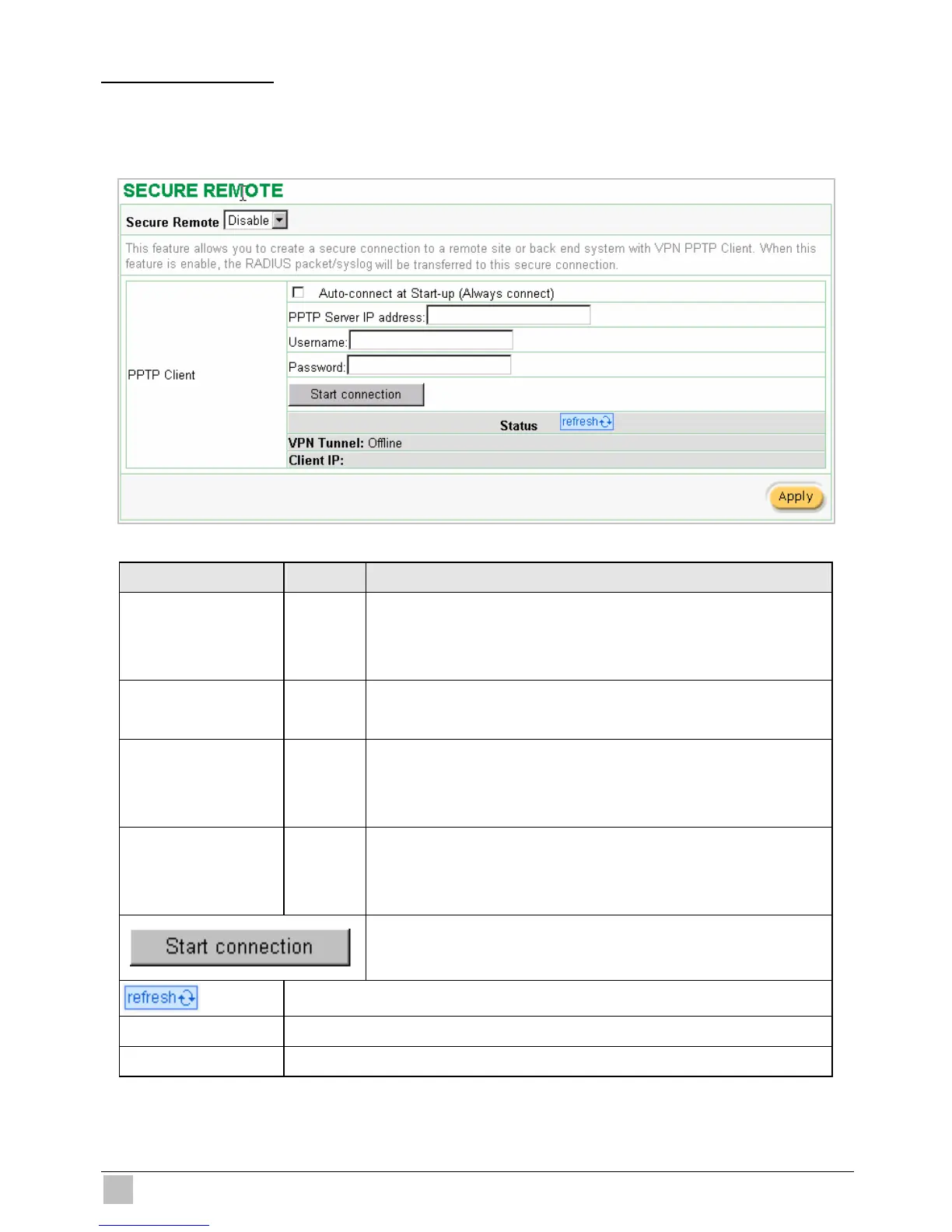
This feature allows you to create a secure connection to a remote site or back end system with VPN
PPTP Client. If “Secure Remote” is enabled, the RADIUS packet/ syslog will be transferred to this
secure connection.
Figure 3-153 Secure Remote Setting Screen
Item Default Description
Auto-connect at
Start-up (Always
connect)
Disable Enable the check box to automatically establish the PPTP
connection.
PPTP Server IP
address
Empty Enter the PPTP server IP address provided by your ISP.
Username Empty Enter the user name provided by your ISP. The user name can
consist of up to 80 alphanumeric characters and is case
sensitive.
Password Empty Enter the user password provided by your ISP. The password
can consist of up to 80 alphanumeric characters and is case
sensitive.
Click on Start/Stop connection button to start/stop PPTP
connection.
Click on refresh button to update the status.
VPN Tunnel Display the status.
Client IP Display the IP address.



 To Next Page