This document is a user's manual for the HANNspree HC240HFB(HFW) (HSG1418) LCD Monitor. It provides comprehensive information on the monitor's features, installation, operation, and troubleshooting.
Function Description:
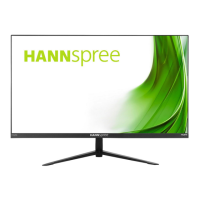
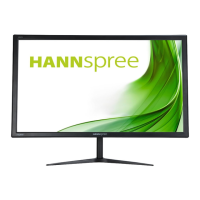
The HANNspree HC240HFB(HFW) is a 60.5cm / 23.8" Wide Screen TFT Color LCD Monitor designed to provide a crisp and clear display for Windows operating systems. It features an ergonomic and compact case design, making it suitable for various environments. The monitor supports multiple input sources, including VGA and HDMI, allowing for flexible connectivity with different devices. It incorporates High-Definition Multimedia Interface (HDMI™) technology for high-quality digital video and audio transmission. The monitor is equipped with an internal universal power supply, enabling operation in both 100/120V AC and 220/240V AC voltage areas without user adjustment. It also includes built-in speakers for audio output.
Important Technical Specifications:
- LCD Panel: TFT Color LCD
- Size: 60.5cm / 23.8" Diagonal
- Pixel Pitch: 0.2745mm(H) × 0.2745mm(V)
- H-Frequency: 30KHz – 83KHz
- V-Frequency: 56Hz – 75Hz
- Display Colors: 16.7M Colors
- Max. Resolution: 1920 × 1080 @60Hz
- Plug & Play: VESA DDC2B™
- Power Consumption:
- ON Mode: 26W (Typical)
- Power Saving Mode: ≤0.5W
- OFF Mode: <0.3W
- Audio Output: Rated Power 2.0 W rms (Per channel)
- Input Terminal: VGA, HDMI
- Maximum Screen Size: Hor.: 527.04mm, Ver.: 296.46mm
- Power Source: AC100-240V ~0.8A 50-60Hz, DC 12V~2.5A
- Environmental Considerations:
- Operating Temp: 0° to 40°C
- Storage Temp: -20° to 60°C
- Operating Humidity: 20% to 80%
- Dimensions: 540.33 (W) × 404.96 (H) × 153.9 (D) mm (21.3 "(W) × 16 "(H) × 6.1 "(D))
- Weight (NW): 2.52 kg (5.56 lb)
Usage Features:
The monitor offers a range of user-friendly features for optimal viewing and customization:
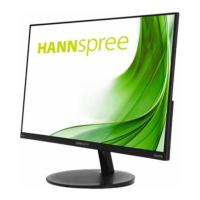
- Adjustable Viewing Angle: The monitor's angle can be adjusted from -5° to 15° for optimal viewing comfort. Users are advised to hold the stand to prevent toppling and avoid touching the LCD screen during adjustment to prevent damage.
- Front Panel Controls: The monitor features intuitive front panel buttons for various adjustments:
- Menu / Enter (M): Accesses the On-Screen Display (OSD) menu and confirms selections.
- Input Source / Exit (E): Switches between input sources (VGA, HDMI) and exits menus. For analog input models, it also serves as a confirmation function during start-up. For digital input models, pressing and holding for more than 3 seconds initiates the "Auto Adjust" function for VGA input.
- Brightness Adjustment (▲ [+]): Increases brightness when OSD is off, navigates up in OSD menus, or adjusts activated functions.
- Volume Adjustment (▼ [-]): Decreases brightness when OSD is off, navigates down in OSD menus, or adjusts activated functions.
- Power Button: Turns the monitor ON or OFF.
- OSD Menu Settings: The OSD provides extensive options for picture and system adjustments:
- Brightness/Contrast: Adjusts brightness, contrast, and enables "Active Contrast" for enhanced image quality.
- Preset Mode: Selects between PC, MOVIE, GAME, and ECO modes for optimized display settings.
- Input Setting: Allows selection between Analog (VGA) or Digital (HDMI) input sources. Includes an "Auto Search" function for automatic signal detection (for DVI/HDMI input only).
- Color Setting: Adjusts color temperature (WARM, NATURE (6500K), COOL) or allows user-defined RGB levels.
- Image Setting: Includes "Auto Adjust" for optimizing H-POSITION, V-POSITION, CLOCK, and PHASE (for VGA input only). Also features "Aspect Ratio" to adjust screen display (FULL or FIT mode), H-POSITION and V-POSITION for screen image shifting (for VGA only), CLOCK and PHASE for reducing flicker (for VGA only), SHARPNESS adjustment, and "Video Mode" selection for video transmission (VIDEO MODE or PC MODE, for HDMI input only). "Response Time" can be set to MINIMUM, INTERMEDIATE, or MAXIMUM (feature limited to specific models).
- OSD Setting: Configures OSD language, H-POSITION and V-POSITION for OSD placement, TRANSPARENCY, OSD TIME-OUT (10 to 100 seconds), and OSD COLOR (modes 1/2/3).
- System: Manages "Audio Input" (HDMI or PC, for HDMI input only), "Volume" control (for models with incorporated audio), "Mute" function, "DDC/CI" (for dual input mode optional), "Factory Reset" to restore default settings, and "Information" display (Horizontal frequency/Vertical frequency/Resolution).
- Hotkeys:
- Restore Brightness and Contrast defaults: Press ▲ and ▼ simultaneously.
- ASPECT RATIO: Press MENU + ▼ to toggle between "FULL MODE" and "FIT MODE".
- Change Resolution: Press MENU + ▲ to change screen resolution for optimal display quality (for similar screen display resolutions).
- Change Preset Mode: Press MENU for 3 seconds to select between "PC", "MOVIE", "GAME", and "ECO" modes.
- Plug & Play DDC2B Feature: The monitor supports VESA DDC2B, allowing it to communicate its identity and display capabilities to the host system. A video input signal is required for proper operation.
Maintenance Features:
- Cleaning: The monitor should be periodically cleaned with a soft cloth. Stubborn stains can be removed with a cloth lightly dampened with a mild detergent solution. Strong solvents, thinner, benzene, or abrasive cleaners should not be used as they can damage the cabinet. Always unplug the monitor before cleaning.
- Storage and Shipping: It is recommended to save the original shipping box and packing materials for future use if the monitor needs to be shipped. For maximum protection, repackage the monitor as it was originally packed at the factory.
- Troubleshooting: The manual provides a "Technical Support (FAQ)" section to address common problems such as "Power LED is not on," "No Plug & Play," "The display is too dark or too bright," "Picture bounces or a wave pattern is present," "No video or no picture," "Missing one of the primary colors," "Screen image is not centered or sized properly," "Picture has color defects," "The screen resolution needs to be adjusted," and "No sound is outputted from monitor's built-in speaker." Solutions include checking cable connections, adjusting OSD settings, and verifying PC system compatibility.
- Windows Compatibility: An addendum addresses display problems under Windows 7, 8, and 10, suggesting users ensure PC hardware and video card compatibility, install the latest video drivers, and try recommended display resolutions.
- Safety Precautions:
- Do not expose the monitor to rain or moisture to prevent fire or shock hazards.
- Do not open the cabinet; refer servicing to qualified personnel only.
- Avoid using the monitor near water sources, on unstable surfaces, or blocking ventilation openings.
- Operate the monitor only from the specified power source.
- Unplug the unit during lightning storms or prolonged periods of disuse.
- Do not overload power strips or extension cords.
- Do not push objects into cabinet slots or spill liquids on the monitor.
- The wall socket should be near the equipment and easily accessible.
- Installation of the LCD Monitor on a wall requires special skill and should be performed by qualified service personnel. HANNspree disclaims responsibility for improper mounting.
- Risk of hearing damage exists with high volume.
The manual emphasizes that HANNspree is committed to environmental protection and encourages recycling of industrial technology devices at the end-of-life. Further information on recycling can be found on their website.

 Need help?



 To Next Page
 General