This document serves as the User's Manual for the HANNspree HP246PFB (HSG1459) LCD Monitor, providing comprehensive instructions for its operation, installation, and maintenance. It begins with important safety notices and precautions, followed by detailed guidance on setting up and using the monitor, and concludes with troubleshooting information and technical support.
Function Description
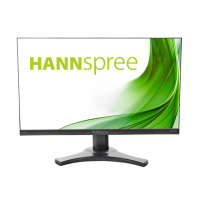
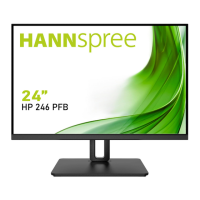
The HANNspree HP246PFB (HSG1459) is a 61.13cm / 24" Wide Screen TFT Color LCD Monitor designed to provide a crisp and clear display for various computing and multimedia needs. It functions as a visual output device for personal computers and other compatible devices, allowing users to view images, videos, and applications. The monitor supports multiple input sources, including HDMI, DP (DisplayPort), and VGA, making it versatile for connecting to different types of systems. It also features an audio input and an earphone jack, enabling integrated audio playback through its built-in speakers or external headphones. The monitor incorporates High-Definition Multimedia Interface (HDMITM) technology, ensuring high-quality digital audio and video transmission.
Usage Features
The monitor is designed with user convenience and ergonomic considerations in mind. Its ergonomic design allows for adjustment of the viewing angle, with a vertical tilt range of -5° to 15° and a horizontal swivel of 0° to 45°, ensuring optimal viewing comfort for different users and setups. The compact case design contributes to space-saving, making it suitable for various environments.
Installation is straightforward, with clear instructions provided for both stand installation and wall mounting. The stand can be easily attached or removed, and for wall mounting, the monitor is VESA compatible (75x75, 4 holes, M4, 8mm, 8kg), requiring a UL listed wall mount bracket.
Connecting the monitor to a PC or other devices is facilitated by multiple input ports. Users can connect via HDMI, DP, or VGA cables, depending on their system's output. An audio cable can be connected from the PC's audio output to the monitor's audio input for sound.
The monitor's operation is controlled via a front panel with several buttons:
- POWER Button: Turns the monitor ON or OFF.
- Power Indicator: Displays the monitor's status (Blue for ON, Red for Power Saving).
- MENU / ENTER Button: Activates the On-Screen Display (OSD) menu and confirms selections.
- AUTO Button: For VGA input, this button performs auto adjustment to optimize horizontal position, vertical position, clock, and phase. For digital input models, it allows selection of input sources (DP, HDMI, etc.) and also functions as a confirmation button in the OSD menu. Holding it for more than 3 seconds will activate the Auto Adjust function for VGA input.
- UP / DOWN Buttons: Used to navigate through OSD menu options, adjust contrast and brightness when the OSD is off, and modify function settings when a function is activated. Specifically, the UP button adjusts brightness, and the DOWN button adjusts volume.
The OSD menu offers a wide range of settings for customizing the display:
- BRIGHTNESS/CONTRAST: Adjusts the overall brightness and contrast of the display.
- PICTURE MODE: Allows selection of preset modes like PC, MOVIE, GAME, or ECO, optimizing the display for different content types.
- ACTIVE CONTRAST: Enhances contrast for high-contrast images and videos by automatically detecting and adjusting dark and light areas.
- LOW BLUE MODE: Reduces blue light emission from the display, which can help reduce eye strain.
- RESPONSE TIME: Adjusts the display's response time with settings like MINIMUM, INTERMEDIATE, and MAXIMUM, useful for fast-moving content.
- IMAGE (VGA only): Includes H-POSITION and V-POSITION to shift the screen image horizontally or vertically, CLOCK to reduce vertical flicker, and PHASE to reduce horizontal flicker.
- SHARPNESS: Adjusts the sharpness of the display from 0 to 100.
- IMAGE RATIO: Allows adjustment of the aspect ratio, with options like WIDE (full screen) and 4:3 (scaled to original images, potentially with black bands).
- COLOR TEMP: Adjusts the color temperature (WARM, NORMAL, COOL) or allows user-defined RGB adjustments.
- BLACK LEVEL: Adjusts the black level for improved brightness.
- SATURATION: Adjusts the color saturation of the display.
- OSD SETTING: Configures OSD language, H-POSITION, V-POSITION, TIME-OUT (duration the OSD stays on screen), and TRANSPARENCY.
- RESET: Resets all monitor settings to default.
- AUTO CONFIG (VGA only): Automatically optimizes H-POSITION, V-POSITION, CLOCK, and PHASE.
- AUTO COLOR: Automatically optimizes color settings.
- INPUT: Allows manual selection between Analog (VGA) or Digital (HDMI) input sources.
- AUDIO INPUT: Configures audio input settings, especially important when using HDMI for sound.
- MUTE: Toggles sound on or off.
- VOLUME: Adjusts the volume level of the built-in speakers or earphone output.
- DDC/CI: Toggles the DDC/CI function (Display Data Channel/Command Interface) on or off.
The monitor supports Plug & Play DDC2B, which allows it to communicate its identity and display capabilities to the host system, simplifying setup.
Maintenance Features
The manual emphasizes several maintenance guidelines to ensure the longevity and optimal performance of the monitor:
- Cleaning: To keep the monitor looking new, it should be periodically cleaned with a soft cloth. For stubborn stains, a cloth lightly dampened with a mild detergent solution can be used. Strong solvents like thinner, benzene, or abrasive cleaners should be avoided as they can damage the cabinet. Always unplug the monitor before cleaning.
- Environmental Protection: HANNspree is committed to environmental protection, and the manual highlights that the device contains recyclable materials. Users are encouraged to visit the HANNspree website for more information on appropriate treatment and recycling of industrial technology devices at the end-of-life.
- Storage and Handling: Users are advised to save the original shipping box and packing materials, as they will be useful if the monitor ever needs to be shipped.
- Placement: The monitor should not be installed near heat sources (radiators, electric heaters), in direct sunlight, or in places subject to excessive dust, mechanical vibration, or shock. Proper ventilation is crucial; slots and openings on the cabinet should not be blocked or covered.
- Power Protection: To protect the monitor from power surges, it should be unplugged during lightning storms or when it will not be used for extended periods. Overloading power strips and extension cords should be avoided.
- Servicing: Users are warned not to attempt to service the monitor themselves, as opening the cabinet can expose them to dangerous voltages. All servicing should be referred to qualified service personnel.
- Troubleshooting: The manual includes a comprehensive "Technical Support (FAQ)" section with common problems and their possible solutions, such as issues with the power LED, display darkness/brightness, picture quality, missing colors, screen centering, color defects, resolution adjustment, and sound output. This allows users to diagnose and potentially resolve minor issues independently. For display problems related to Windows 7/8/10, specific steps are provided, including updating video drivers and trying recommended display resolutions.
By following these guidelines, users can ensure the safe and effective operation of their HANNspree HP246PFB LCD Monitor and prolong its lifespan.

 Need help?
 General


 To Next Page