English _23
! USING CONTROLLER MODE
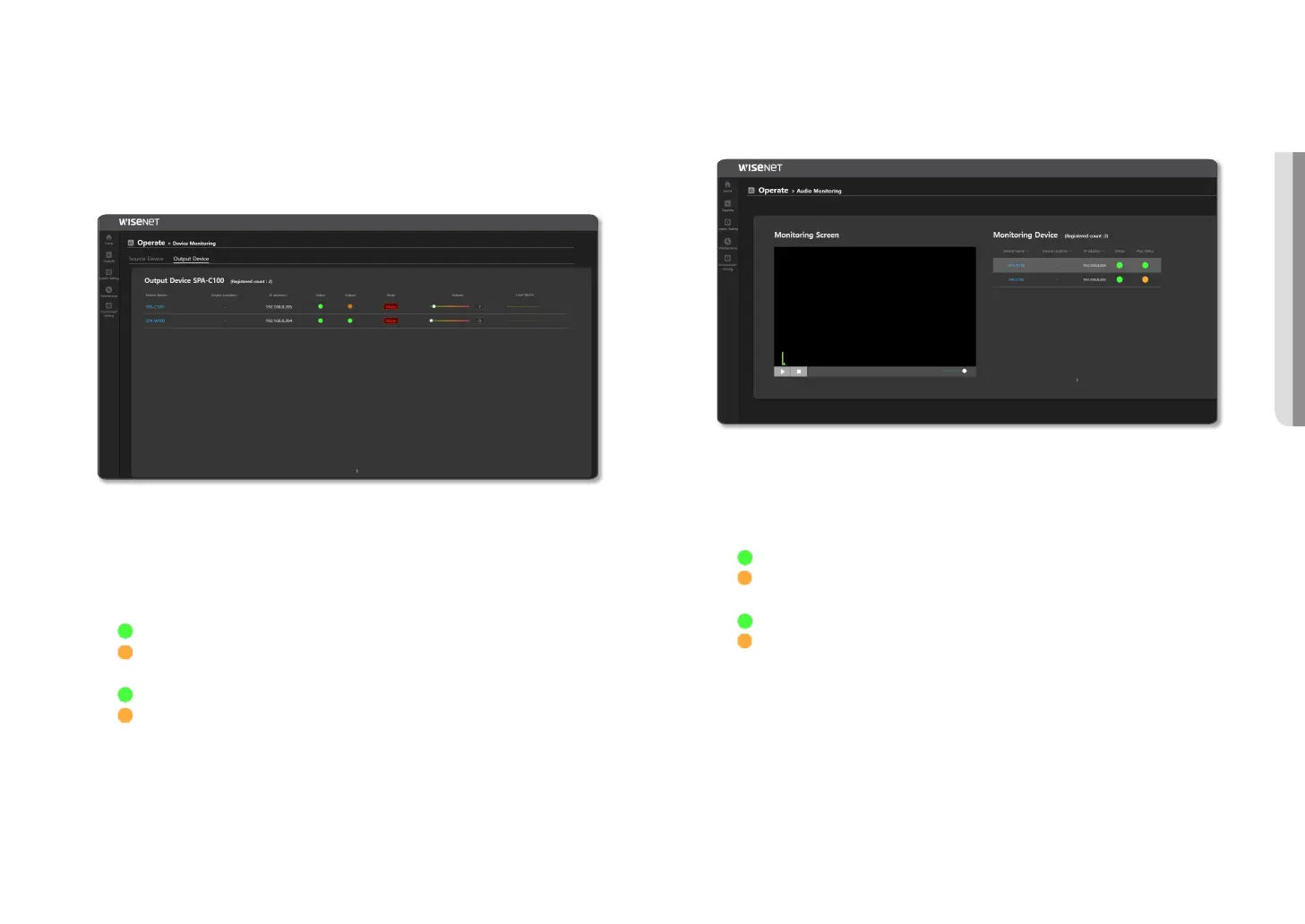
Output Device
The speakers registered as the <Zone> of the area for broadcasting will be displayed in the Output Device
list. <Zone> refers to one speaker set as an output device.
1. On the Home screen, click <Operate>
;
<Device Monitoring>.
2. Click the <Output Device>.
~
The number of devices registered as the Output Device will be displayed.
~
Device Name: Displays the name of the output device name.
~
Device Location: Displays the location of the output device.
~
IP address: Displays the IP address of the output device.
If you click the IP address, you can go to the website of the device.
~
Channel : The channel will be displayed.
~
Status: Displays the connection status of the output device.
-
: When the device is connected normally
-
: When there is interference with the device connection
~
Output: Displays the play status of the output device.
-
: When the device plays audio
-
: When the device does not play audio
~
Mute: If the [Mute] button is turned on, the audio source will not play in <Operate>
;
<Button Mode>.
~
Volume: Move a control bar to adjust the volume.
If the volume is adjusted, the speaker volume of the <Button mode> property is reflected on
the same level.
When the volume is adjusted, its output volume will be reflected at the same level in the
<Operation Settings>
;
<DSP Setting> of the Output Device speaker.
~
Level Meter: A signal value being played is indicated as a level meter.
Audio Monitoring
You can monitor the status of the Output Device speakers registered in the <Zone> of the area to broadcast.
1. On the Home screen, click <Operate>
;
<Audio Monitoring>.
~
Device Name: Displays the name of the output device.
~
Device Location: Displays the location of the output device.
~
IP address: Displays the IP address of the output device. If you click the IP address, you can go to the
website of the device.
~
Status: Displays the connection status of the output device.
-
: When the device is connected normally
-
: When there is interference with the device connection
~
Play Status: Displays the amp output status of the speaker.
-
: Amp output is On
-
: Amp output is Off
~
Monitoring Screen: Select a device to monitor and press the [Play (
+
)] button, then the audio signals
detected by the device microphone will be visualized.
You cannot hear the actual output audio source.
~
Volume Control: The monitoring volume can be adjusted.



 To Next Page