The ProView 7000 EMS
© 2010 Harmonic Inc. 4 ProView 7000, v.2.3, Rev. A
To check the ProView 7000 EMS Java version:
iRun
cmd in Windows.
ii Enter
Java -version and press Enter to check which version is currently on your
station. Update if necessary from the Java Web start page.
2. Click
Launch ProView 7000 EMS on the ProView 7000 web page to install the EMS.
The EMS application installs. Shortcuts are added to the desktop and the start
menu.
Launching the ProView 7000 EMS
To launch the ProView 7000 EMS:
1. Double-click the Harmonic ProView 7000 EMS launch icon to launch EMS.
The EMS GUI displays.
2. Click Add Device on the EMS toolbar.
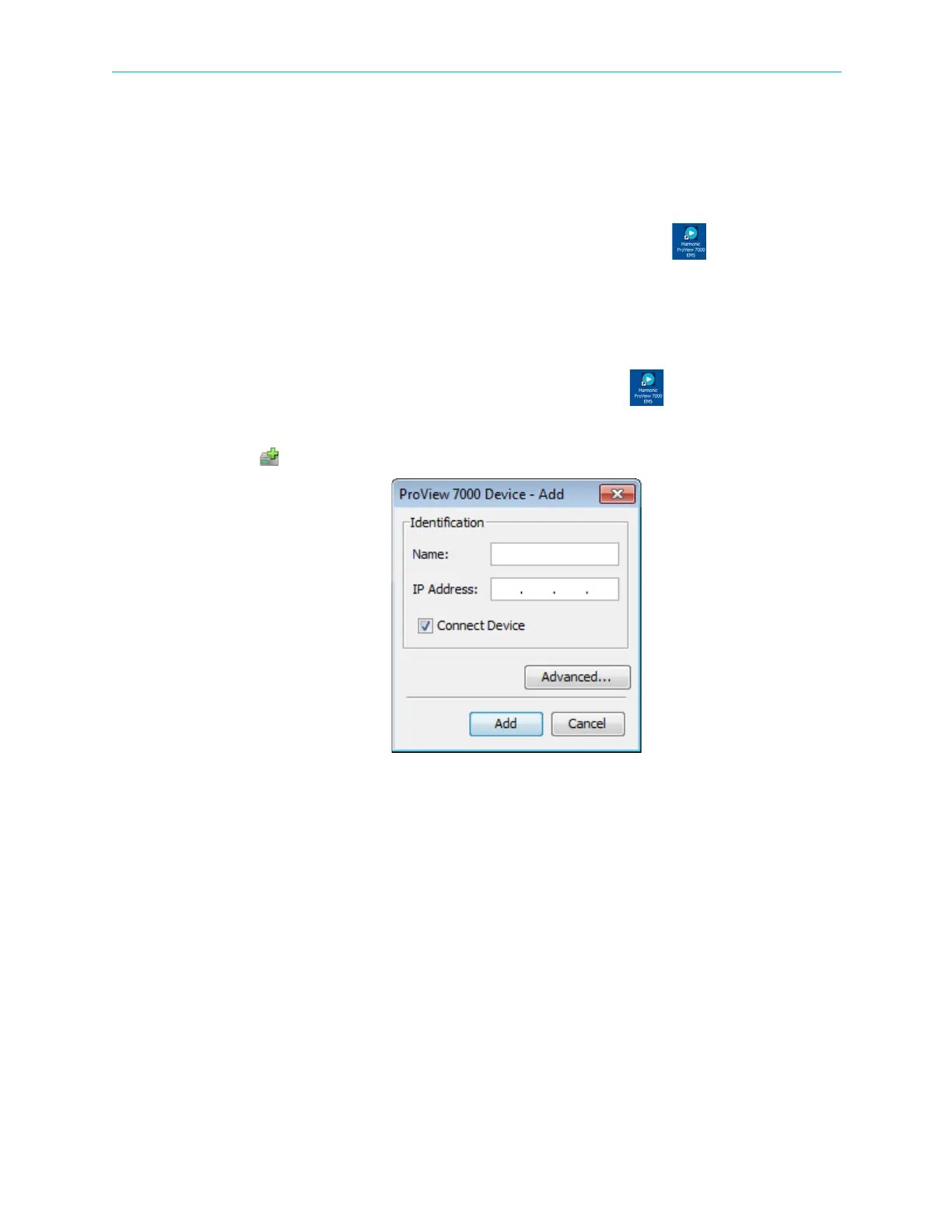
3. The EMS displays the ProView 7000 Device - Add dialog.
4. Enter a name for the new ProView 7000 device.
5. Enter the IP Address of the new ProView 7000 device.
6. For automatic connection when launching the EMS, mark the Connect Device
checkbox.
7. Click
Add.
8. Select the device in the Devices box of the EMS window.
9. Click
Device Explorer in the EMS toolbar to display input and output stream trees.
10. If the device fails to connect:
i Right-click the device icon in the Device box and select
Ping in the device context
menu.
ii Click
Ping in the Ping dialog box.



 To Next Page