26 27
7. Transferring measured values via
Bluetooth
® to the
Veroval® medi.connect app
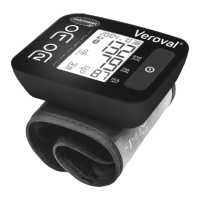
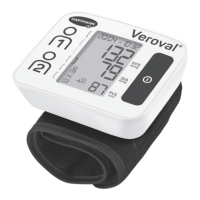
You can use the
Veroval®
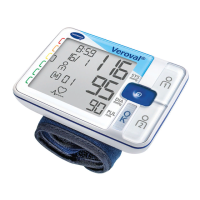
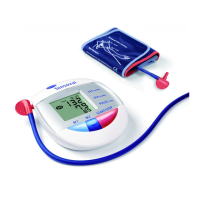
BPW 26 with your smartphone or tablet. You can transfer
your data to your smartphone/tablet quickly and easily via
Bluetooth
®
using the
Veroval®
medi.connect app.
Within the app, you can select dierent time periods and automatically receive
perfectly prepared charts of your values. With a few clicks, all results can be printed or
sent to the doctor via email.
Compatible devices
The
Veroval®
medi.connect app is designed and optimized for iOS and Android
smartphones and tablets that support
Bluetooth
®
4.0 and run the following operating
systems:
• Apple iOS 10 and higher
• Android 5.0 and higher
Android and iOS devices have subtle dierences in their electronic
components which can aect functionality, such as
Bluetooth®
connectivity. Due to the variation between device manufacturers,
HARTMANN cannot guarantee optimal performance of the
Veroval
®
medi.connectapp across all available devices.
A detailed list of compatible devices is available on our website at
www.veroval.info
Download and install the
Veroval®
medi.connect app
• To be able to use the
Veroval®
BPW 26 with the app, you must download the app
and install it on your smartphone or tablet.
• Download the Veroval
®
medi.connect app from the Apple App Store or Google Play
Store. You can also download the app from our website www.veroval.info. To avoid
lengthy download times and any associated costs, it is recommended to use a WiFi
connection for the download.
• Install the app by following the step-by-step instructions in the
Veroval
®
medi.connect app.
Connect the
Veroval®
BPW 26 to the app
Step 1: Make sure that you activated
Bluetooth
®
on the blood pressure monitor (see
Chapter 4, section ‘Bluetooth
®
’).
Step 2: Make sure that you activated
Bluetooth
®
on your smartphone/tablet and that
you have installed the
Veroval®
medi.connect app.
Step 3: Perform a blood pressure
measurement (see Chapter5
‘
Measuring
your blood pressure
’
). The result is
shown in the display and the
Bluetooth
®
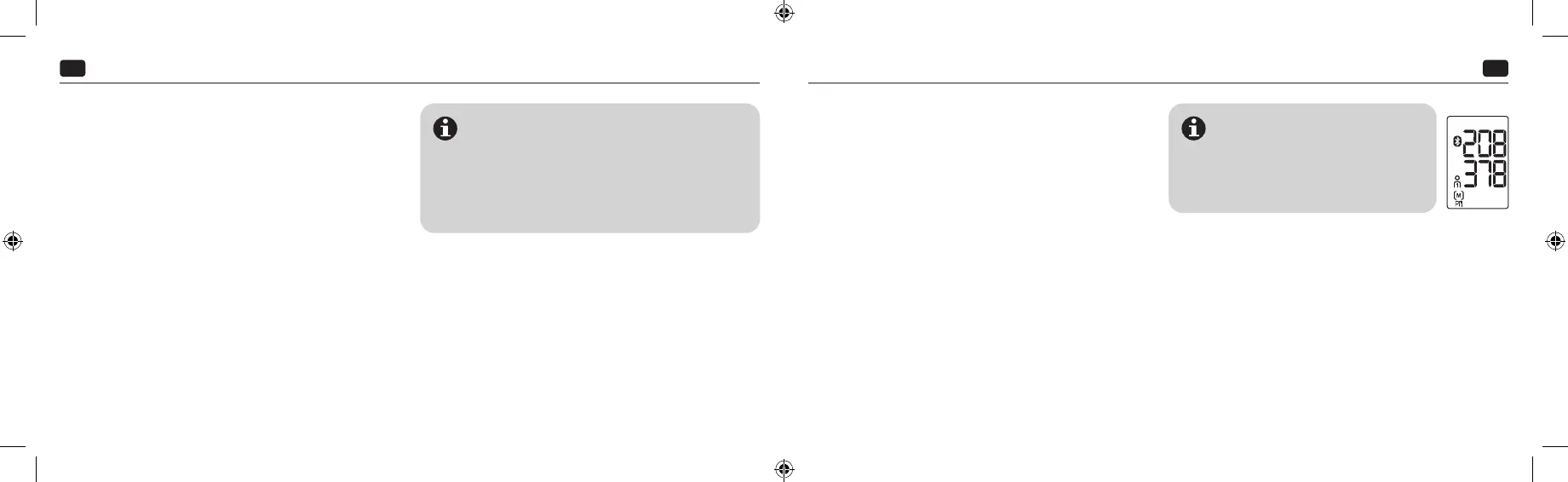
symbol ashes. Do not switch o the
blood pressure monitor.
or Step 3: Data transfer at a later point:
Go to memory mode (see Chapter6,
section ‘User memory’). Select the
desired user memory.
Step 4: Open your
Veroval
®
medi.connect app on your smartphone/tablet while the
values on the blood pressure monitor are still displayed.
Step 5: The
Bluetooth
®
transfer starts automatically.
When connecting for the rst time, a randomly-
generated six-digit PIN code is displayed on the device,
and at the same time an input eld appears on the
smartphone/tablet in which you must enter this six-
digit PIN code. After successfully entering the code, the
device will be connected to your smartphone/tablet.
If your smartphone or tablet has a protective cover, remove this to ensure that there is
no interference during the transfer.
The
Veroval®
medi.connect app is not intended for medical or commercial use and is
no medical device in accordance with Regulation (EU)2017/745.
The values displayed are purely for visualisation purposes and must not be used as
a basis for therapeutic treatments. The software is not part of a diagnostic-medical
system.
IFU_9252050_020323.indd 26-27IFU_9252050_020323.indd 26-27 02.03.23 10:4202.03.23 10:42



 To Next Page