EasyManua.ls Logo

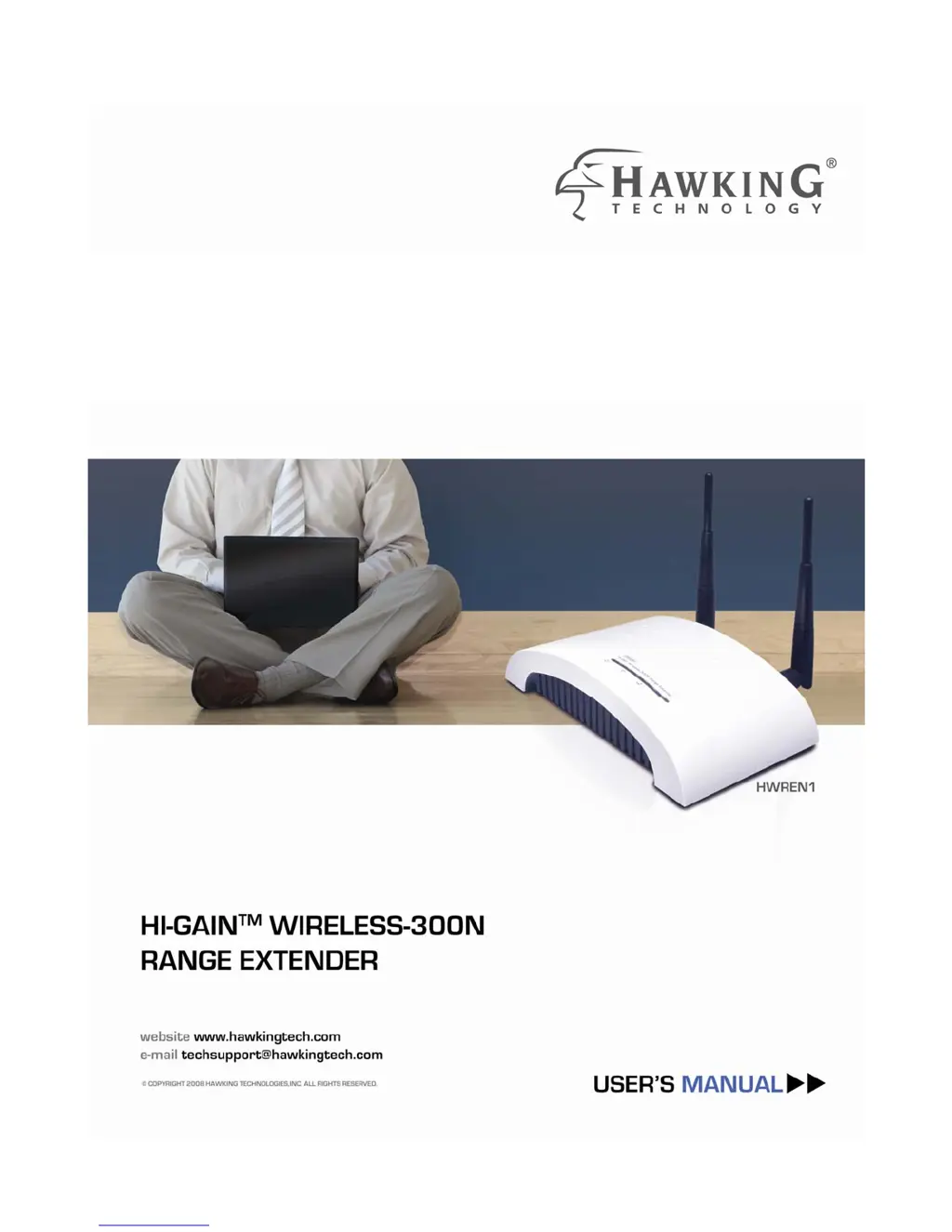
Hawking HWREN1 - User Manual

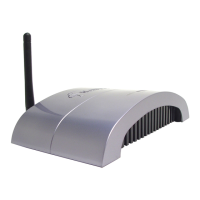
Hawking HWREN1
63 pages
Print Icon
To Next Page IconTo Next Page
Loading...

Other manuals for Hawking HWREN1

Questions and Answers

  • C
    Colin FrancisAug 5, 2025
    Why can't I connect to my Hawking wireless extender?
    • M
      Mr. Thomas AdamsAug 5, 2025
      If you can't connect to the wireless Hawking range extender, here are a few things to try: * If encryption is enabled, double-check your WEP or WPA passphrase settings on your wireless client. * Try moving closer to the wireless range extender to improve the signal. * Unplug the power plug of the range extender, wait 10 seconds, and then plug it back in.
  • J
    James RichardsonAug 10, 2025
    What to do if I can’t log into my Hawking HWREN1 web interface because of wrong password?
    • A
      autumn78Aug 10, 2025
      If you can't log onto the web management interface of your Hawking extender because the password seems wrong, consider the following: * Ensure you’re connecting to the correct IP address of the range extender. * Remember that passwords are case-sensitive; check if the 'Caps Lock' light is on. * If you've genuinely forgotten the password, perform a hard reset.
  • J
    John SheaAug 15, 2025
    Why is file download so slow with my Hawking Extender?
    • A
      Alexander DudleyAug 15, 2025
      If your file downloads are very slow or frequently interrupted when using the Hawking range extender, consider these solutions: 1. Try resetting the range extender to see if performance improves. 2. Check network activity to see if other devices are transferring large files, which can slow down the network. 3. Change the channel number of the range extender to see if it improves the connection.
  • M
    Marvin BennettAug 21, 2025
    Why can't my wireless client find my Hawking Extender?
    • B
      bbeasleyAug 21, 2025
      If you can't locate your Hawking range extender using your wireless client, check the following: * Is the 'Broadcast ESSID' setting turned off? If so, it might be hidden. * Ensure the antenna is properly installed and secured. * Make sure you are not too far from the range extender. Try moving closer. * If ESSID broadcast is disabled, remember to manually input the ESSID on your wireless client.
  • A
    Adam MyersAug 26, 2025
    Why does my Hawking HWREN1 Extender get so hot?
    • C
      Chad ReyesAug 26, 2025
      If your Hawking range extender becomes hot, note the following: * It's not a malfunction if you can still keep your hand on the range extender's case. * If you smell something burning or see smoke coming from the range extender or A/C power adapter, immediately disconnect both from the power supply (ensure it's safe to do so) and contact your dealer for assistance.
  • T
    Todd MitchellOct 30, 2025
    How to fix Hawking HWREN1 Extender not responding via web browser?
    • J
      Jonathan BellOct 30, 2025
      If you're having trouble accessing the Hawking range extender through a web browser, there are several things to check: 1. Ensure the power cord and network cable are correctly and firmly inserted into the extender. 2. If all the LEDs are off, verify the A/C power adapter is correctly powered. 3. Make sure your computer is using the same IP address section as the range extender. 4. If you're using MAC or IP address filtering, try connecting with another computer. If that doesn't work, perform a hard reset by pressing the reset button. 5. Set your computer to obtain an IP address automatically (DHCP) to see if it gets an IP address. 6. If this issue occurred after a firmware upgrade, contact your dealer for assistance. 7. If none of the above steps work, contact your dealer for assi...

Summary

COPYRIGHT

Limited Warranty Information

Details the product warranty, covering physical defects for one year from purchase.

Document Disclaimer

Federal Communication Commission Interference Statement

FCC Part 15 Compliance

Explains compliance with FCC Part 15 rules for Class B digital devices and potential interference mitigation.

FCC Cautionary Notes

Provides specific cautions for operating the device to meet FCC regulations.

FCC Radiation Exposure Statement

R&TTE Compliance Statement

Safety Guidelines for Use

Outlines safety precautions for installation and operation to prevent electrical hazards.

EU Intended Use Countries

Lists European Union countries where the device is authorized for home and office use.

EU Non-Intended Use Countries

Specifies countries within the EU where the device is not intended for use.

Chapter I: Product Information

1-1 Product Introduction

Provides a welcome and an overview of the wireless range extender's features and capabilities.

1-2 Safety Information

Presents critical safety instructions for proper and safe operation of the range extender.

1-3 System Requirements

Lists the necessary computer hardware, software, and network components for setup.

1-4 Package Contents

Details all items included in the product packaging for user verification.

1-5 Product Overview - Top Panel

Describes the top panel of the range extender, including LED indicators and their meanings.

Product Overview - Back Panel

Details the ports and connectors found on the back panel of the range extender.

Chapter II: System and Network Setup

2-1 Installing the Range Extender

Step-by-step guide for physically connecting the range extender to your network.

2-2 Connecting via Web Browser

Instructions on accessing the range extender's configuration interface using a web browser.

Windows IP Address Setup (95;98;Me)

Guide to configuring IP address settings on Windows 95, 98, and Me operating systems.

Windows IP Address Setup (2000)

Guide to configuring IP address settings on Windows 2000 operating systems.

Windows IP Address Setup (XP)

Guide to configuring IP address settings on Windows XP operating systems.

Windows IP Address Setup (Vista)

Guide to configuring IP address settings on Windows Vista operating systems.

2-2-5 Connecting to Web Management Interface

Steps to log in to the range extender's web interface with default credentials.

2-3 View System Status and Information

Explains how to access and interpret the system status and network information.

2-4 Operating as Universal Repeater

Configuration guide for setting up the device as a wireless repeater.

2-5 Advanced Wireless Settings

Details advanced wireless configuration options for optimizing performance.

2-6 Wireless Security

Overview of security options, including data encryption and authentication methods.

2-6-1 Disable Security

Instructions for disabling wireless security features and encryption.

2-6-2 WEP Encryption Setup

Configuration steps for setting up WEP encryption for wireless security.

2-6-3 WPA Pre-shared Key Setup

Guide for configuring WPA Pre-shared Key encryption for enhanced wireless security.

2-6-4 WPA RADIUS Setup

Instructions for setting up WPA RADIUS authentication for network access.

2-6-5 802.1 x Authentication

How to enable and configure 802.1x user authentication for network access control.

2-7 MAC Filtering Configuration

Steps to configure MAC address filtering for network access control.

2-8 System Utilities Overview

Introduction to system utility functions like password, IP, and DHCP management.

2-8-1 Change Administrator Password

Procedure for changing the password to access the range extender's configuration.

2-8-2 IP Address Management

How to change the range extender's IP address, subnet mask, and gateway.

2-8-3 DHCP Server Setup

Guide for enabling and configuring the device's DHCP server functionality.

Chapter III: Advanced Configuration

3-1 Configuration Backup and Restore

Instructions on how to back up and restore the range extender's configuration settings.

3-2 Firmware Upgrade Procedure

Steps for updating the range extender's system firmware to the latest version.

3-3 System Reset Function

Guide on how to reset the range extender to its factory default settings.

Chapter IV: Appendix

4-1 Hardware Specification

Detailed technical specifications of the range extender's hardware components.

4-2 Troubleshooting Common Issues

A guide to diagnosing and resolving common problems with the range extender.

4-3 Glossary of Terms

Definitions of technical terms and acronyms used throughout the manual.

Hawking HWREN1 Specifications

General IconGeneral
Frequency Band2.4 GHz
Wireless SpeedUp to 300 Mbps
Antenna TypeExternal
Antenna Gain5 dBi
SecurityWEP, WPA, WPA2
WPS SupportYes
Wireless StandardsIEEE 802.11b/g/n
Ports1 x 10/100M Ethernet Port
Operating Temperature0°C to 40°C
Storage Temperature-20°C to 60°C
Humidity10% to 90% non-condensing

Related product manuals