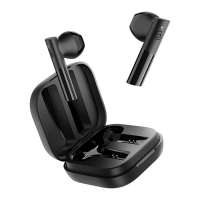
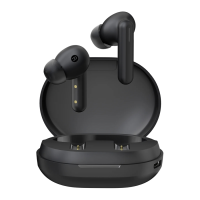
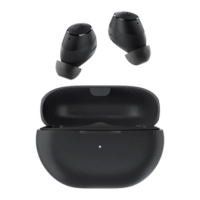
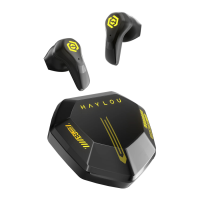
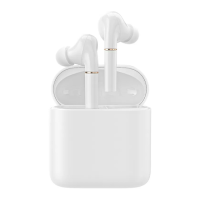
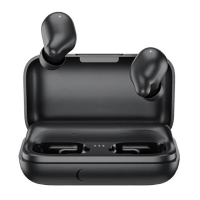
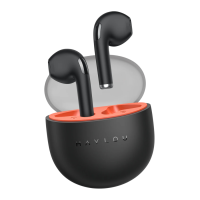
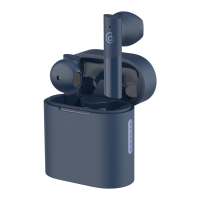
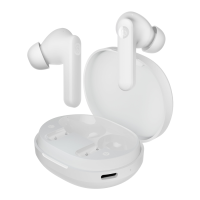
The Haylou GT5 True Wireless Earbuds are designed for an immersive audio experience with convenient features for daily use. These earbuds come with a charging case that not only protects them but also provides additional power on the go.
Function Description
The Haylou GT5 earbuds are true wireless stereo (TWS) devices, meaning they operate independently of each other and connect wirelessly to your audio source, typically a smartphone or tablet, via Bluetooth. They are designed for listening to music, making and receiving calls, and interacting with voice assistants.
Each earbud features a touch control area, allowing for intuitive interaction without needing to access your connected device. An in-ear sensor detects when the earbuds are worn, enabling automatic play/pause functionality. A built-in microphone on each earbud facilitates clear voice calls. LED indicators on both the earbuds and the charging case provide visual feedback on their status, such as charging, pairing, and battery levels.
The charging case is a central component of the Haylou GT5 system. It houses the earbuds when not in use and recharges them. The case itself can be recharged via a USB Type-C cable or wirelessly, offering flexibility in power management. The charging case also has its own LED indicators to display its battery status.
Usage Features
First Use and Fit:
Before initial use, it's important to remove any protective stickers from the earbuds and fully charge both the earbuds and the charging case. The earbuds come with medium-sized ear tips pre-assembled, but the package includes three pairs of ear tips (small, medium, and large) to ensure a comfortable and secure fit for different ear sizes. Proper fit is crucial for both sound quality and comfort. Users are advised to distinguish between the left and right earbuds and adjust them to fit comfortably in their ears. For optimal call quality, the microphone should be positioned towards the user's mouth.
Charging:
- Earbuds: To charge the earbuds, simply place them back into the charging case. While charging, the earbud's LED will glow solid red. Once fully charged, the LED will turn white for approximately one minute before turning off.
- Charging Case: The charging case can be charged in two ways:
- USB Type-C Cable: Connect the provided USB Type-C cable to the charging port on the case and a power source.
- Wireless Charging: Place the charging case on a compatible wireless charging pad.
The charging case features three white LED lights that indicate its battery level. If the battery is below 5%, these three lights will flash five times within 20 seconds to alert the user. During charging, the LEDs will flash according to the current battery level. Once fully charged, all three LEDs will remain on for 60 seconds before turning off.
Pairing:
- Automatic Pairing: For the first-time setup, take both earbuds out of the charging case simultaneously. The white light on the earbuds will turn on, followed by alternating red and white flashes, indicating they are in pairing mode. Once successfully paired with each other, the white light on the left/right earbud will flash slowly. At this point, turn on Bluetooth on your device (e.g., smartphone), search for "Haylou GT5," and tap to connect. After the initial connection, the earbuds will automatically connect to the last paired device when turned on, provided Bluetooth is active on the device. If pairing fails, place the earbuds back into the charging case and repeat the process.
- Manual Pairing: If the earbuds are off, press and hold the touch control areas on both earbuds for 1.5 seconds to turn them on. Wait 2-3 seconds for the earbuds to connect in series. Once the white light on the right earbud flashes slowly, turn on your device's Bluetooth and connect.
Switching On/Off:
- Power On: If the earbuds are not in the charging case, press and hold the Multi-Function Button (MFB) on each earbud for 1.5 seconds. The LED will glow white for 1 second to confirm power-on.
- Power Off: To power off the earbuds, place them back into the charging case. Alternatively, if they are out of the case, press and hold the MFB on each earbud for 4.5 seconds. The LED will glow red for 2 seconds to confirm power-off.
Touch Controls:
The touch control areas on the earbuds allow for various functions:
- Play/Pause Music: Put on or take off the earbuds, or single-click on either the right (R) or left (L) earbud.
- Previous Song/Next Song: Double-click on the left earbud for the previous song, or double-click on the right earbud for the next song.
- Answer/Hang Up Call: Double-click on either earbud.
- Reject Call: Long press on either earbud for 1 second.
- Voice Assistant: Triple-click on the left earbud to activate your device's voice assistant.
- Turn On/Turn Off Game Mode: Triple-click on the right earbud to toggle game mode, which typically reduces audio latency for gaming.
Handling Second Calls:
- When a phone call comes in, double-click the MFB to answer.
- If a new call arrives during an ongoing call, press the MFB to put the current call on hold and answer the new call.
- To switch between two active calls, double-click the MFB.
- To hold the first call and reject the second call, press and hold the MFB for 1 second.
Troubleshooting Charging Issues:
- Earbuds not charging:
- Ensure the charging case has been charged for at least 1 hour before use.
- Verify that the earbuds are properly seated in the charging case and making good contact with the charging pins.
- Check for any dirt or debris on the charging pins that might obstruct contact.
- Charging case not charging:
- Confirm that the charging cable and interface are properly connected.
- Note that the LED indicators will not turn on if the case is already fully charged when the charging cable is plugged in.
- Try plugging and unplugging the cable, or use a different socket or charging adapter.
- Inspect the charging pins for any damage, such as being missing or losing elasticity.
Resetting the Earbuds (Factory Reset):
A factory reset can resolve issues such as only one earbud playing, earbuds failing to connect to the phone, inability to switch to stereo mode, or other malfunctions.
- Place both earbuds back into the charging case.
- While in the case, simultaneously press and hold both "Touch Control Areas" on the earbuds for 10 seconds.
- After 10 seconds, the earbuds will quickly blink red, then white, then red again (red→white→red) three times. Release the touch areas.
- The earbud lights will remain on after a successful reset.
- After resetting, unpair the "Haylou GT5" Bluetooth connection from your device. Then, turn Bluetooth on again and search for "Haylou GT5" to reconnect.
Important: Ensure both the earbuds and the charging case have sufficient power before performing a reset.
Maintenance Features
Daily Maintenance:
To ensure the longevity and optimal performance of your Haylou GT5 earbuds, follow these maintenance guidelines:
- Avoid Extreme Environments: Do not wear the earbuds while showering or in the rain. Avoid exposing them to extreme temperatures or placing them in a washing machine.
- Regular Cleaning: After each use, especially after exercise, use a dry cloth or other appropriate tools to wipe off any sweat or rain from the earbuds. This helps prevent moisture damage and extends their lifespan.
Warranty and Support:
The Haylou GT5 earbuds come with a 12-month limited warranty and lifetime technical support. Users can find more information and support by following Haylou's official Facebook page. They can also search for "Operation" or "Reset" videos and message Haylou with "GT5 Operation" or "GT5 Reset" for specific guidance.

 Need help?
 General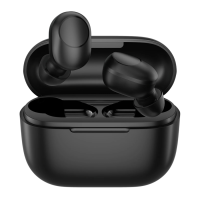

 To Next Page