4.2 Programming with the automatic search function (DEV Search)
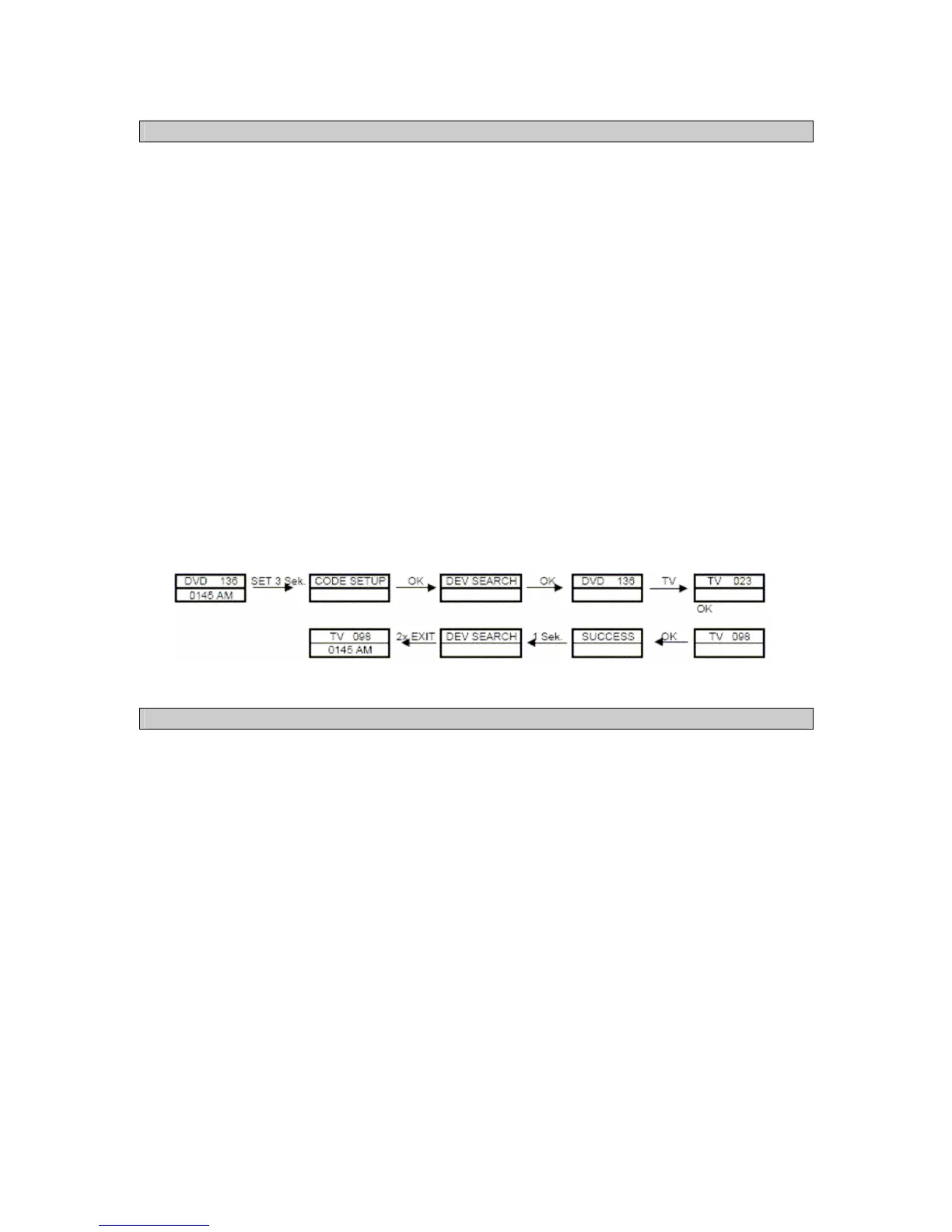
This function makes it possible for you to search for codes automatically.
1. Switch on the device that you want to control with the Universal Remote Control unit. If the
device happens to be a video recorder, insert a video cassette and switch to "PLAY" mode.
2. Press and hold the SET button for approx. 3 seconds until the system menu appears.
3. The menu item CODE SETUP is displayed on the screen. Now press the OK button once, so
that the DEV SEARCH menu item is shown on the display. Confirm the menu item by pressing
the OK button again.
4. Use the device selection button (e.g. TV) to select the device for which you intend to carry out
the automatic code search function.
5. Now point the Universal Remote Control unit at the device and press the OK button in order to
start the code search. From now on a new code is sent to the device approx. every 1 second.
This is indicated by means of the successive code numbers shown on the display and the red
flashing device selection key.
6. As soon as the device reacts to the Universal Remote Control (device switches off), press any
key on the Universal Remote Control unit in order to stop searching.
7. Subsequently confirm your entry with the OK key. SUCCESS appears on the display for
approx. 1 second, subsequently the menu exits automatically.
8. If you fail to confirm the code in time, then steps 1 to 7 have to be repeated.
9. In order to quit the programming menu, press the EXIT key 2 or 3 times.
4.3 Manual programming (DEV SETUP)
This function enables you to manually enter the code number from the code table.
1. Switch on the device that you intend to operate with the Universal Remote Control unit.
2. Press and hold the SET button for approx. 3 seconds until the system menu appears. The
menu item CODE SETUP is displayed on the screen. Now press the OK button.
3. Subsequently select DEV SETUP with the ▲and ▼ keys and confirm your entry by pressing
the OK button once more.
4. Use the device selection button (e.g. TV) to select the device for which you intend to manually
enter the code search and confirm your entry with the OK button.
5. Now enter the three-digit code from the list as detailed for your device. If the list has several
codes, start with the first number.
6. Subsequently confirm your entry with the OK key. SUCCESS appears on the display for
approx. 1 second, subsequently the menu exits automatically.
Note! If you enter a device code that is not detailed on the list, NOT FOUND appears for approx. 1
second on the display. Subsequently you can re-enter the device code!



 To Next Page