6 Macro function (MACRO)
A macro is a sequence of key combinations which serves to reduce the number of buttons which
you have to press. For example, you can switch on your complete home entertainment system at
the press of a button.
6.1 Create macro (MACRO 1 - 3)
You can create up to 3 macros (Macro 1- 3). Each macro can contain a maximum sequence of 10
subsequent key combinations.
Note! Before creating a macro, ensure that each of the keys which you intend to combine are
actually assigned to a command. You can check this by pressing the corresponding buttons. In
doing so, the corresponding device selection key should flash in red and the transmission symbol
should appear on the display. If this is not the case, the key is not assigned.
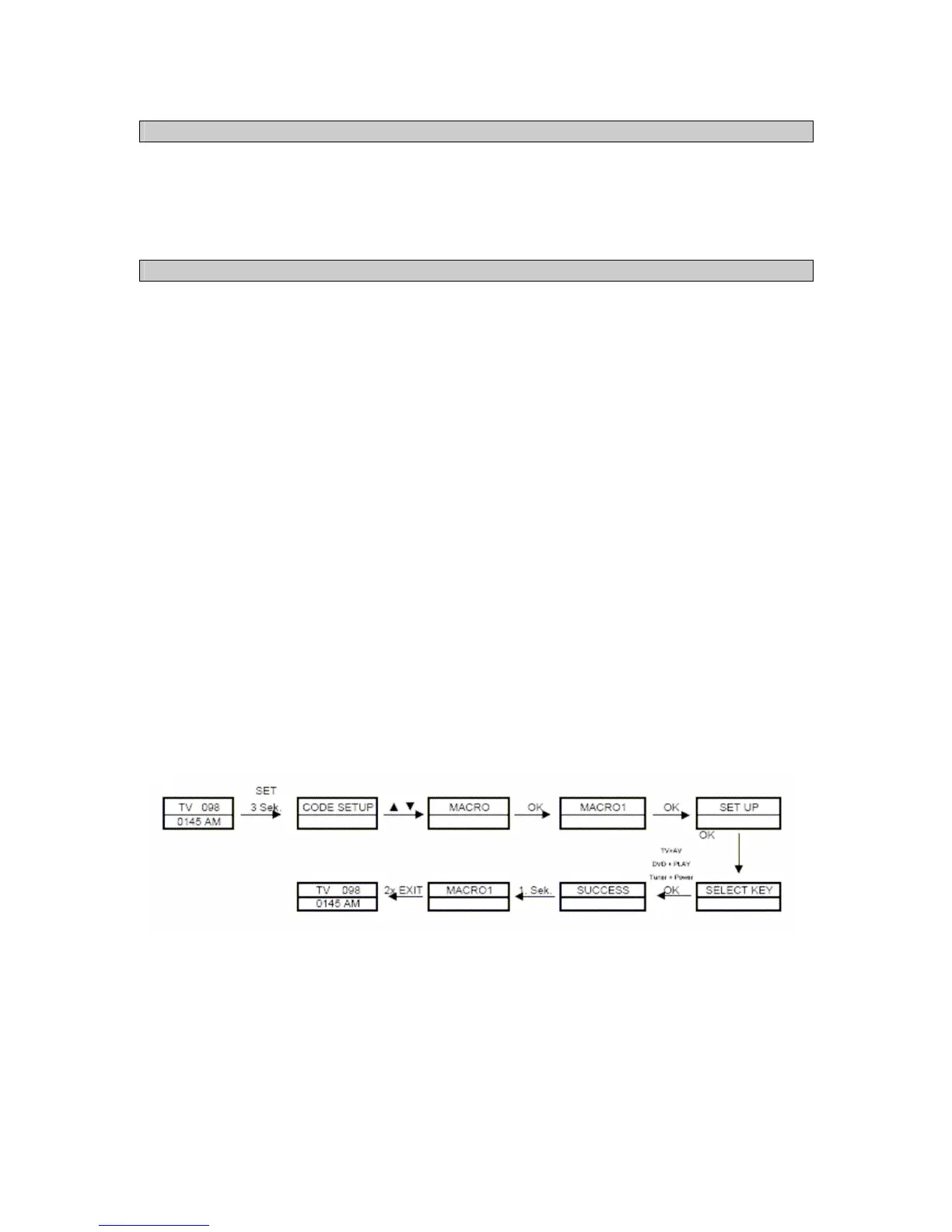
1. Press and hold the SET button for approx. 3 seconds until the system menu appears.
2. Navigate to the MACRO menu item with the help of the ▲and ▼ keys and press the OK
button.
3. Subsequently select MACRO1 or navigate with the ▲and ▼ buttons to MACRO2 or MACRO3
and then press the OK button again, so that the SET UP menu item is shown on the display.
Confirm the menu item by pressing the OK button again, so that SELECT KEY is shown on
the display.
4. Now press the desired key combination sequence, e.g. to switch the TV to AV, press TV +
AV, to switch the DVD player to play mode, press DVD + ► and to switch on the tuner, press
TUNER + POWER.
5. In order to store the newly created key combination, please press the OK button. SUCCESS
appears on the display for approx. 1 second, subsequently the menu quits automatically to the
MACRO menu. In order to quit the macro menu, press the EXIT key twice.
6. To run a macro, press and hold the MACRO key and simultaneously press button 1 for
MACRO1 (or button 2 for MACRO2 etc.). The previously created key combination will now
run.
Note! When running a macro, ensure that all of the criteria required for performing the macro
function are fulfilled, e.g. device in standby mode, DVD inserted in the DVD player, etc.



 To Next Page