| Data is subject to change without notice.
Caution: Changing and retaining the password is the responsibility of the user/customer.
However, it may be possible to restore the default password. If required, contact your
Helvar support representative for further details.
To configure the password:
1. Do one of the following:
• If necessary, press Admin (on the Home page) to
display the
Change password page.
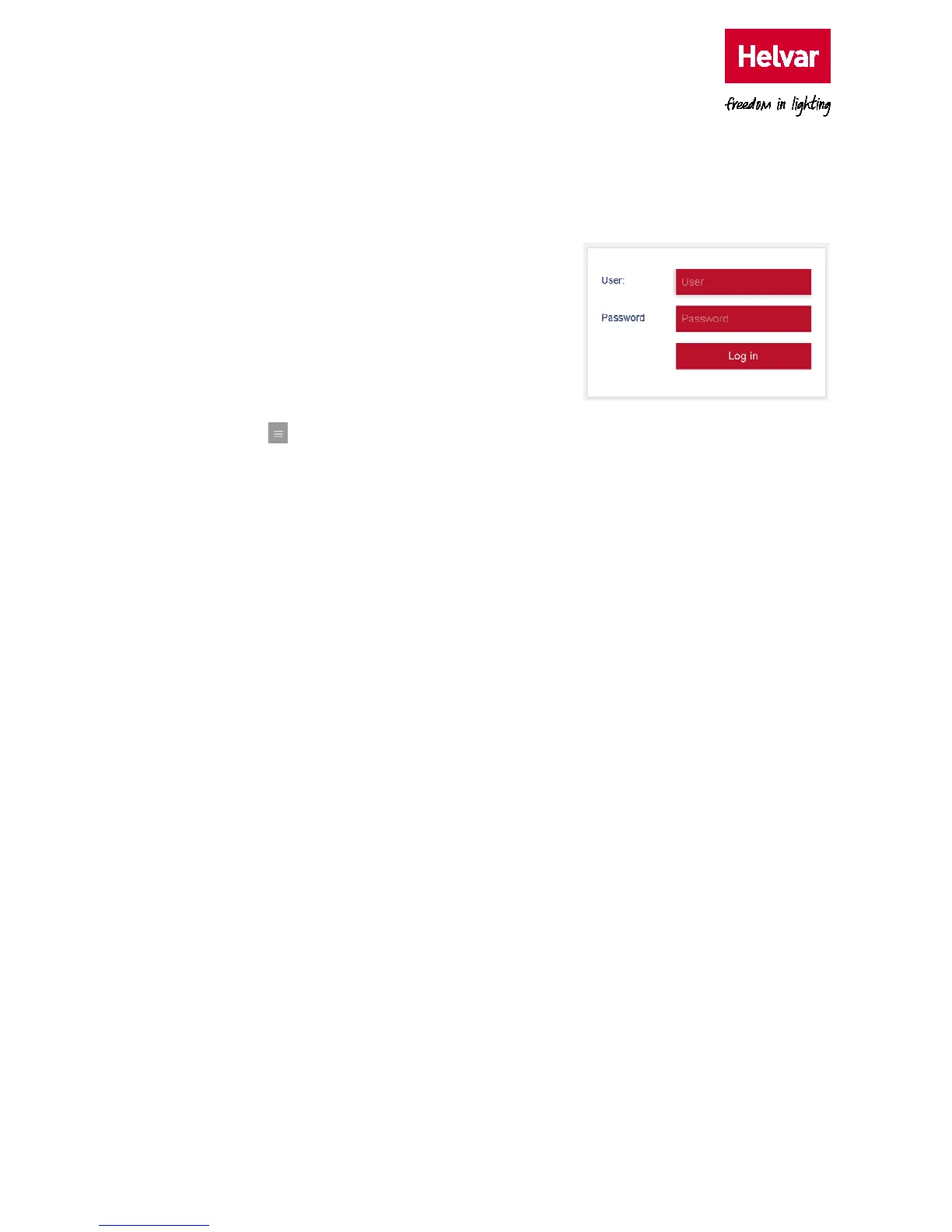
This page displays the User, Password and New
password text boxes, which allow you to change the
current password.
• Press , and then select Change Password to display the Change password page.
Tip: Press Go back to return to the configuration pages.
Press Logout (at any time) to exit the configuration pages immediately.
2. Type the default User name (Admin).
3. Type the current password.
Caution: Login security can be successfully controlled only if the password is carefully
distributed.
4. Type a new password (40 characters max.) in the New Password text box. This password
overwrites the previous password.
Tip: A random combination of numbers and uppercase and lowercase letters provide a
secure password setup.
5. Press Save to apply the changes and return to the Login page.



 To Next Page