| Data is subject to change without notice.
available workgroups and to display additional configuration buttons.
2. Do one of the following:
o Press Discover selected workgroup to discover Helvar routers in the selected
workgroup.
o Select the required workgroup from the list of available workgroups, and then press
Discover selected workgroup.
3. If necessary, press Discover changes to detect changes to the selected workgroup.
4. Press Select routers to show all Helvar routers in the selected workgroup.
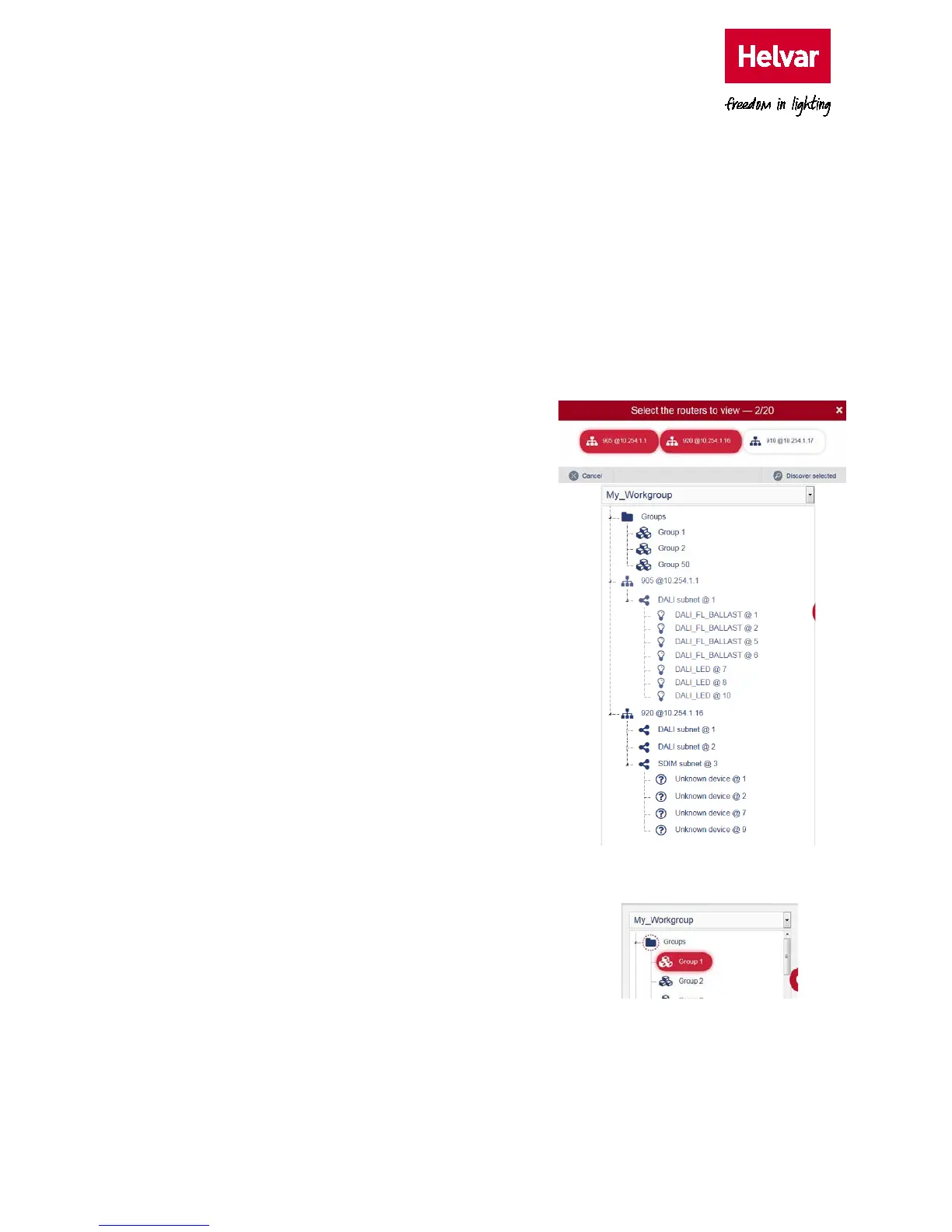
5. Select the routers with parameters that require
mapping to the BACnet BMS. The maximum
number that you can select is 20.
Tip: Detected Helvar routers are identified by
the router type and IP Address, i.e. router
920 at IP Address 10.254.1.16.
6. Press Discover selected to detect all router and
the devices connected to the available router
subnets. This will display the network tree
associated with the selected workgroup.
o Press Clear tree to remove all discovered
Helvar routers, groups and connected
devices detected in the selected workgroup.
Tip: You can use the workgroup tree to confirm
that the expected routers and connected
devices are available.
2.4.2. Configure the mapping to BACnet object types
Each group, Helvar router and connected device
includes parameters that can be mapped to BACnet
Object types. They are available to the BACnet/IP
network via the BACnet Gateway.
1. Expand the Groups folder or the required router.
o Expand Groups to show all the groups
configured in this workgroup.
o Expand the router (e.g. 920 @ 10.254.1.16) to
show all the available router subnets in this
workgroup.



 To Next Page