| Data is subject to change without notice.
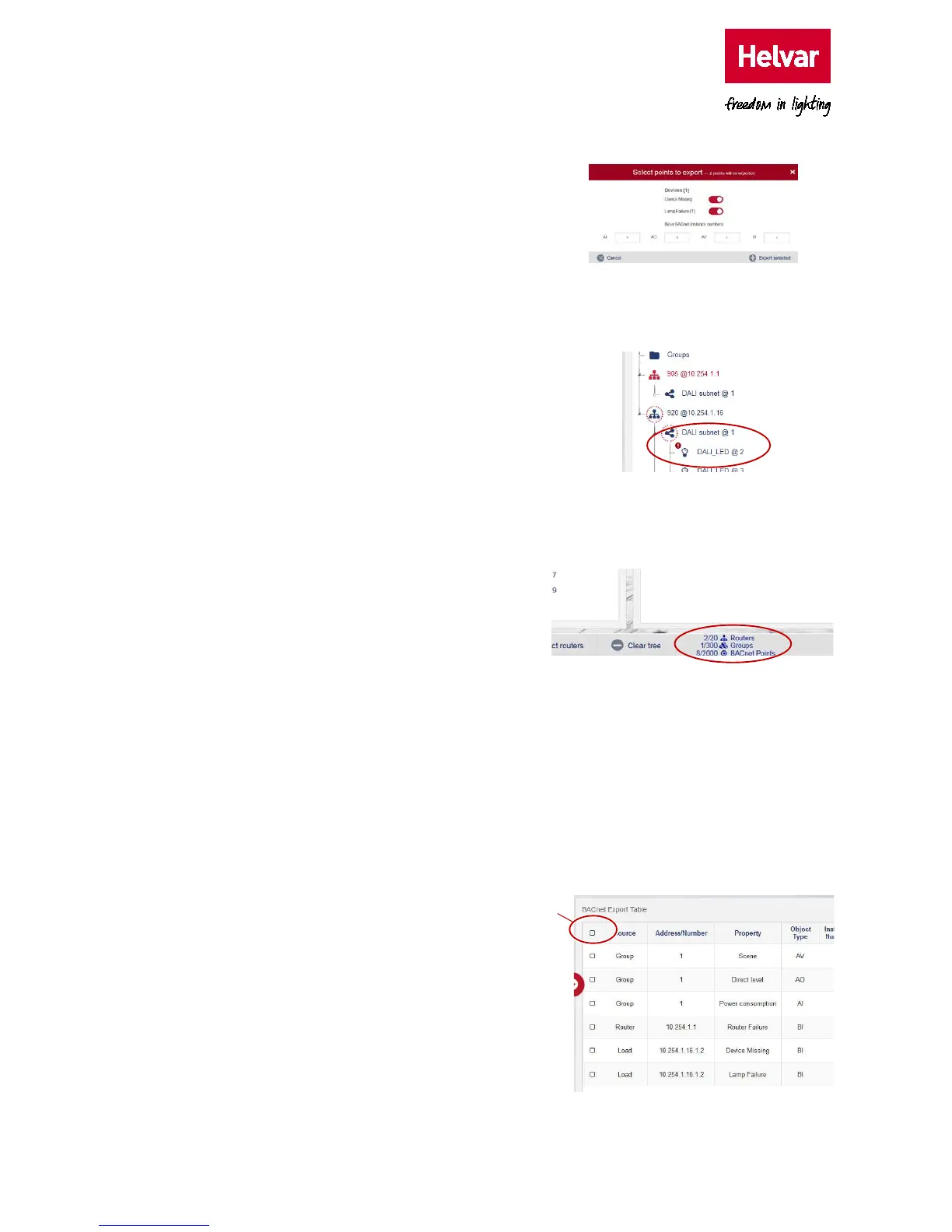
ii. Turn on the switch corresponding to the
parameter that you want to map:
Device
Missing or Lamp Failure.
iii. Type the BACnet instance number for the
equivalent subnet device parameters.
iv. Press Export selected to add the enabled
parameters and default properties to the
configuration table.
Notes: The Helvar router and Helvar router
subnet icons indicate that parameters
have been selected.
The exclamation mark icon indicates that
not all ‘Device’ parameters have been
selected/ exported.
v. Check the default BACnet configuration
applied.
3. Press Save points to apply the selected
configuration and verify that the selected
parameters are defined correctly.
Note: The bottom bar shows the current total
number of configured device limitations.
2.4.3. Edit the BACnet table
The BACnet table allows you to view and edit the mapping configuration of the group, the Helvar
router and the Helvar router subnet device parameters to the BACnet object instances. Each
BACnet object instance includes a default set of properties that are displayed in the BACnet
Explorer.
Note: The BACnet Protocol Implementation Conformance Statement (PICS) describes the
implementation of BACnet protocol in the BACnet Gateway: see Annex A – Protocol
Implementation Conformance
Statement (Normative).
To edit the BACnet table:
1. Select a parameter in the BACnet Points
table, and ensure that the
Source,
Address/Number, Property and Object
Type fields are correct.
Source: Group, Router or Load.
Note: ‘Load’ refers to parameters derived
from devices connected to the Helvar
router subnets.
Select
all



 To Next Page