BASIC TINTWISE® OPERATIONS (Cont.)
How to Dispense
Select the appropriate collection, product and formula from the database within TintWise® or
from your color matching system (Match-Rite, Datacolor, etc). When selecting from a color
matching system the last step should be to click on the dispense or tint button in that system.
This will send the information to TintWise®.
When a formula is selected from a database within TintWise® or is sent from a color matching
system such as ColoRx, Paintmaker/Paint or ColorDesigner, the formula is displayed on the
TintWise® Main Dispense Screen. It will show information such as formula name, base, can
size selected and the amounts of each colorant to be dispensed (Refer to picture on previous
page).
At this point, if the customer changes their mind as to what can size they want, it can easily be
changed by DOUBLE CLICKING on the appropriate can size icon. For example, if they had
originally asked for a Gallon but then decided they only needed a Quart, you would DOUBLE
CLICK on the Quart can icon, at which point TintWise® will automatically reformulate the amount
of colorant needed for a Quart.
You may also change the number of cans you will be tinting by pressing on the up or down
arrows located above the formula description. Once the size and quantity of dispenses have
been selected, press the DISPENSE button located at the bottom of the screen.
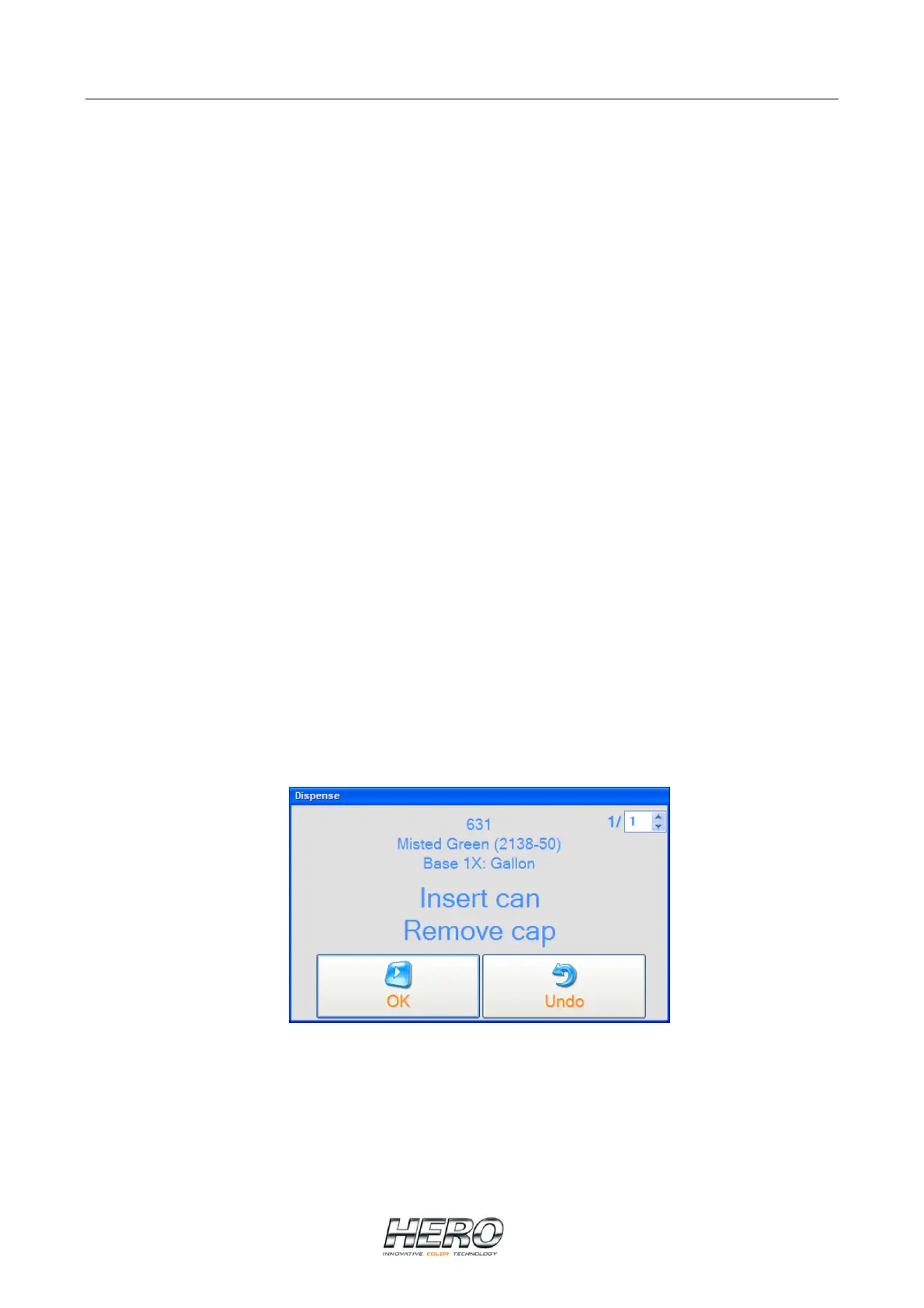
After selecting DISPENSE the above window will appear. This is a safety feature to insure there
is a can under the nozzle and that the cap covering the nozzles has moved out of the way. If the
correct can size is under the nozzles and the cap is out of the way then select OK to dispense.


 To Next Page
 Loading...