BASIC TINTWISE® OPERATIONS (Cont.)
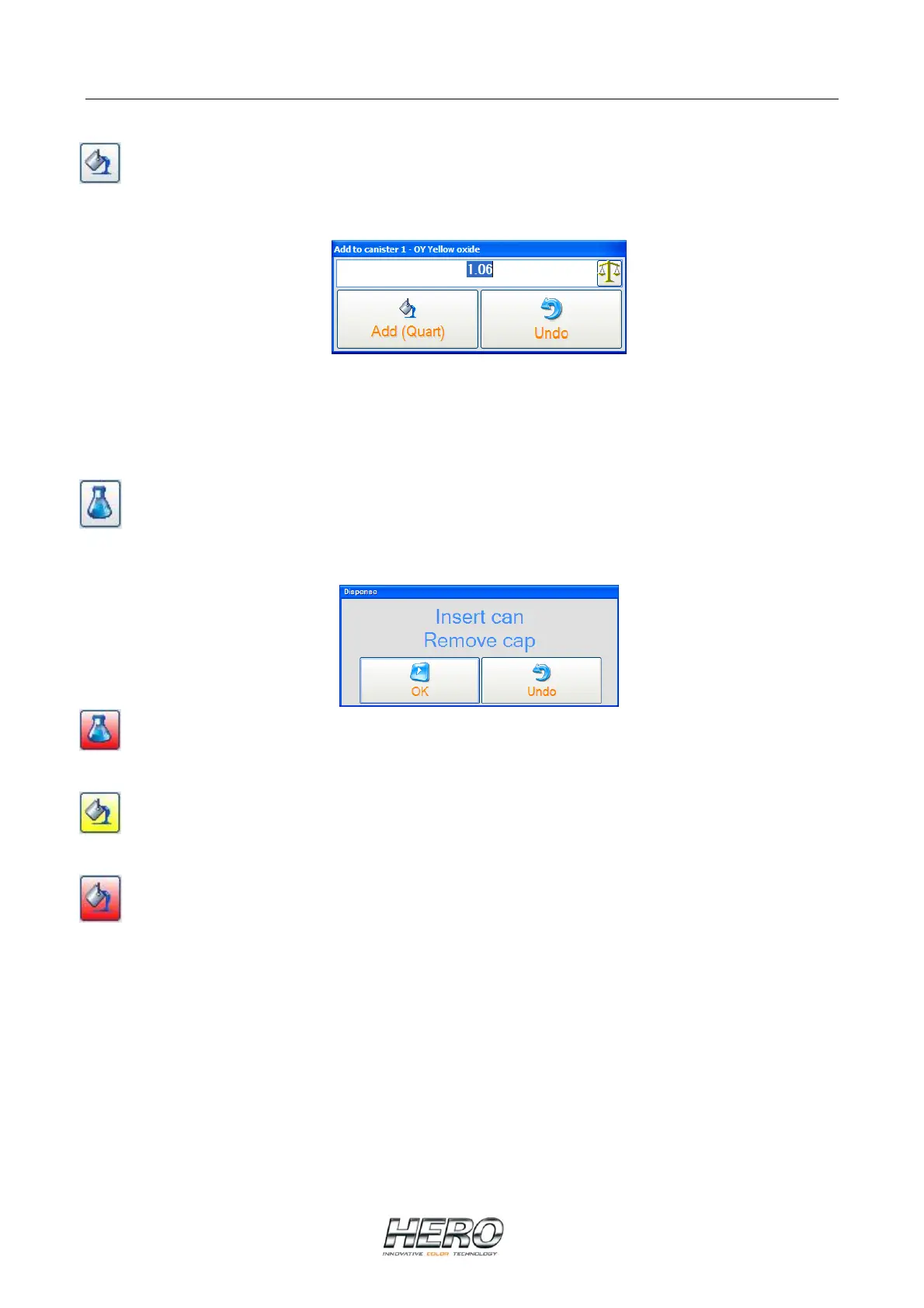
Fill canister – Opens the window pictured below allowing you to change the colorant level
of an individual canister. Enter the appropriate amount and select Add.
The colorant levels can also be changed by clicking on the field showing the numerical quantity
of colorant (to the left of the fill canister icon) on the canister screen, typing the appropriate
amount and pressing enter. The colorant bar will change automatically.
Purge button – Opens the window pictured below allowing you to purge an individual
colorant. Select OK to purge.
Purge needed – When you see the purge button with a red background, it means that
colorant needs to be purged before a dispense will be allowed.
Canister requires filling – When you see the fill button with a yellow background, it means
the canister must be filled as soon as possible.
Canister requires immediate filling – When you see the fill button with a red background,
it means the canister must be filled before further dispensing is possible.
Purge all – Purges all colorants according to a preset program.
Purge canisters in alert – Purges the colorants with their respective purge buttons highlighted
with a red background.
Start agitation – Starts a 3 minute agitation of the colorant in all of the canisters.
Exit – Exits the canisters screen and goes back to the main screen.


 To Next Page
 Loading...