8 / 23
Note:
The time showing in the screen of band will automatically synchronize with the mobile
phone during synchronization of band and APP.
Only the band that is shown in the interface of the APP is the one that will automatically
synchronize. If you want to synchronize another band, please manually choose the band’s S/N
to start its’ synchronization.
During synchronization, the band’s data gets deleted in which updated data will be shown.
Every time the synchronization provides new data.
The APP will show the same band screen data during its synchronization. Please note that
sometimes there will be inconsistent data because the band has been synchronized.
When you choose your band and return to the homepage, this operation will allow an
automatic sync of the band and the APP.
Data will be stored in cloud server if users login in with their cloud accounts and synchronize
the data. If not, data will be only saved for 7 to 10 days in band and 30 days in APP.
Real-time synchronization can be switch off , because the band can store the data for several
days.
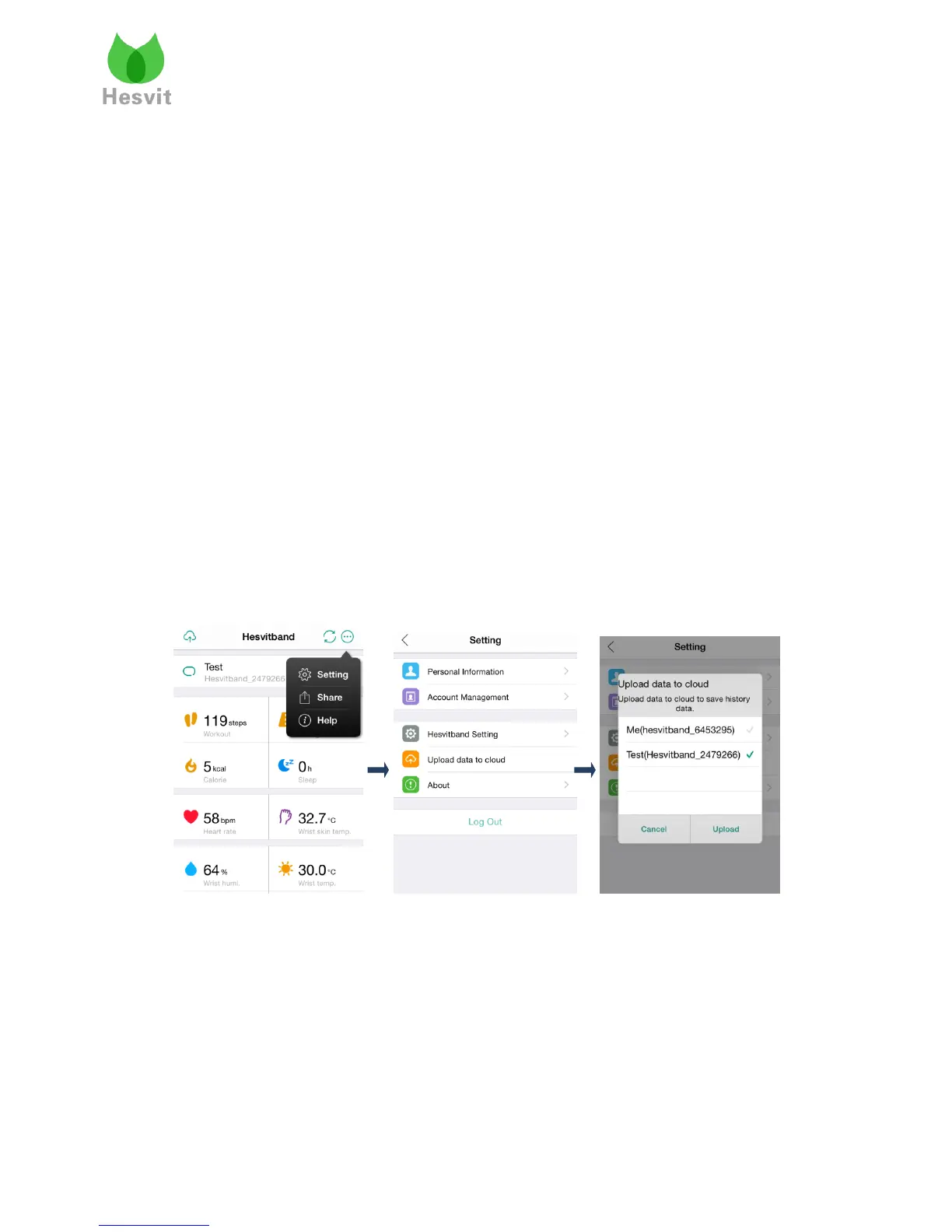
Step2: Upload data to cloud server
Choose Setting->Upload data to cloud, choose your band and click “Upload”.
7. Data Storage
The band can store data generating in 7~10 days. Please synchronize the band with the
mobile phone as soon as possible. The more times you synchronize the data, the shorter time it
takes for each sync process.



 To Next Page