
 Need help?
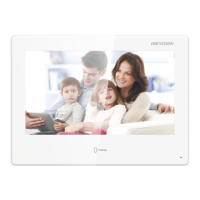
Do you have a question about the HIKVISION DS-KH9310-WTE1B and is the answer not in the manual?
Manual's purpose, content, and where to find the latest version.
Lists Hikvision's trademarks and other mentioned trademarks.
Legal disclaimer regarding product use, liability, warranties, and limitations.
Explains data collection, privacy by design, encryption, and user responsibilities.
Defines symbols like Danger, Caution, and Note used throughout the document.
Covers electrical safety, power, wiring, installation, and troubleshooting warnings.
Details cautions on shock, environment, radiation, and direct sun exposure.
Covers device handling, cleaning, packaging, battery safety, and power supply compliance.
Details FCC compliance, testing, limits, and measures to correct radio interference.
Explains CE marking, directives (EMC, RE, RoHS), WEEE, and battery directive.
States compliance with ICES-003 and RSS standards, and operational conditions.
Further details on ICES-003 and RSS, including antenna gain and distance.
How to obtain the manual and related software from the official Hikvision website.
Steps to wake the device from standby and unlock using a gesture password.
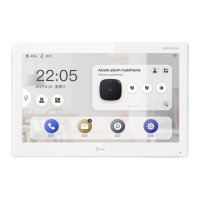
Introduces the main page, its layout, and functions like calling, contacts, live view, and arm/disarm.
Describes one-push arm/disarm, relay settings, SOS, and calling the elevator.
Explains how to call the center, lock the screen, and set up the mobile client.
Describes the call page for logs/notices and the alarm page for logs/pictures.
How to add or run third-party applications on the device.
Accessing the control center for quick device settings adjustments.
Details on returning to main page, Do Not Disturb, Wi-Fi, Bluetooth, brightness, and volume.
Steps to enable and configure VoIP account settings for incoming/outgoing calls.
Guide on adding new contacts to the device's contact list.
Instructions for calling residents using room numbers or VoIP accounts.
How to call other extensions and receive calls from door stations/main station.
Initial steps for accessing and viewing call history.
Details on viewing, calling back, and deleting call logs.
How to access and view live video feeds from door stations and cameras.
Introduction to arming modes and how to arm the room.
Steps to disarm the room and configure arming mode settings.
Detailed steps for setting up scene modes and arming specific zones.
Overview of viewing public notices, visitor messages, and alarm logs.
How to view details of notices and delete them.
Instructions for viewing and managing alarm logs and captured images.
Configuring automatic deletion intervals for captures and messages.
Guide to installing and registering the Hik-Connect mobile application.
Steps to add the indoor station to the mobile client via QR code or serial number.
Using Hik-Connect for live view, editing device names, and viewing device versions.
Instructions for initiating calls to indoor stations using the iVMS-4200 client software.
How to answer incoming calls and view live video from door stations via client.
Accessing, searching, and managing call logs through the client software.
Steps to create and send various types of notices to residents via the client.
Editing notice content, selecting recipients, and adding pictures for notices.
Overview of searching call logs, unlocking logs, and sent notices.
Detailed steps for searching call logs within the client software.
Setting search criteria and exporting call logs from the client.
Steps to search for notices based on various criteria.
Refining notice searches by recipient, subject, and type.
Viewing notice details, checking user status, and resending notices.
QR code to access the device communication matrix for Hikvision devices.
QR code to access common serial port commands for Hikvision devices.
 General
| Brand | HIKVISION |
|---|---|
| Model | DS-KH9310-WTE1B |
| Category | Intercom System |
| Language | English |



 To Next Page