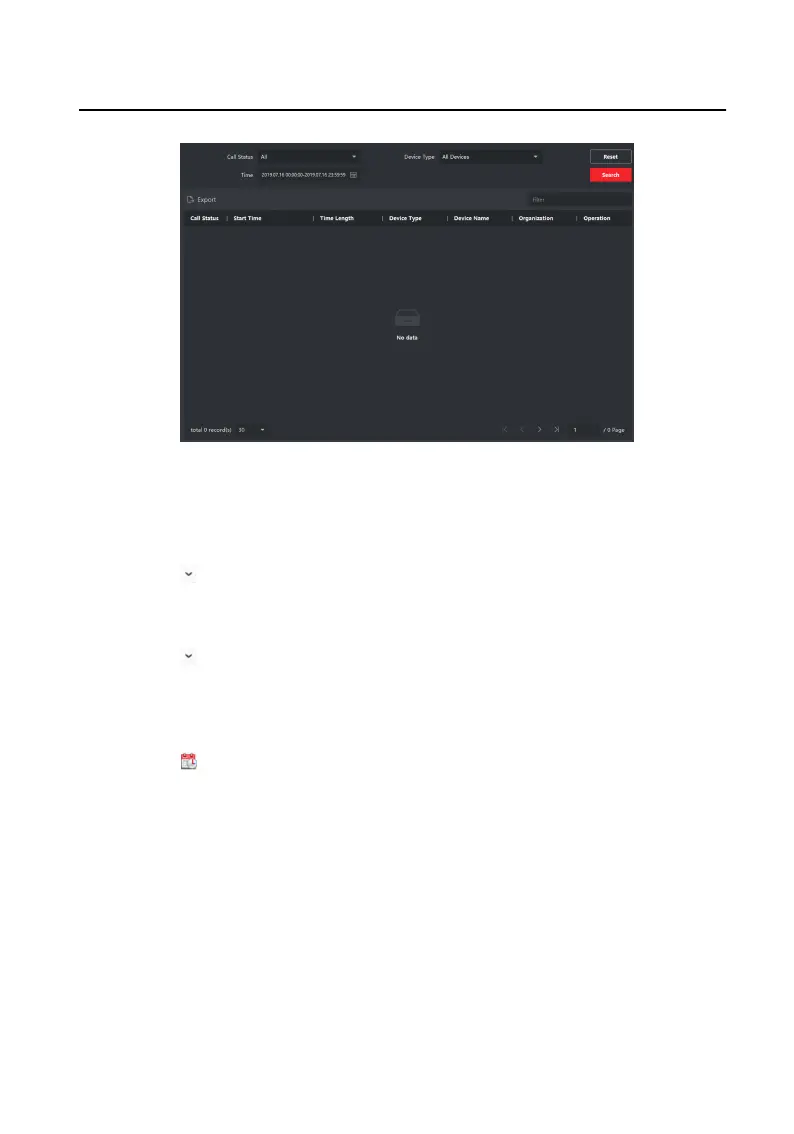
Figure 6-6 Search Call Logs
3. Set the search
condions, including call status, device type, start me and end
me.
Call Status
Click to unfold the drop-down list and select the call status as Dialed,
Received or Missed. Or select All to search logs with all statuses.
Device Type
Click to unfold the drop-down list and select the device type as Indoor
Staon, Door Staon, Outer Door Staon or Analog Indoor Staon. Or select
All Devices to search logs with all device types.
Start Time/End Time
Click to specify the start me and end me of a me period to search the
logs.
4.
Oponal: You can click Reset to reset all the congured search condions.
5. Click Search and all the matched call logs will display on this page.
●
Check the detailed informaon of searched call logs, such as call status, ring/
speaking duraon, device name, resident organizaon, etc.
●
Input keywords in the Search
eld to lter the desired log.
●
Click Export to export the call logs to your PC.
6.6.2 Search
Noce
Video Intercom 9 Series Indoor Staon Operaon Guide
26


 To Next Page
 Loading...