Digital Video Recorder User Manual
31
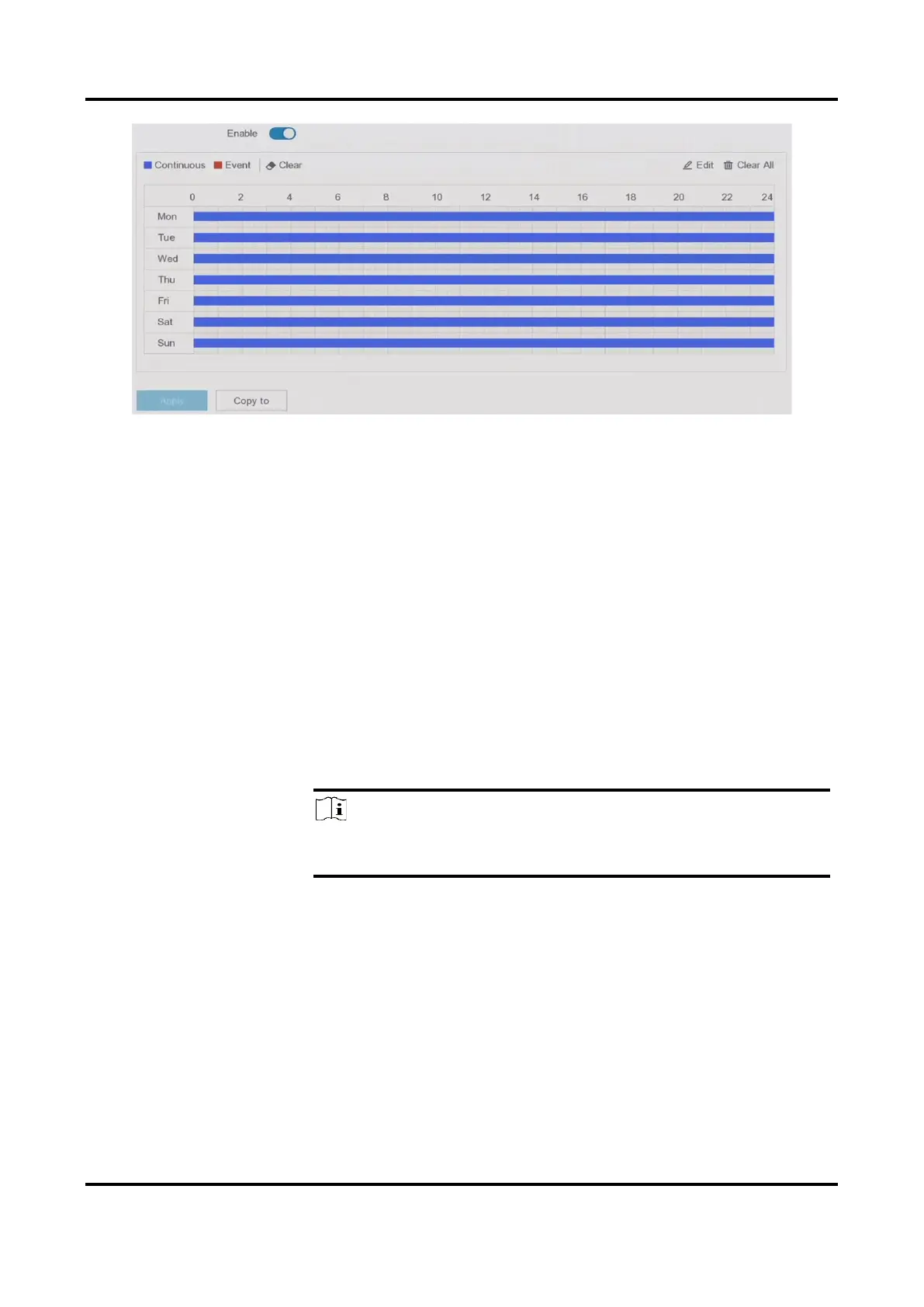
Figure 5-13 Recording Schedule
Continuous
Continuous recording.
Event
Recording is triggered by events.
2. Select a camera in Camera No.
3. Turn on Enable.
4. Configure the recording schedule.
1. Click Edit.
2. Select a day to configure in Weekday.
3. To set an all-day recording schedule, check All Day and select
schedule type.
4. To set other schedules, uncheck All Day, and set Start/End Time
and schedule type.
Note
Up to 8 periods can be configured for each day. And the time
periods cannot be overlapped with each other.
5. Click OK to save the settings and go back to upper level menu.
1. Click to select schedule type as Continuous or Event.
2. On the table, drag the mouse on the desired period to draw a
colored bar.



 To Next Page