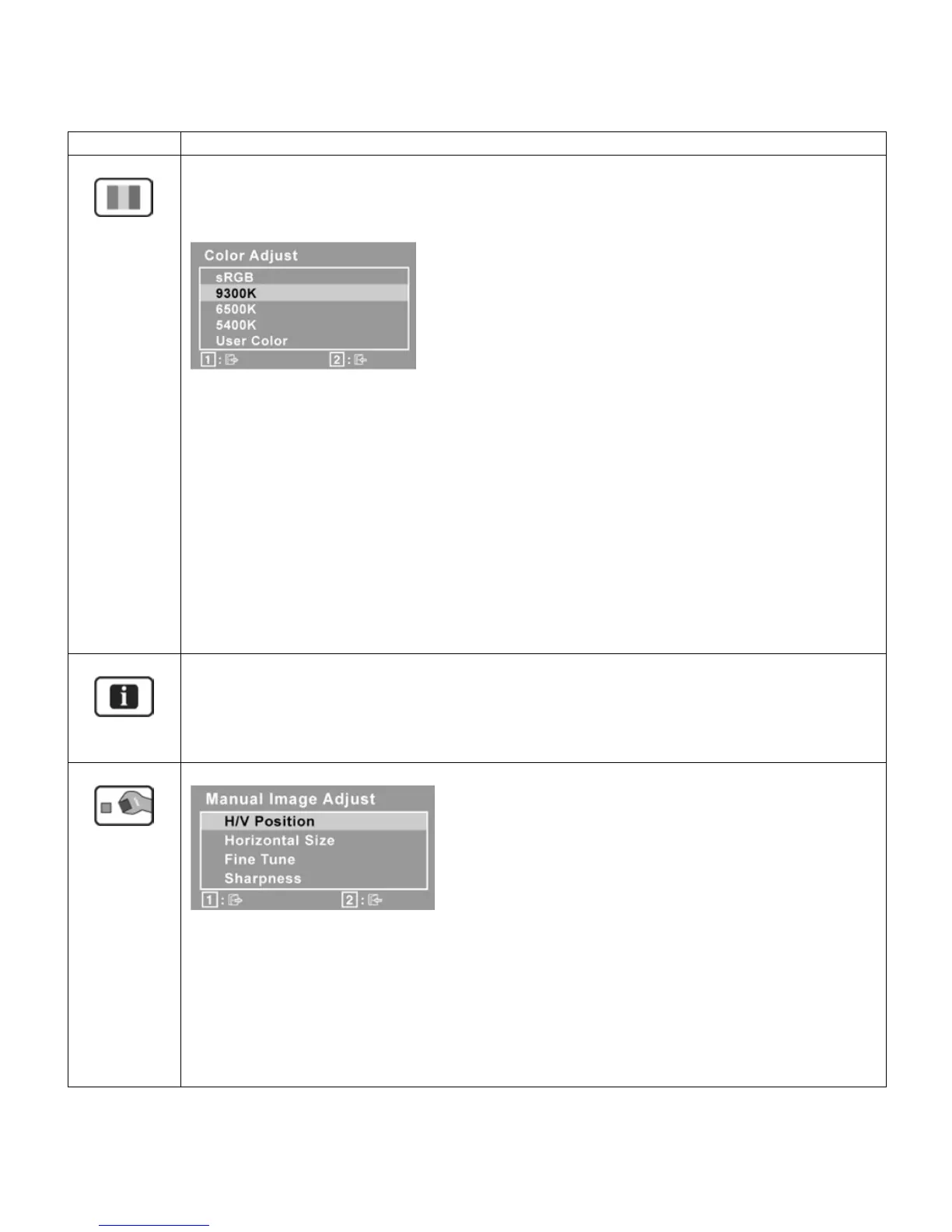
Color Adjust provides several color adjustment modes, including preset color
temperatures and a User Color mode which allows independent adjustment of
red (R), green (G), and blue (B). The factory setting for this product is 6500K
(6500 Kelvin).
o
– This is quickly becoming the industry standard for color manage-
ment, with support included in many of the latest applications. Enabling this
setting allows the LCD display to more accurately display colors the way
they were originally intended. Enabling the sRGB setting will cause the
Contrast and Brightness adjustments to be disabled.
o
– Adds blue to the screen image for cooler white (used in most office
settings with fluorescent lighting).
o
– Adds red to the screen image for warmer white and richer red.
o
- Adds green to the screen image for a darker color.
o User Color – Individual adjustments for red (R), green (G), and blue (B).
o To select color (R, G or B) press button [2]
o To adjust selected color, press ▲ or down ▼
Information displays the timing mode (video signal input) coming from the graph-
ics card in the computer.
See your graphics card’s user guide for instructions on changing the resolution
and refresh rate (vertical frequency).
Manual Image Adjust displays the Manual Image Adjust menu.
o H./V. Position moves the screen image left or right and up or down.
o Horizontal Size adjusts the width of the screen image.
o Fine Tune sharpens the focus by aligning text and/or graphics with pixel
boundaries. NOTE: Try the Auto Adjust function before using the Fine Tune
control.
o Sharpness adjusts the clarity and focus of the screen image.


 To Next Page