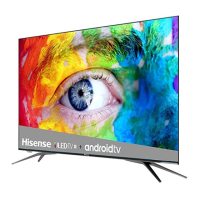
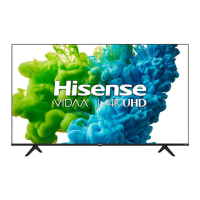
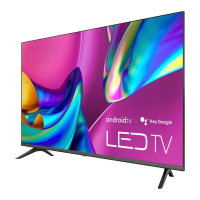
This document is a Quick Setup Guide for Hisense 4K HDR Smart TVs, specifically supporting models 55H9G, 55Q9G, 65H9G, and 65Q9G. It provides essential information for setting up and using the television, aiming to reduce paper waste by directing users to an online manual for more detailed instructions.
Function Description
The Hisense 4K HDR Smart TV serves as a central entertainment hub, offering high-resolution video display with High Dynamic Range (HDR) capabilities for enhanced picture quality. As a "Smart TV," it integrates internet connectivity to provide access to a variety of applications, streaming services, and online content. The television is designed to display live channels, on-demand video, and content from external devices. It supports multiple input sources, including HDMI for high-definition multimedia, composite video for older devices, and USB for media playback. Audio output options include digital optical out and a headphone jack. The TV also features built-in wireless connectivity for easy integration into a home network.
Usage Features
The Quick Setup Guide outlines a straightforward process for getting the TV ready for use.
- Initial Setup: The first step involves attaching the TV stand or mounting the TV on a wall. Instructions are provided for both, emphasizing caution due to the fragility of the LED display. For stand attachment, users place the TV face down on a soft surface, insert the base stands into the bottom slots, and secure them with provided screws. For wall mounting (bracket not included), users remove the TV stand if attached, remove four screws from the back of the TV, and place spacers in the corresponding bracket holes before attaching the wall mount. It's crucial to use fixing screws of a specific length (8.0 - 10.0 mm) to prevent internal damage and ensure secure mounting.
- Connecting External Devices: The guide provides a visual back and bottom view of the TV, detailing various ports and their functions. Users are instructed to connect appropriate cables securely to the correct ports to ensure optimal picture and color quality.
- ANT/CABLE: For connecting an outdoor VHF/UHF antenna.
- HDMI: For connecting High Definition Multimedia Interface devices like DVD players, recorders, or set-top boxes. The TV has multiple HDMI ports, some supporting 4K@60Hz and ARC (Audio Return Channel).
- VIDEO/AV IN (Yellow, White, Red): For connecting composite video and left-right audio cables from external AV devices like video cameras or older satellite receivers.
- DIGITAL AUDIO OUT: For connecting an optical cable from an external digital audio system.
- HEADPHONE: For connecting headphones to hear audio from the TV. Note that headphones with microphones are not supported.
- USB: For browsing photos, music, and movies from a USB device. Hard disks with a total current consumption or impulse current consumption greater than 500mA are not supported.
- LAN: For connecting an Ethernet cable to access a network or the Internet. The TV also has wireless connectivity.
- SERVICE: This port is for factory testing purposes only and not for external device connection.
- Remote Control: A comprehensive table lists all buttons on the remote control and their descriptions, including power on/off, input source selection, channel/number input, Google Assistant access, Closed Caption control, Menu access, navigation (D-pad), confirmation (OK), return to previous screen/app, Home screen display, volume control, channel up/down, mute, audio language (MTS), media content control, Video description feature (NRT), quick access to all applications (APPS), Microphone, and quick access buttons to specific apps.
- Remote Control Setup: Instructions are provided for inserting two AAA batteries into the remote, ensuring correct polarity.
- Power On and First-Time Setup: After connecting the power cord, the TV displays the Hisense logo. The first time the TV is turned on, a guided setup assists users in connecting to the Internet and completing the initial configuration.
- Network Connection:
- Wired Network: The TV can automatically obtain an IP address when connected via an Ethernet cable (DHCP is the default setting). If the connection fails, users can retry or manually enter IP settings (Static mode).
- Wireless Network: The TV has a built-in wireless LAN adapter. Users can turn on Wi-Fi, select from a list of available networks, and input the password. If the desired network isn't listed, users can choose "See all" or "Add new network" to manually enter the Wi-Fi name, security type, and password. To close the network connection, users can unplug the network cable or turn off Wi-Fi.
- Enjoying the TV: Once the first-time setup is complete, the Home screen serves as the starting point for accessing live channels, video on demand, and other entertainment options.
- Accessibility Features (Text-to-Speech and Video Description): The TV includes accessibility features to assist visually impaired users. Text-to-Speech (TTS) converts on-screen text into voice, helping users navigate menus. Video Description provides audio narration of main visual elements in certain programs. These features can be enabled via the Settings menu under Accessibility (TalkBack for TTS, Toggle button for Video Description).
Maintenance Features
The guide includes important information regarding remote control and battery maintenance, as well as troubleshooting tips.
- Battery Care: Users are advised to discard batteries in a designated disposal area, not to throw them into fire, and to remove old batteries immediately to prevent leakage. If the remote will not be used for a long time, batteries should be removed. If batteries leak, the compartment should be cleaned with a cloth, and skin contact with chemicals should be washed immediately. Mixing old and new batteries, or different types of batteries (alkaline, carbon-zinc, rechargeable), is discouraged. If the remote becomes warm or hot, discontinue use and contact support.
- Remote Control Range: The remote operates effectively up to 26 feet in front of the TV and within a 30-degree horizontal or vertical angle.
- Universal Remote Programming: For USA users, instructions are provided for programming universal cable or satellite remote controls to operate the Hisense TV, with a list of common provider codes.
- Pairing the Remote Control: The remote needs to be paired with the TV by pressing and holding the Menu button for at least 3 seconds within 10 feet of the TV. If pairing fails, users should repeat the process.
- Troubleshooting: A table provides common issues and their possible solutions:
- No sound or picture: Check power cord, press power button on remote, check LED light.
- No picture/sound from external source: Check correct output/input connections, ensure correct input mode selection.
- Delay in picture appearance on power-on: This is normal as the TV initializes.
- Picture normal, no sound: Check volume settings, ensure 'Mute' is off.
- Sound but no picture or black and white picture: Unplug/replug TV, check color settings, try different channels.
- Distorted/wavy sound/picture: Move nearby electric appliances, plug TV into different power outlet.
- Blurry/cut out sound/picture: Check external antenna direction/position/connection, adjust antenna or fine-tune channel.
- Horizontal/vertical stripe or shaking picture: Check for nearby interfering appliances/electric tools.
- "Clicking" sound from plastic cabinet: Normal sound due to temperature-induced expansion/contraction.
- Remote control not working: Confirm TV has power, change batteries, check battery installation.
The guide emphasizes that Hisense is committed to improving the environment by reducing paper waste and encourages users to access the full User Manual online for comprehensive details. It also includes a disclaimer that subscriptions or other payments may be required for some applications, and Hisense disclaims responsibility for application functionality, content, or service disruptions.

 Need help?
 General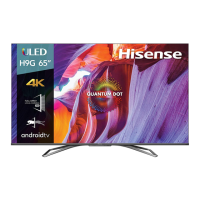

 To Next Page