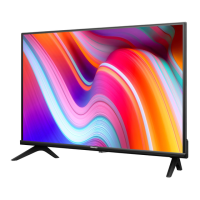
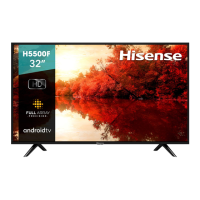
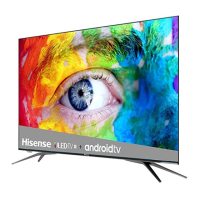
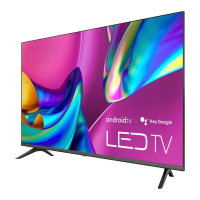
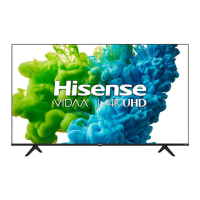
This document serves as a Quick Setup Guide for Hisense televisions, providing essential information for initial setup, operation, and troubleshooting. It is designed to help users get their TV up and running efficiently, covering everything from physical installation to basic connectivity and remote control functions.
Function Description
The Hisense TV is a display device designed for home entertainment, capable of receiving and displaying video and audio content from various sources. It supports both traditional broadcast signals and modern digital inputs, allowing users to watch live television, stream content from online applications, and connect external devices such such as media players, gaming consoles, and sound systems. The TV is equipped with an embedded E-Manual for comprehensive support and features Text-to-Speech (TTS) and Video Description functionalities to enhance accessibility for visually impaired users.
Usage Features
Initial Setup:
The guide outlines a straightforward, step-by-step process for setting up the TV. This includes attaching the base stands or mounting the TV on a wall, connecting external devices, and preparing the remote control. The first-time setup process is guided, making it easy for users to connect their TV to the internet and complete the initial configuration.
Physical Installation:
Users can choose to attach the TV to its provided base stands or mount it on a wall. The guide provides clear instructions for both options, emphasizing caution to prevent damage to the fragile LED display. When attaching the stands, users are instructed to place the TV face down on a soft, flat surface and secure the stands with the provided screws. For wall mounting, the guide advises removing the TV stand, placing spacers in the bracket holes, and using appropriate fixing screws. It also cautions against mounting the TV on a slanted wall to ensure stability and prevent personal injury or property damage.
Connectivity:
The TV offers a variety of ports for connecting external devices:
- DIGITAL AUDIO OUT: For connecting an optical cable to an external digital audio system.
- USB: For browsing photos, music, and movies from a USB device. The guide specifies limitations for hard disks with high current consumption.
- HDMI: For connecting High Definition Multimedia Interface (HDMI) cables from external devices.
- AV IN: For connecting composite video and left-right audio cables from older AV devices.
- HEADPHONE: For connecting headphones to hear audio from the TV, though microphones are not supported.
- ANT/CABLE: For connecting an outdoor VHF/UHF antenna to receive broadcast signals.
Remote Control Functions:
The remote control is central to operating the TV, with buttons for:
- Power on/off: To turn the TV on or off.
- INPUT: To change the TV input source.
- App buttons: Quick access buttons to various applications.
- Media content control: Play, pause, fast forward, and rewind functions.
- Menu button: To access the TV's main menu.
- Special function buttons: For specific features.
- D-pad (up/down/left/right) and OK button: For navigation and confirmation within menus.
- Return and EXIT buttons: To go back or exit menus/apps.
- Volume and Channel control: To adjust audio levels and change channels.
- Home screen button: To display the main Home screen.
- SLEEP: To adjust sleep timer settings.
- LIVE TV: To enter the Live TV source.
- Mute: To mute and restore sound.
- MTS: To set the audio language.
- Number buttons: To enter channels or input numbers.
- Sub-channel selection: To select a digital sub-channel.
- CC (Closed Caption): To turn Closed Caption On/Off.
Network Connection:
The TV supports wireless network connections via a wireless router. The guide provides instructions for establishing a wireless connection by accessing the Network Configuration settings through the Home menu.
Accessibility Features:
The TV includes Text-to-Speech (TTS) and Video Description functionalities. TTS converts written text into voice, assisting visually impaired users in navigating menus. Video Description adds audio narration to programs, describing main visual elements. These features can be enabled or disabled through the Accessibility settings (Narration or Voice Guide options) in the Settings menu.
Maintenance Features
Battery Replacement:
The guide provides instructions for inserting and replacing batteries in the remote control. It emphasizes matching the polarity of the batteries correctly and restoring the battery compartment cover.
Remote Control Care:
Important information regarding remote control and battery maintenance is provided:
- Battery Disposal: Batteries should be discarded in a designated disposal area and not thrown into fire.
- Leak Prevention: Old batteries should be removed immediately to prevent leakage. If the remote control will not be used for a long time, batteries should be removed.
- Chemical Exposure: In case of battery leakage, the compartment should be cleaned with a cloth, and any skin contact with chemicals should be washed immediately.
- Battery Mixing: Users are advised not to mix old and new batteries, or different types of batteries (alkaline, standard, rechargeable).
- Overheating: If the remote control becomes warm or hot, its use should be discontinued, and support should be contacted.
Troubleshooting:
A dedicated troubleshooting section helps users resolve common issues. It suggests initial steps like turning the TV off and on again. For specific problems, it offers possible solutions, such as:
- No sound or picture: Checking power cord connection, remote control power button, and LED light status.
- No picture/sound from external source: Verifying correct output/input connections and input mode selection.
- Delay in picture appearance: Clarifying that a short delay is normal during TV initialization.
- Picture normal, no sound: Checking volume settings and mute mode.
- Sound, but no picture or black and white picture: Unplugging/replugging the TV, checking color settings, and trying different channels.
- Distorted/wavy sound/picture: Moving nearby electric appliances, plugging the TV into a different power outlet.
- Blurry/cut-out sound/picture: Checking external antenna direction, position, and connection, or resetting/fine-tuning the channel.
- Horizontal/vertical stripe or shaking picture: Checking for nearby interfering appliances or electric tools.
- "Clicking" sound from plastic cabinet: Explaining that this is normal due to temperature-induced expansion/contraction.
- Remote control not working: Confirming TV power, changing remote batteries, and checking battery installation.
The guide encourages users to contact customer support if their problem is not listed or resolved by the provided tips.


 To Next Page
 General