Need help?
Do you have a question about the Hisense H5 series and is the answer not in the manual?
This document serves as a Quick Start Guide for Hisense H5 Series televisions, including models 32H5E, 32H5E1, 32H5508, 32H5020E, 32H5030E, 32H5040E, 32H5050E, 32H5070E, and 32H5080E. It provides essential information for setting up and beginning to use your new Hisense Smart TV, with an emphasis on environmental responsibility by encouraging users to access the full User Manual online for detailed instructions and feature descriptions, thereby reducing paper waste.
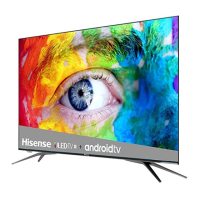
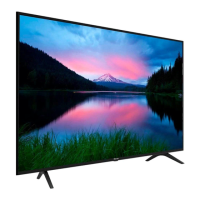
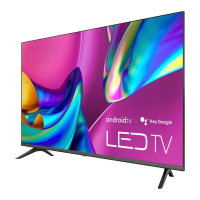
The primary function of this device is to provide a high-definition television viewing experience, enhanced with smart TV capabilities. It allows users to watch live television channels, access video-on-demand services, and utilize various entertainment applications. The TV is designed to be user-friendly, with a straightforward setup process that guides users through initial configuration steps.
The setup process begins with attaching the TV stand or a wall mount bracket. For stand installation, the guide provides clear instructions: carefully place the TV face down on a soft, flat surface, insert the left and right legs into the bottom slots, and secure them with the provided screws. It emphasizes the fragility of the LED display and the need to protect it from scratches or damage. For wall mount bracket installation, the guide advises users to follow third-party manufacturer instructions, remove the TV stand if already attached, and place spacers in the corresponding bracket holes. Crucially, it highlights the importance of using fixing screws of specific lengths (8-10 mm) to prevent internal damage and ensure secure mounting.
Connecting external devices to the TV is a core usage feature. The guide details various ports and their corresponding cables and external equipment. For antenna connection, it specifies using a VHF/UHF antenna to receive outdoor signals. HDMI ports are available for connecting High Definition Multimedia Interface devices like Blu-ray players or gaming consoles. Composite video and left-right audio cables can be used for older AV devices such as video cameras or set-top boxes. An optical cable can connect to an external digital audio system via the Digital Audio Out port. For audio output to headphones, a dedicated audio out port is available. The TV also supports USB devices for browsing photos, music, and movies, recognizing USB Memory Sticks. An Ethernet cable can be connected to the LAN port for network and internet access, complementing the TV's wireless connectivity feature. A "SERVICE" port is also present, but it is exclusively for factory testing and not for external device connection by the user.
The TV comes with a remote control, which is integral to its operation. The guide outlines the functions of each button on the remote, including power on/off, input source selection, channel and volume control, closed caption toggling, audio language settings (MTS), media content control (play, pause, fast forward, rewind), navigation buttons (D-pad, OK), and quick access buttons for apps and the home screen. Special function buttons (Red/Green/Yellow/Blue) are also available. The remote control has a range of up to 26 feet and can operate within a 30-degree horizontal or vertical angle. For users with universal cable or satellite remote controls, the guide provides a list of codes for common providers (DIRECTV, Time Warner Cable, Comcast, Cox Communications, Dish Network) to program their remotes to operate the Hisense TV.
After physical setup and connections, the TV guides the user through a first-time setup menu. This menu prompts the user to select their preferred language, country, and time zone. Users must accept the terms of service and choose a TV usage mode, with "Home" being the default and recommended option for consumers, while "Store mode" is for retailers demonstrating the TV. Network connection is another crucial step, where the TV will automatically detect an Ethernet connection or allow the user to select a Wi-Fi network from a list. Once these steps are completed, the TV is ready for use. The remote button setup allows users to select how they receive TV channels (TV, AV, HDMI) and scan for channels if connected to an antenna. The Home screen then becomes the central hub for navigating live channels, video-on-demand, and other entertainment options.
The guide includes important information regarding the remote control and batteries. It instructs users to insert two AAA batteries, ensuring correct polarity. For maintenance, it advises discarding batteries in a designated disposal area and never throwing them into a fire. Old batteries should be removed promptly to prevent leakage, and if the remote control will not be used for an extended period, batteries should be removed. In case of battery leakage, users are instructed to clean the battery compartment with a cloth and wash any skin that comes into contact with the chemicals. Mixing old and new batteries or different types of batteries (alkaline, carbon-zinc, rechargeable) is explicitly discouraged. If the remote becomes warm or hot, users should discontinue use and contact the support center.
For troubleshooting common issues, the guide provides a "Quick Problem-Solving Tips" section. If there's no sound or picture, users should check the power cord, press the power button on the remote, and verify if the LED light is on. For issues with external sources, checking output and input connections and ensuring the correct input mode selection are recommended. If there's a delay before the picture appears, it's noted as normal during TV initialization. Sound issues without picture require checking volume settings and mute status. Black and white pictures or sound without picture suggest unplugging and replugging the TV, checking color settings, and trying different channels. Distorted or wavy sound/picture could be due to nearby electrical appliances, which should be moved away, or by plugging the TV into a different power outlet. Blurry or cut-out sound/picture, especially with an external antenna, calls for checking antenna direction, position, and connection, or resetting/fine-tuning the channel. Horizontal or vertical stripes or a shaking picture might indicate interference from nearby appliances or electric tools. The guide also addresses a "clicking" sound from the plastic cabinet, explaining it as a normal occurrence due to temperature-induced expansion or contraction. If the remote control doesn't work, users should confirm the TV has power, change the batteries, and check if they are correctly installed. For persistent problems, users are directed to the contact information on page 2 for further support.
The document also includes a disclaimer stating that subscriptions or other payments may be required for certain applications, and the functionality of included or downloaded application services may vary based on internet connection, local limitations, or other factors outside Hisense's control. Hisense disclaims responsibility for application service functioning, content, disruptions, limitations, and implied warranties. By purchasing the device, users accept this disclaimer.
 General
| Series | H5 Series |
|---|---|
| Category | Smart TV |
| Operating System | Android TV |
| Refresh Rate | 60Hz |
| Smart Platform | Android TV |
| Voice Control | Google Assistant |
| HDMI Ports | 3 |
| USB Ports | 2 |
| Display Type | LED |
| Processor | Quad-Core |
| Resolution | 4K UHD (3840 x 2160) |
| HDR Support | HDR10 |
| Connectivity | Wi-Fi |
| Smart Features | Google Play Store, Chromecast built-in |
| Sound Output | 20W (2 x 10W) |

 To Next Page