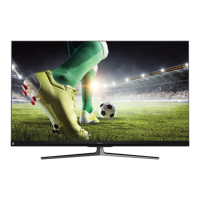
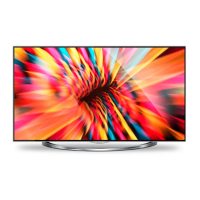
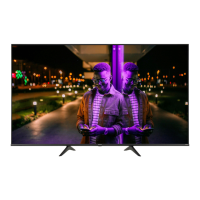
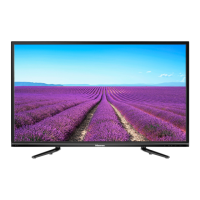
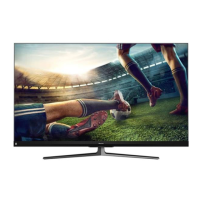
This document is a user manual for an LED Backlight TV, providing comprehensive instructions and information for its operation, maintenance, and troubleshooting.
Function Description
The LED Backlight TV is designed for home entertainment, offering a range of features for viewing broadcast programs, playing media content from external devices, and accessing smart TV functionalities. It supports digital television content viewing and recording (PVR), time-shift functionality for live broadcasts, and mirroring content from Android-based devices via Anyview Cast. The TV also includes a user-friendly interface with a Home screen for easy navigation to various sections like Notifications, Apps, LiveTV, Inputs, Media, Settings, and Edit.
Important Technical Specifications
While specific numerical specifications like screen size, resolution, or power consumption are not explicitly stated in the provided pages, the manual highlights several important technical aspects:
- Storage Disk Format for PVR/T.Shift: Recommended formats are FAT32 or NTFS.
- USB Device Compatibility: USB 1.1 or USB 2.0 devices requiring more than 500mA or 5V may not be supported. USB 3.0 devices are supported with a maximum current of 1A.
- Maximum Supported Hard Disk Storage: Up to 2TB.
- USB Storage Device Transfer Rate for DTV Recording: No less than 5MB/s.
- HDMI CEC: Supports HDMI CEC-compatible devices for controlling each other. HDMI 2.0 format is supported for devices with 4K, 60Hz, 4:4:4:4:2:2 or 4:2:0, 10-bit and above output.
- Network Connectivity: Supports both wired (Ethernet) and wireless (Wi-Fi) network connections for Smart TV features and software updates.
- Supported Media File Formats:
- Video: AVI, MP4, MKV
- Picture: JPG, BMP, PNG, GIF
- Music: MP3
- Power Source: Operates from the type of power source indicated on the marking label.
- Ventilation: Requires a minimum 10cm gap around the unit for proper ventilation.
Usage Features
The TV offers a variety of features to enhance the user experience:
- Turning On/Off: Simple power control via the remote control. Automatic standby mode if no input signal is received for several minutes.
- Input Source Selection: Allows users to select input sources from connected video devices (e.g., HDMI, AV) using the remote's INPUT button.
- Live TV Viewing: Direct access to broadcast programs via the Live TV button.
- Channel Management:
- Channel Search: Automatic and manual scanning for DTV and ATV channels.
- Channel Edit: Manual editing of the channel list.
- Channel List Auto-Update: Allows the TV to automatically update the channel list from the content provider.
- Favorites List: Users can create a list of their most-watched channels for quick access.
- Electronic Program Guide (EPG): Provides program information for up to 7 days, enabling users to check TV schedules, program recordings (PVR), and set reminders.
- PVR/T.Shift:
- PVR (Personal Video Recorder): Records digital television content for later viewing, primarily through the EPG or by pressing the [v] button to select PVR. Requires an external hard disk.
- T.Shift (Time Shift): Allows pausing, rewinding, and fast-forwarding live DTV broadcasts. Requires a hard disk with at least 2GB storage.
- Menu Functions: Access to various settings categories:
- Audio Language & Subtitle: Selection of desired languages for audio and subtitles (DTV channels only).
- Picture Mode: Preset picture modes (Standard, Natural, Cinema, PC/Game, Dynamic, Football) and advanced settings (Contrast, Brightness, Colour Saturation, Backlight, Overscan, Sharpness, Adaptive Contrast, Colour Temperature, Ultra Smooth Motion, Dynamic Backlight Control, Local Dimming, Noise Reduction, Expert Settings, Aspect Ratio).
- Sound Mode: Preset sound modes (Standard, Theatre, Music, Speech, Late Night) and advanced settings (Total Sonics, Total Volume, Total Surround, Speakers, Headphone Mode, Digital Audio Out, Digital Audio Delay, Lip Sync, Balance, Equalizer, Audio Type).
- Network Menu: Configuration of wired and wireless network connections, network testing, and viewing network information. Includes "Wake on Wireless Network" and "Wake on LAN" features for turning on the TV via screen-cast apps.
- Channels Menu: Tuner mode selection, channel scanning, fine-tuning, and parental controls (Locks, Block Time, Channel Block, Program Block, Input Block, Restore Parental Control Defaults) with a 4-digit password. Also includes CAM Settings for Common Interface (CI) card information and PIN.
- System Menu: Location settings, System PIN management, Time settings (Time Mode, Time Zone, Daylight Savings, Date/Time, Time Format), Timer settings (Sleep Timer, Power On Timer, Power Off Timer, Menu Timeout), Language settings, Application settings, and HDMI & CEC Function controls (CEC Control, Device Auto Power Off, TV Auto Power On, CEC Device Lists, HDMI 2.0 Format).
- About TV Menu: Displays system information, allows naming the TV, provides disclaimer details, facilitates system upgrades, and offers a factory default restore option.
- Apps: Access to factory-installed and downloadable apps from the Opera TV Store for video streaming and web browsing. Allows installation and removal of downloaded apps.
- Media Playback: Plays photos, music, and videos from USB thumb drives, hard drives, or compatible mobile devices. Supports browsing content by type (All, Picture, Video, Music).
- Anyview Cast: Mirrors content (video, audio, image) from Android-based devices to the TV screen via a wireless display function.
- FreeviewPlus: A television service (available in Australia) providing an Electronic Program Guide (EPG) and catch-up TV access via broadband, launched by pressing the 'Green' button on the remote.
Maintenance Features
The manual provides guidelines for maintaining the TV and addressing common issues:
- Cleaning: Unplug the TV from the wall outlet before cleaning. Use a lightly dampened cloth; avoid liquid, abrasive, or aerosol cleaners.
- Troubleshooting: A dedicated section lists common symptoms and possible solutions, such as checking power cords, input connections, volume settings, and antenna direction. It also advises on dealing with electrical interference and explains normal operational sounds (e.g., "clicking" due to temperature changes).
- Software Updates: Recommends keeping the TV connected to the Internet to receive automatic software updates for continuous enhancement and issue correction. Manual firmware checks are also possible.
- Safety Precautions: Emphasizes important safety measures, including proper disposal of electrical and electronic equipment, stable positioning to prevent falling, adequate ventilation, correct power source usage, power-cord protection, lightning protection, and referring all servicing to qualified personnel.
- Replacement Parts: States that service technicians should use manufacturer-specified replacement parts with the same characteristics as original parts to avoid hazards.
- Safety Check: After service or repair, a safety check by a technician is recommended to ensure safe operating condition.
- Factory Reset: The "Restore To Factory Default" option in the About TV menu allows users to reset the TV to its original factory settings.

 Need help?

 To Next Page
 General