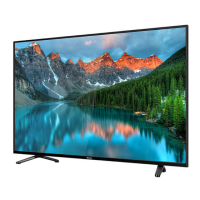
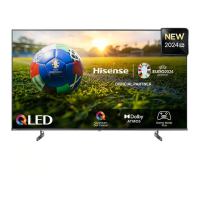
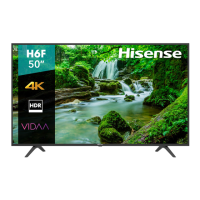
This document describes a Hisense Television, focusing on its functions, usage, and maintenance.
The Hisense Television is designed for home entertainment, offering various input sources, picture and sound adjustments, and media playback capabilities. It can be used as a primary display for broadcast television, external media devices, or even as a PC monitor. The television is controlled primarily via a remote control, with some basic functions also available on the control panel located on the TV itself.
Getting Started and Basic Setup:
Upon initial power-up, the TV guides the user through a setup wizard. This wizard allows for language selection, choosing between "Home Mode" (recommended for typical use) and "Retail Mode" (for in-store demonstrations), and selecting a setup mode (Quick setup or Customized). The wizard also facilitates Live TV setup, including connecting a Satellite/Cable box and scanning for available channels (Air or Cable). If a Satellite/Cable box is used, the wizard provides instructions on how to connect it and then allows for input source selection. If no box is used, it proceeds directly to channel scanning. After scanning, the wizard allows for Time Setting, including Time Zone, Daylight Savings, Time Format, and Clock settings. Finally, it offers the option to change input labels for connected devices, making it easier to identify sources.
Core Functionality and Usage:
The television can be turned on or off using the power button on the remote or the TV's control panel. When turned off, it enters a standby mode, still receiving power. To completely disconnect power, the AC cord must be unplugged. The TV automatically enters standby mode if no input signal is received for several minutes.
Users can select various input sources (e.g., TV, AV, Component, HDMI, VGA, Media) through the Input Source menu, accessible via the [INPUT] button. Channels can be changed using the [CH A/V] buttons or by directly entering the channel number using the numeric keys on the remote control. Volume is adjusted with the [VOL A/V] buttons.
Remote Control Shortcuts:
The remote control offers several shortcut buttons for quick access to common functions:
- Aspect: Adjusts the screen aspect ratio (Normal, Wide, Zoom, Cinema, Point to Point) to fit different content types.
- PICTURE: Cycles through predefined picture modes (Energy Saving, Soft, Standard, User, Vivid) which adjust brightness, contrast, and color.
- SOUND: Cycles through sound modes (Standard, Movie, Sports, User, Music).
- MUTE: Toggles sound on/off.
- SLEEP: Sets a timer for the TV to automatically enter standby mode.
- DISPLAY: Shows an information banner with details like channel number, name, current time, tuner mode, audio stream, and video format.
Main Menu Navigation:
The main menu is accessed via the [Menu] button and provides comprehensive control over the TV's settings, organized into several categories:
- Picture Menu: Allows detailed adjustment of picture settings beyond the shortcuts. This includes Picture Mode, Brightness, Contrast, Color, Tint, Sharpness, Color Temperature, and Advanced Settings (Aspect Ratio, Noise Reduction, Dynamic Contrast, HDMI Mode). The Aspect Ratio option is context-dependent, varying with the input source. Noise Reduction helps reduce visual noise from connected equipment. Dynamic Contrast automatically adjusts picture detail and brightness. HDMI Mode allows selection between Graphic or Video output for HDMI sources.
- Sound Menu: Offers detailed sound adjustments, including Sound Mode, Bass, Treble, Balance (left/right speakers), MTS (Mono, Stereo, SAP for multi-track sound), Audio Language (for digital channels), Digital Audio Output (RAW or PCM), Surround Sound, Speaker on/off, and Auto Volume Control. Auto Volume Control helps maintain a consistent volume level, attenuating loud passages.
- Time Menu: Configures time-related settings such as Sleep Timer, Time Zone, Daylight Saving Time, Time Format, Auto Clock (for automatic date/time setting from broadcast stations), and manual Clock setting.
- Setup Menu: Contains general TV settings including Menu Language, Transparent (for OSD transparency), OSD Time Out (duration of OSD display), Closed Caption (CC Mode, Analog CC, Digital CC, Option for digital CC settings), Input Labels (to customize names for input sources), Other Settings (Blue screen on/off, Audio Only mode), Software Update (via USB), System Info, Restore Default, and Setup Wizard (to re-run the initial setup).
- Lock Menu: Provides parental control features. Access requires a password (default 0000, or a user-created 4-digit password). Settings include Change Password, System Lock (locks/unlocks TV buttons), Input Block (blocks/unblocks input sources), US Rating (restricts movies and TV programs by US ratings), Canada Rating (restricts movies and TV programs by Canadian ratings), RRT Setting (advanced V-Chip rating table for digital channels), and Reset RRT (resets RRT to default).
- Channel Menu: Manages channel-related settings. This menu is unavailable when the input source is AV, Component, HDMI, VGA, or Media. Options include Air/Cable (select signal type), Auto Scan (automatically search for channels), Favorites (add channels to a favorite list), Show/Hide (show or hide channels), Channel No. (display channel number), and Channel Label (create custom labels for channels).
- PC Setting: This menu is available when a PC signal is inserted via VGA. It allows adjustment of the horizontal position (H-Pos), vertical position (V-Pos), Clock (minimize vertical stripes), Phase (minimize horizontal distortion), and Auto (automatically adjust to PC signal timing).
The TV includes a Digital Media Player for playing photos, music, and videos from a USB memory stick. Users are advised to use standard USB 2.0 ports and avoid connecting other USB devices like cameras or keyboards. It's crucial not to remove the USB drive or turn off the TV during media playback to prevent data loss. The media player supports various file formats for photos (JPG), music (MP3), and video (MPEG1, MPEG2, MPEG4, XviD, H.264, Motion JPEG in various container formats).
To use the media player, first plug in the USB device, then select "Media" as the input source. The remote control provides specific buttons for media playback: Play, Stop, Previous, Next, Fast Forward, and Fast Backward. When browsing photos, only the Previous and Next buttons are active. The interface allows users to select the disk, navigate through folders and files, and then play or display the selected media. A "Return" option is available to go back to previous menus. When highlighting a file, its information and a preview (for photos/movies) appear in the center of the screen.
CEC (Consumer Electronics Control) Function:
The TV supports HDMI CEC, allowing control of CEC-compatible devices connected via HDMI using the TV's remote control. Key CEC settings include:
- CEC Control: Turns the CEC function on or off.
- Device Auto Power Off: When enabled, CEC devices turn off automatically when the TV is turned off.
- TV Auto Power On: When enabled, turning on an HDMI CEC device automatically turns on the TV.
- Audio Receiver: Allows the TV remote to control the volume of a connected audio receiver.
- Device Lists: Displays a list of connected HDMI CEC devices.
- Connect: Connects to current CEC devices.
- Root Menu: Opens the root menu of a CEC-compatible device.
Maintenance Features:
- Battery Replacement: The remote control requires two AAA batteries. Instructions are provided for opening the battery compartment, inserting batteries with correct polarity, and closing the cover. Users are advised to dispose of batteries properly, remove depleted batteries promptly to prevent leakage, and remove batteries if the remote will not be used for a long time. Mixing old and new batteries or different battery types is discouraged.
- Software Update (USB): The Setup menu includes an option to update the TV software via a USB memory stick.
- Restore Default: This option in the Setup menu allows users to revert power-on options or reset the TV to factory default settings.
- Cleaning: While not explicitly detailed in the provided excerpts, general maintenance for LCD displays typically involves careful cleaning with a soft, dry cloth. The initial setup instructions emphasize placing the TV on a soft, cushioned surface to prevent damage to the screen, implying the need for gentle handling during any cleaning or movement.
Important Notes and Cautions:
- The LCD display is fragile; avoid pressure or sharp objects.
- Always disconnect the AC power cord before installing the base or wall-mount brackets.
- Do not rapidly turn the TV on/off as it may cause abnormal operation.
- If the TV does not receive an input signal for several minutes, it automatically goes into standby mode.
- When connecting external devices, ensure connections are tight and secure.
- Some external devices may not be directly compatible with TV ports, requiring adapters.
- For PC monitor use, contact the PC video/graphics card manufacturer for support; perfect compatibility is not guaranteed.
- When connecting a digital audio system, decrease the volume of both the TV and the system.
- The "Closed Caption" option is only available under TV and AV sources.
- The "Over Scan" option is only available under DTV and Component sources.
- Not all cell phones support MHL.
- Headphones disable the built-in speakers.
- Listen at high volume levels for long periods to prevent hearing damage.
- The Digital Media Player only recognizes USB Memory Sticks; USB hubs or external hard disks are not supported.
- Always back up files on your USB device before playing them on the TV.
- Remove the USB Memory Stick only when the unit is in Standby mode.
- USB Memory Sticks requiring external power (500mA or more) are not supported.

 Need help?
 General

 To Next Page