23 24
Digital Media Player
NOTES
Please note that Hisense will not assume any responsibility for any lost data and
cannot guarantee perfect compatibility with all mass storage devices. Be sure to
insert the USB disk with standard USB 2.0 port. Data Input from USB Memory Stick
only. Do not connect a digital camera, keyboard, mouse, etc., to the USB port.
Browse the Photos
Enjoy Music Files
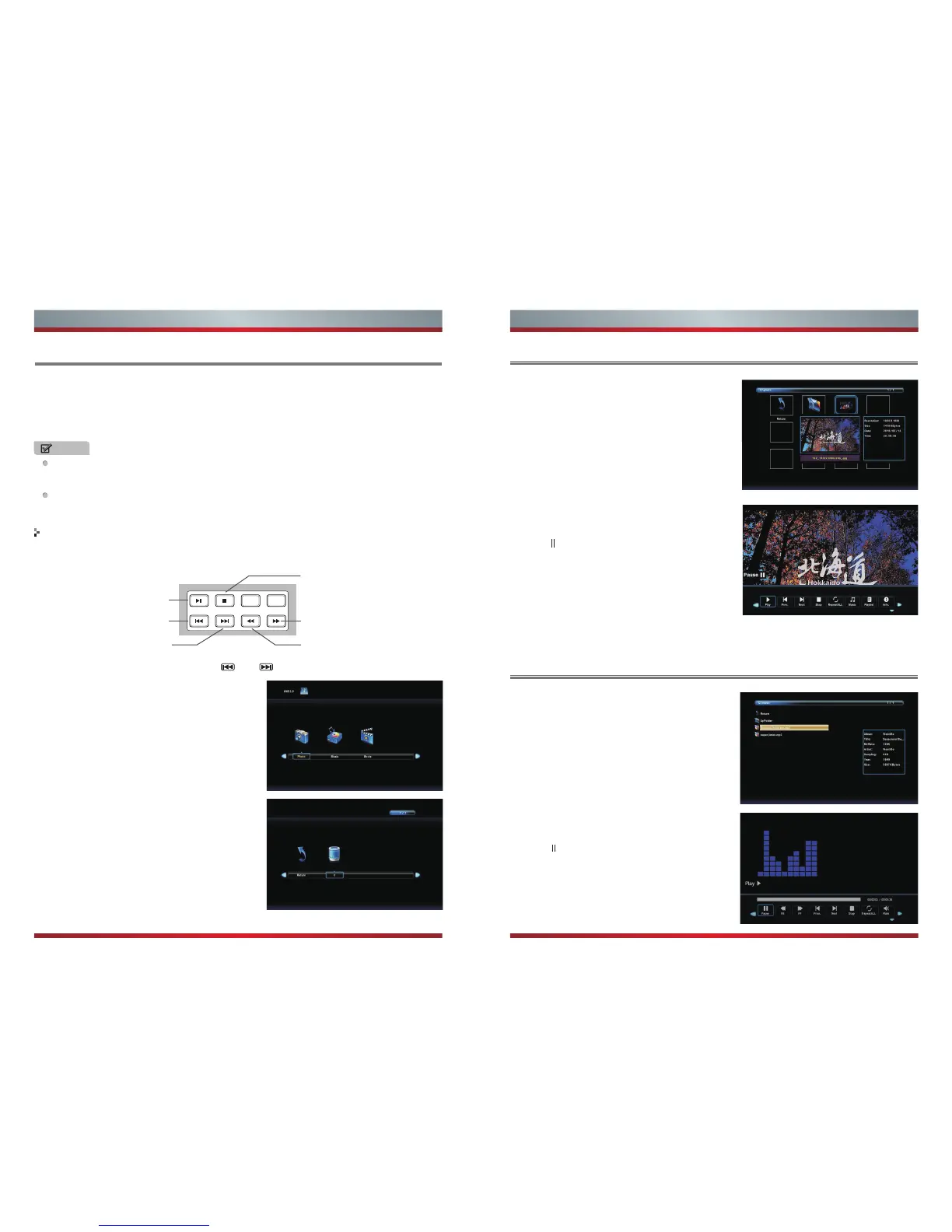
When viewing video/music/photo, you can press these buttons on the remote
control to control video/music/photo.
Press [◄ / ►] button to select the option you
want to adjust in the main Media menu,then
press [OK] button to enter.
Press [◄ / ►] button to select the disk that
you want to watch and then press OK..
Press [◄ / ►] button to select return option to
back .
Press [◄ / ►] button to select the file folder you
want to search in the file selecting menu, then
press [OK] button on your remote control to
enter sub-menu.
Press [◄ / ►] button to select “Return” option and press [OK] to back to the previous
menu.
Press [◄ / ►]button to select drive disk, then
press [OK] button to enter.
Press [◄ / ►] button to select return option to
back.
Press [◄ / ►] button to select the file you want
to watch in the file selecting menu, then press
[OK or ] button to display and operate file
details.
◄
Press [◄ / ►] button to select the file you want
to watch in the file selecting menu, then press
[OK or ] button to display picture.
◄
Never remove the USB flash drive or turn off your TV while viewing video/music/
photo.
Before you operate the Media menu, plug in the USB device and then press the
[Input] button to set the input source to Media.
Media content control function buttons
When browsing the photos, only the and buttons are available.
◄
►
Press[ / ]button to select MEDIA in the
Source menu,then press [OK] button to enter.
Fast forward
Stop
Fast backward
The previous
one
The next one
Play
Advanced Features Advanced Features


 To Next Page