This document is a Quick Setup Guide for Hisense TVs, designed to assist users in setting up their new television and understanding its basic functionalities. It covers initial setup, connection of external devices, remote control operation, and troubleshooting.
Function Description
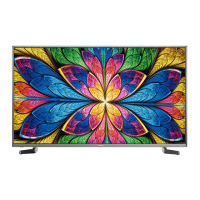
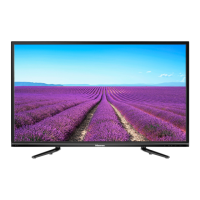
The Hisense TV is a display device capable of receiving and displaying various video and audio signals. It features a high-definition screen and integrates smart TV capabilities, allowing access to applications and internet content. The TV is designed for both stand-alone placement on a table and wall-mounting. It includes a built-in Google Assistant for voice control and smart home integration, offering both on-screen and screenless mode interactions. The TV supports multiple input sources, including HDMI, AV, USB, and antenna/cable connections, enabling connectivity with a wide range of external devices such as gaming consoles, Blu-ray players, and digital audio systems.
Usage Features
Initial Setup:
The guide provides a step-by-step process for attaching the TV stand or mounting the TV on a wall. For stand attachment, users are instructed to carefully place the TV face down on a soft, flat surface, insert the base stands into the bottom slots, and secure them with provided screws. Different stand installation methods are illustrated for various TV sizes (55", 65", 75", 85"), accommodating different table lengths. For wall mounting, the guide emphasizes placing the TV face down on a cushioned surface, removing the TV stand if already attached, and placing spacers in the bracket holes. It strongly advises following the wall mount bracket's instructions to prevent damage or injury.
Connecting Devices:
Users are guided to connect their devices to the TV using the appropriate cables and ports. The TV's back panel features various input/output ports, including multiple HDMI inputs (supporting 4K@60Hz and 4K@144Hz), USB ports (both USB 1 and USB 2, with USB 2 supporting faster data transfer), a DIGITAL AUDIO OUT for external audio systems, LAN for wired internet connection, ANT/CABLE for antenna/cable signals, and AV IN for composite video and audio. A HEADPHONE port is also available for private listening, though headphones with microphones are not supported. The guide highlights the importance of secure connections for optimal picture and color quality.
Powering On and First-Time Setup:
After connecting the power cord to the TV and a power outlet, the TV will display the Hisense logo. The first time the TV is turned on, a guided setup will assist users in connecting to the Internet and completing the initial configuration.
Network Connection:
The TV supports both wired and wireless network connections. To establish a wired connection, users need to press the settings button on the remote, navigate to "Settings," then "Network & Internet," and connect an Ethernet cable from a modem or IP sharer (router) to the TV's LAN port. For a wireless connection, the TV has a built-in wireless LAN adapter, allowing it to connect to a wireless router with DHCP.
Control on the TV:
The TV features a built-in microphone for voice control, indicated by a power indicator and a voice indicator. A control button allows users to manage the built-in microphone. The Google Assistant function can be activated by switching the microphone button to "on," pairing the remote, and then saying "Hey Google." The dialog bar will appear on the screen, and the voice indicator will illuminate. The TV also supports a "Screenless Mode," allowing interaction with Google Assistant even when the screen is off, though this affects standby power consumption and can be disabled in the settings.
Remote Control:
The remote control includes buttons for power on/off, microphone/indicator, input source selection, Google Assistant activation, account/profile management, settings access, D-pad navigation, confirmation, return, home screen, live TV/program guide, volume control, channel selection, mute/restore sound, accessibility menu, main menu, media content control, fast access to all applications, and quick access buttons to specific applications. The guide notes that actual remote control buttons may vary by model and country.
Remote Control Battery Insertion and Pairing:
To insert batteries, users must remove the back cover, insert two AA or AAA (1.5Vcc) batteries, ensuring correct polarity, and then replace the cover. Important battery information includes proper disposal, immediate removal of old batteries, removal of batteries during long periods of disuse, and warnings about mixing battery types. The remote control has an operational range of up to 26 feet (792.5 cm) and a 30-degree horizontal or vertical angle. For pairing, users are instructed to follow on-screen instructions during the first power-on. If pairing fails, the remote should be kept within 10 feet (304.8 cm) of the TV, and the "back" and "home" buttons should be pressed simultaneously for at least 3 seconds. If issues persist, users can access "Settings > Remotes & Accessories > Bluetooth" to re-pair.
Accessibility Features:
The TV includes Text-to-Speech (TTS) and Video Description functionalities to assist visually impaired users. TTS converts written text into voice for menu navigation and relevant program information, while Video Description provides audio narration of main visual elements in certain programs. These features can be enabled through the "Settings > System > Accessibility" menu by selecting "TalkBack" or by pressing the "INPUT" button, selecting "TV," and then choosing "Video Description."
Maintenance Features
Troubleshooting:
The guide provides a comprehensive troubleshooting section to address common issues.
- No sound or picture: Solutions include checking the power cord connection, pressing the power button on the remote, and verifying the LED indicator.
- No picture/sound from external source: Users should check output/input connections and ensure the correct input mode is selected.
- Delay in picture appearance: This is noted as normal due to TV initialization.
- Picture normal, no sound: Solutions involve checking volume settings and ensuring 'Mute' mode is off.
- Sound but no picture or black and white picture: Users are advised to unplug/replug the TV, check color settings, and try different channels.
- Distorted/wavy sound/picture: This could be caused by nearby electric appliances (suggesting moving them away) or power supply issues (suggesting a different power outlet).
- Blurry/cutting out sound/picture: For external antennas, checking direction, position, and connection is recommended, along with adjusting or fine-tuning the channel.
- Horizontal/vertical stripe or shaking picture: This may indicate interference from nearby appliances or electric tools.
- "Clicking" sound from plastic cabinet: This is explained as a normal phenomenon due to temperature-induced expansion/contraction of the cabinet.
- Remote control not working: Solutions include confirming TV power, changing batteries, and checking battery installation.
General Maintenance:
The guide implicitly encourages careful handling of the TV, especially the LED display, to prevent scratches or damage. It also advises against discarding packaging foam before verifying all accessories have been removed. For any issues not covered in the troubleshooting section, users are directed to contact Hisense Support.
Environmental Protection:
The guide includes a symbol indicating that the product should not be disposed of with domestic garbage. It promotes responsible recycling to prevent environmental damage and encourages users to utilize available return systems or contact the vendor for proper disposal and recycling of the device.


 To Next Page
 General