EasyManua.ls Logo

Hisense F10 - User Manual

Hisense F10
29 pages
Print Icon
To Next Page IconTo Next Page
Loading...
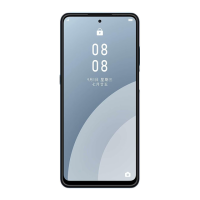
Hisense F10User Manual
Manufactured by Hisense Communications Co.,Ltd.
4G LTEReady
* Please check with your network operator if 4G LTE is
available on your SIM.
5“HD ,13MAF+5MFF
Screen displays and
illustrations may differ
from those you see on
actual phone.Some of
the contents of this
guide may not apply to
your phone,
depending on the
software and your
service provider. All
information in this
document is subject to
change without notice.

Questions and Answers

  • P
    psullivanJul 29, 2025
    Why does my Hisense F10 Cell Phone have no network connection or a dropped network?
    • S
      Steven WrightJul 29, 2025
      If your Hisense Cell Phone displays 'No network connection' or 'Dropped network', it could be due to a weak signal or being outside the carrier network. Try moving toward a window or into an open area. You may also need to check the network operator coverage map. It is also possible that the operator applied new services, so check whether the SIM card is too old and change your SIM card at your network provider's nearest branch. Contact your service provider for assistance.
  • C
    Carlos WilliamsAug 3, 2025
    What to do if my Hisense Cell Phone shows a charge error?
    • M
      Michelle CarrollAug 3, 2025
      If your Hisense Cell Phone is not charging, ensure the phone is charging at a normal temperature. Also, check the charger and its connection to the phone. Try plugging the charger into a different socket. If the issue persists, the charger may be defective, so replace it. It is also possible that you are using the wrong charger, therefore use only original accessories.
  • D
    dean43Aug 8, 2025
    How to fix a Hisense F10 that cannot be switched on?
    • M
      Maurice HickmanAug 8, 2025
      If your Hisense Cell Phone cannot be switched on, press the Power key for at least two seconds. If it still does not turn on, the battery is likely not charged. Charge the battery and check the charging indicator on the display.
  • C
    Christopher GreenAug 13, 2025
    Why are calls not available on my Hisense F10?
    • D
      Dawn SmithAug 13, 2025
      If your Hisense Cell Phone is not making calls, it may be due to a dialing error, meaning a new network is not authorized. It is also possible that you've reached your pre-paid charge limit. Contact your service provider in this case.
  • A
    Amanda RodriguezAug 18, 2025
    Why doesn't the screen turn on when I receive a call on my Hisense F10 Cell Phone?
    • G
      gabriel64Aug 18, 2025
      If the screen of your Hisense Cell Phone does not turn on when you receive a call, this may be due to a proximity sensor problem. If you use a protection tape or case, make sure it has not covered the area around the proximity sensor. Also, make sure that the area around the proximity sensor is clean.
  • D
    Daniel HeathAug 23, 2025
    Why does my Hisense F10 display contacts doubly?
    • J
      James WatsonAug 23, 2025
      If your Hisense Cell Phone displays contacts doubly, it means that contacts are saved in both the phone and the SIM card. Check your saved contacts.

Summary

Safety Precautions

Medical Device

Precautions for users with implanted medical devices like pacemakers.

Road Safety

Guidelines for safe mobile phone use while driving.

Power Supply & Charging

Instructions and warnings related to charging the device.

Hearing Protection

Advice on protecting hearing from prolonged high volume use.

Protecting the Environment

Guidance on responsible disposal of the phone and batteries.

Cleaning and Maintenance

Proper methods for cleaning and maintaining the phone.

Emergency Call

Information on making emergency calls and network limitations.

Copyright

Legal notice regarding copyright and content usage.

Getting to Know Your Phone

Phone Overview

Visual identification and description of the phone's external parts and buttons.

Installing the SIM;SD card and battery

Charging the Battery

Basic Operations

Turning Your Device On;Off

How to power the mobile phone on and off.

Configuring Your Phone on Start up

Guide for the initial setup process when turning on the phone for the first time.

Home screen

Notifications Panel

Customizing Your Screen

Access to Applications

Main Function

Making and Receiving a Call

Procedures for making and answering phone calls.

Adding Contacts

Steps to add new contact information to the phone's address book.

Sending Messages

Music

Camera

Take photos

Steps to capture still images using the phone's camera.

Record videos

Instructions for recording video clips with the camera.

Chrome

Getting Connected (connection to Wi-Fi)

Important Information

Disclaimer

Troubleshooting

ELECTRIC CHARACTERISTICS

Medical devices

FCC Compliance

Hisense F10 Specifications

General IconGeneral
BrandHisense
ModelF10
CategoryCell Phone
LanguageEnglish

Related product manuals