EasyManua.ls Logo

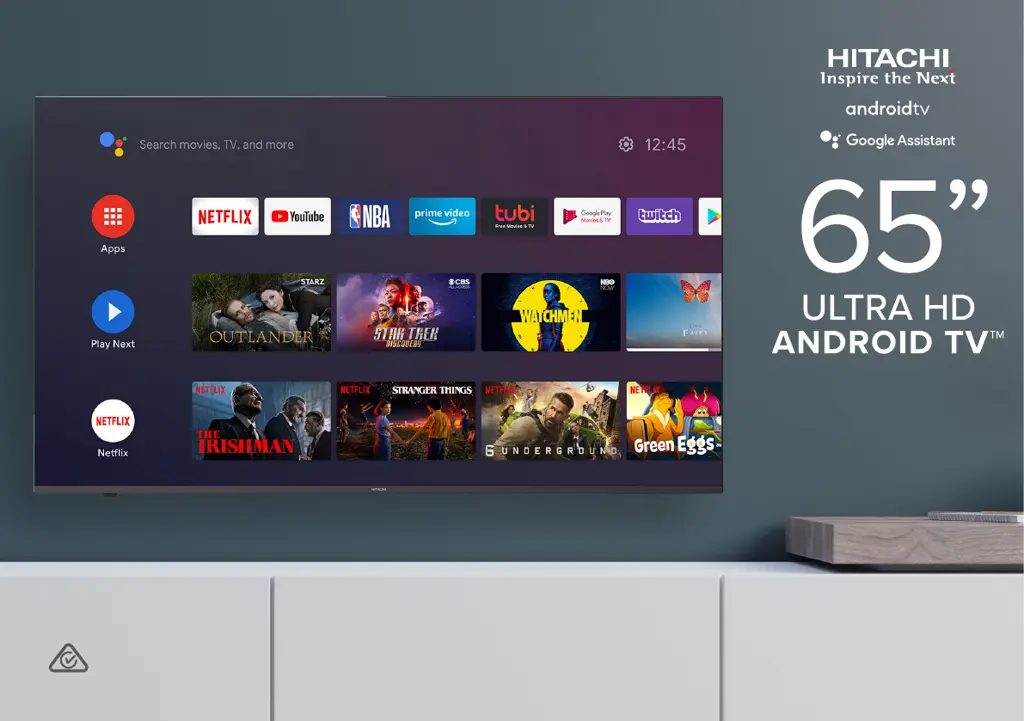
Hitachi 65QLEDSM20 - User Manual

Hitachi 65QLEDSM20
52 pages
Print Icon
To Next Page IconTo Next Page
Loading...
User Manual
65QLEDSM20

Questions and Answers

  • M
    Mrs. Autumn WatkinsAug 3, 2025
    How to fix Hitachi 65QLEDSM20 remote not working?
    • K
      Kim MartinezAug 3, 2025
      If your Hitachi TV remote control isn't working, first ensure the batteries are correctly installed, matching the + and – poles. Then, remove any obstructions between the remote and the TV's sensor. Check if the TV's power indicator blinks when you press the remote's power button; if not, replace the batteries. Try pointing the remote directly at the sensor from about 1.5-1.8 meters away.
  • M
    Melanie ShawAug 8, 2025
    What to do if my Hitachi 65QLEDSM20 TV won't turn on?
    • E
      Erica LittleAug 8, 2025
      If your Hitachi TV won't turn on, ensure the AC power cord is securely plugged into the wall outlet and that the outlet is switched on. Check if the power indicator at the bottom of the TV is lit. If you're using a multi-outlet, verify it's functioning correctly by plugging the TV directly into a wall outlet. Also, try turning on the TV using the power button located on the TV itself.
  • M
    Megan ArnoldAug 23, 2025
    Why is there no picture or sound on my Hitachi 65QLEDSM20 from an external device?
    • A
      adamtateAug 23, 2025
      If you're experiencing no picture or sound, or distorted picture/sound from an external device connected to your Hitachi TV, verify that the connection to the device is correct and all cables are fully inserted. Try removing and reconnecting all cables connected to both the TV and the external devices, and if possible, test with new cables. Restart the connected devices by unplugging them and plugging them back in. If 'No Signal' is displayed, ensure the correct input source is selected. For 4K playback, use a High-speed HDMI cable and adjust the HDMI EDID version setting under settings > Device Preferences > Inputs.
  • M
    Michael NguyenAug 28, 2025
    Why is my Hitachi TV not recognizing USB device?
    • K
      Kristine SmithAug 28, 2025
      If your Hitachi TV isn't recognizing a USB storage device or media files aren't playing correctly, note that while the TV has been tested with many devices, it may not be compatible with all. If the external hard drive has its own power adapter, make sure to use it. Only use a USB storage device formatted in the FAT32 file system provided with Windows. The TV may not recognize the USB device or read the files if it's connected with a USB extension cable. Files using unsupported codecs or containers won't play. Some files may not play correctly if there's an error in the content or container, or if they are encoded in a way that is not compatible. Sound or video may not work if they have standard bit rates/frame rates above the TV’s compatibility ratings.
  • R
    Roberto WilcoxNov 12, 2025
    What to do if there is no sound on Hitachi 65QLEDSM20 TV?
    • D
      Daniel KnightNov 12, 2025
      If you're experiencing no, distorted, or delayed sound on your Hitachi TV, first ensure the volume isn't muted and increase it using the VOL+ button. Check the volume level of any connected external devices. Unplug any connected earphones. Make sure the connection to any external audio devices is correct and all cables are fully inserted. Verify the correct input source and audio settings are selected on the external audio device. Move the TV away from other electronic devices that may cause interference. If using HDMI-ARC, ensure the connected device supports it and ARC is enabled. For optical cables, check that Settings > Device Preferences > Sound > Digital Output is set to 'PCM'. If the sound isn't synchronized with the picture, adjust Settings > Device Preferences > Sound > SPDIF Dela...
  • S
    Suzanne RodriguezNov 17, 2025
    How to fix no internet connection on Hitachi 65QLEDSM20?
    • B
      Bradley PatelNov 17, 2025
      If your Hitachi TV has no or intermittent internet connection, and you're using Wi-Fi, double-check that the Wi-Fi password is entered correctly. Try turning off your access point, waiting two minutes, and then turning it back on. Make sure there are no obstructions between the TV and the access point, as appliances, cordless phones, or stone walls can weaken the Wi-Fi signal. Reduce interference by turning off other wireless devices. If the Wi-Fi connection continues to fail, connect the TV to the access point using a LAN cable. If a wired connection works, the issue may be with the Wi-Fi access point itself; try using a different one. When using a LAN cable, ensure it's CAT 5 or higher and properly plugged in at both ends. If using a static IP, verify that the network addresses are enter...

Summary

Setup and Preparation

Whats in the box

Lists all items included in the TV package.

Important Tips for Setup

Key advice for initial setup and handling.

Installing the TV Stand

Step-by-step instructions for attaching the TV stand.

Wall-mounting the TV

Guidelines for safely mounting the TV on a wall.

Connecting Power and Antenna

How to connect the TV to a power source and antenna.

Controls and Connections

TV Physical Controls

Overview of the TV's physical features and indicators.

TV Ports Overview

Details the various input and output ports on the TV.

Remote Control

Remote Setup and Batteries

Instructions for inserting batteries into the remote control and safety.

Remote Operation Guide

How to use the remote control effectively and pair it with the TV.

Remote Control Buttons

Identifies buttons and functions on the remote control.

On-Screen Setup Guide

Initial TV Setup Menu

Outlines the initial setup steps presented on the TV screen.

Quick Setup Options

Describes the different methods for initial TV setup.

Accessing Connected Devices

Steps to view content from external devices connected to the TV.

Subtitle Control

Instructions for enabling or disabling subtitles.

Media Playback from USB

How to play videos, photos, and music from a USB drive.

Smart TV Features

Netflix App Usage

Information about using the Netflix streaming service on the TV.

Download or Delete Apps

Procedures for downloading and removing applications.

Chromecast Streaming

How to cast content from other devices using Chromecast.

Voice Interaction

How to use voice commands via Google Assistant.

Google Home Integration

Connecting the TV with Google Home for smart device control.

TV Setting Menus

Menu Navigation

How to navigate through the TV's settings menus.

Picture Settings

Detailed options for adjusting picture quality and display settings.

Sound Settings

Options for adjusting audio output, sound modes, and equalizer.

Channel Settings

Procedures for channel scanning, editing, and parental controls.

Network & Internet Settings

Configuration for wired and wireless network connections.

Accounts and Sign-in

Managing Google accounts and app synchronization.

Google Assistant Settings

Customizing Google Assistant search and content filtering.

App Management

Managing installed apps, permissions, and security settings.

Retail Mode Settings

Options for using the TV in retail or store display mode.

About TV Information

Accessing system updates, software version, and legal notices.

Date & Time Settings

Configuring the TV's date, time, and time zone.

Input Source Settings

Managing and customizing input sources for connected devices.

Power Settings

Adjusting sleep timer, picture off, and auto power-off features.

Screen Saver & Location

Configuring screen saver timers and managing location services.

Accessibility Settings

Features to assist users with disabilities.

Reset TV Settings

Options to reset TV settings to factory defaults.

Remotes & Accessories

Pairing and managing remote controls and other accessories.

High Dynamic Range (HDR)

Information and settings for HDR picture enhancement.

TV Guide

TV Guide Functions

How to use the TV guide to select channels and programs.

Recording and USB Mode

Important Tips for Recording

Key advice for using USB storage for recording.

Recording Live TV

Steps to start, stop, and schedule TV recordings.

Playback Recorded Content

How to view recorded programs and delete files.

Pause Live TV (Time-shift)

Temporarily pausing live TV and resuming playback.

Troubleshooting

Remote Control Issues

Solutions for problems with the remote control not working.

TV Power Issues

Solutions for the TV not turning on.

Picture;Sound Issues (DTV)

Troubleshooting picture and sound problems in DTV mode.

External Device Picture;Sound Issues

Solutions for issues with connected external devices.

Delayed Sound Issues

Troubleshooting audio synchronization and delay problems.

Internet Connectivity Problems

Solutions for no or intermittent internet connection.

USB Device Recognition

Troubleshooting issues with USB device recognition and media playback.

Specifications

Compliance and Responsible Disposal

Packaging Disposal

Guidance on environmentally friendly disposal of product packaging.

Product Disposal

Instructions for responsible disposal of the TV at its end of life.

Compliance Standards

Information about the product's compliance with safety standards.

Trademark Acknowledgements

List of trademarks and their owners mentioned in the manual.

Hitachi 65QLEDSM20 Specifications

General IconGeneral
BrandHitachi
Model65QLEDSM20
CategoryTV
LanguageEnglish

Related product manuals